

Customizing your emails
Customize the look and content of the order and ticket confirmations sent to customers — brand colors, sender name, footer, and per-email templates.
Putiikkipalvelu automatically sends your customers an order confirmation for every paid order and a ticket confirmation for ticket orders. In Email settings you can customize how these emails look to match your store and edit their content — without touching any code.
The page is in the left navigation under Settings → Email settings, and is split into two tabs: Email branding (a shared look for all messages) and Email templates (the content of a single email).
Emails are always sent
Order and ticket confirmations are mandatory customer messages and cannot be turned off. If you customize nothing, the emails go out with clean default styles — customizing is entirely optional.
Email branding
The branding tab settings affect all emails sent to customers at once.
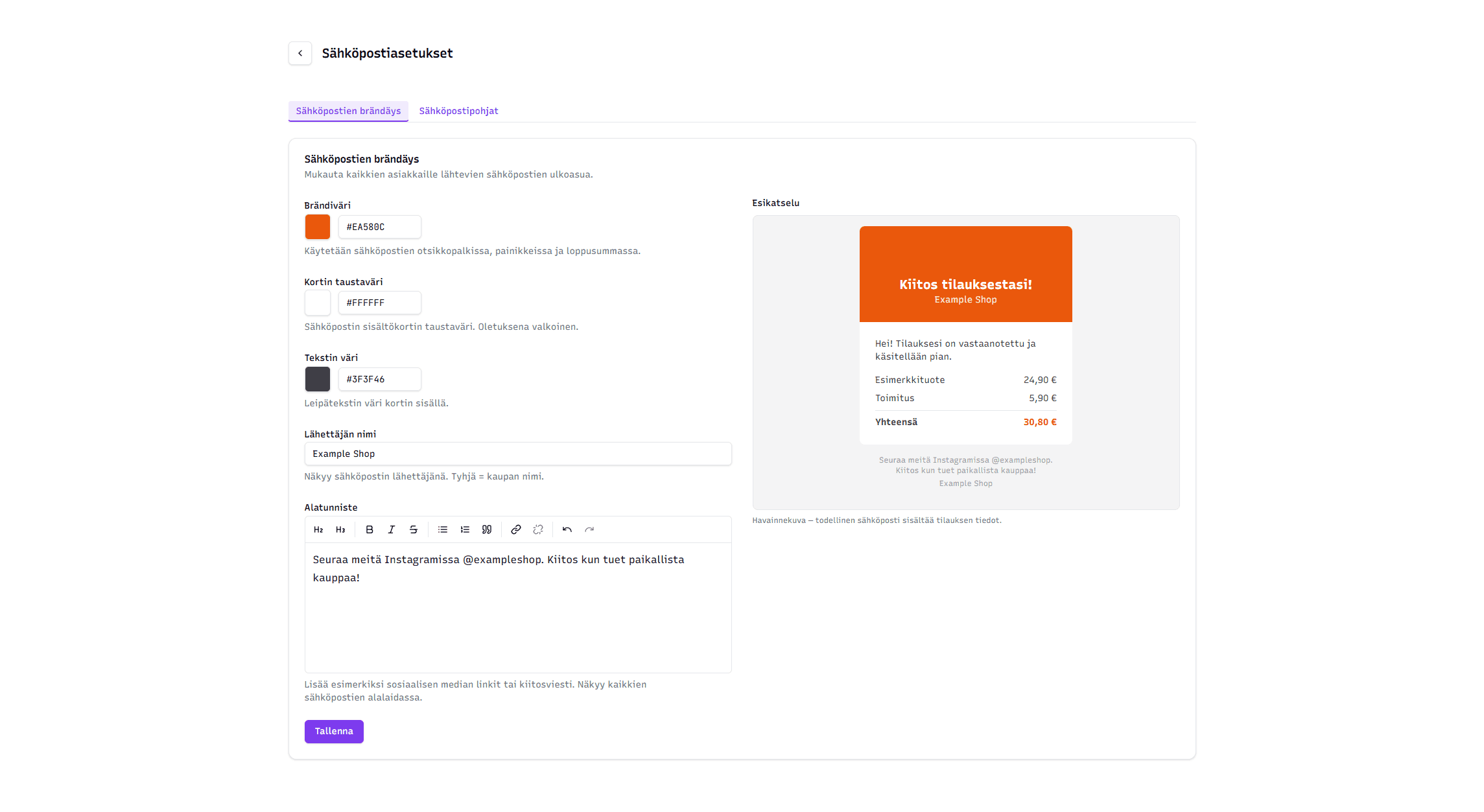
| Setting | Description |
|---|---|
| Brand color | The primary color used in the email header bar, buttons and order total |
| Card background | Background color of the email content card. White by default |
| Text color | Body text color inside the card |
| Sender name | Shown as the email sender. Leave empty to use the store name |
| Footer | A free text field at the bottom of the message — e.g. social media links or a thank-you note. Shown at the end of every email |
Pick colors by clicking the color swatch (opens a color picker) or typing a hex code (e.g. #7c3aed) directly into the field.
Preview
Next to the form is a Preview that updates in real time as you change colors or text. You see immediately how the email looks to a customer.
Check color contrast in the preview
Colors are completely free, so it's possible to pick a combination where text disappears into the background:
- A light brand color makes the white header text hard to read.
- A text color close to the card background (e.g. both light) makes the body text invisible.
Use the preview: if the text is clearly visible there, it's visible in the customer's email too. The default colors (dark purple bar, white card, dark grey text) are always legible.
Email templates
The Email templates tab edits the content of a single email. First choose the template to edit from the Choose email template dropdown: the options are Order confirmation and Ticket confirmation.
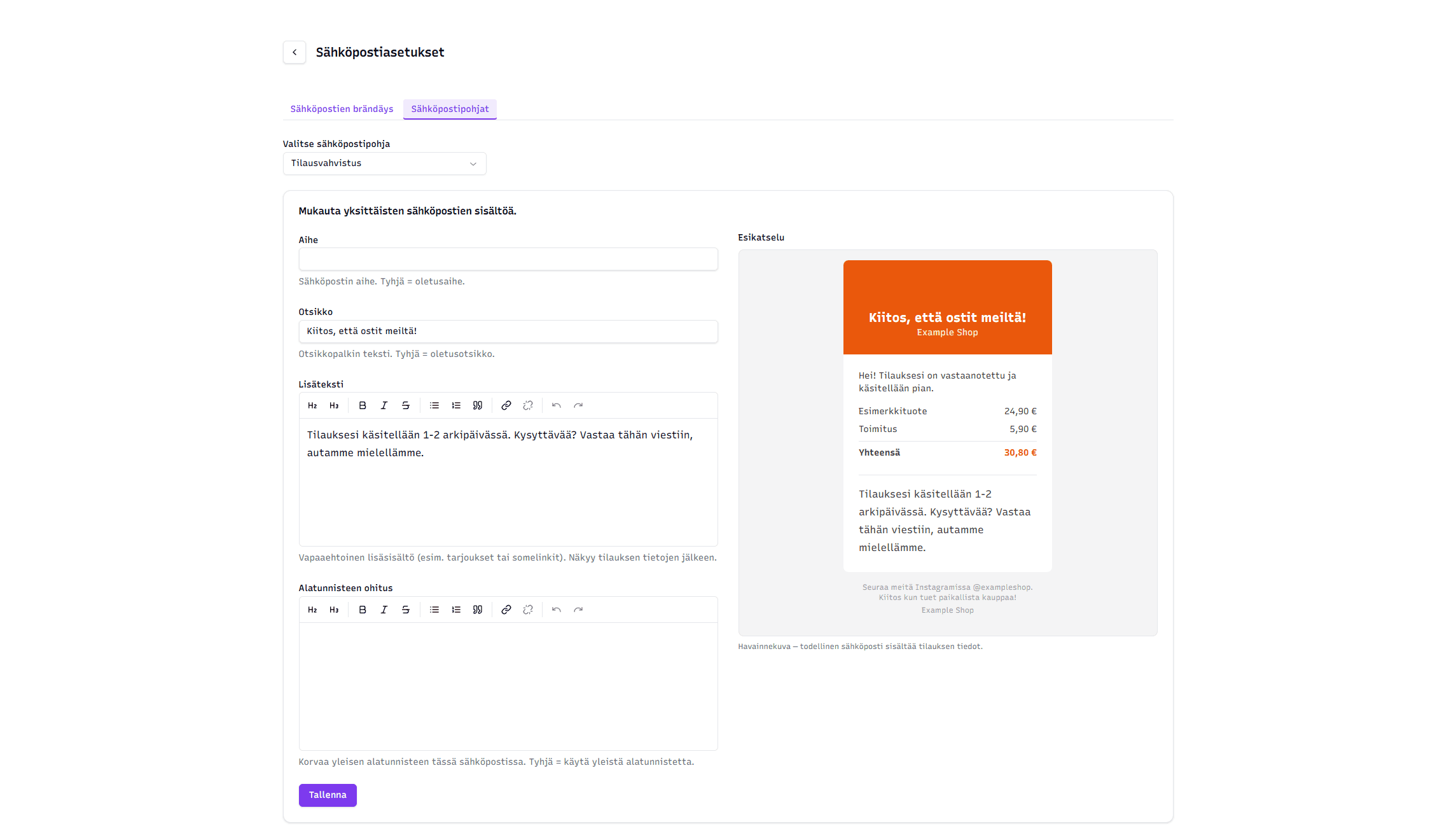
| Field | Description |
|---|---|
| Subject | The email subject line. Empty = default subject |
| Headline | The text shown in the header bar. Empty = default headline (e.g. Thank you for your order!) |
| Extra text | Optional extra content (e.g. a promo or social links). Shown after the order details |
| Footer override | Replaces the global footer for this one email. Empty = use the global footer from the branding tab |
Per-template settings override the global ones
Every field is optional. An empty field falls back to the default or the shared value from the branding tab. For example: set a shared footer on the branding tab, and override it only for the ticket confirmation by filling Footer override on that template.
What the customer sees
The finished email is built from three parts: a header bar (brand color, your headline, store logo and name), a content card (the order or ticket details) and a footer.
Order-critical information — the order number, purchased products, totals, and ticket codes and QR codes — is always shown in a fixed, highly legible style regardless of the colors you choose. This keeps the most important information clear with any color combination.
Logo and reply address
The header bar logo is taken from the Store settings page. Customer replies to the emails go to the store's customer-service or owner address — see Store settings.
Related topics
- Store settings — logo and email addresses
- Notifications and notification emails — alerts sent to the store owner
- Ticket system — background on the ticket confirmation
Store settings
A walkthrough of the dashboard's Store settings page — general info, SEO, API key, store transfer, and CSV import
Notifications and notification emails
Choose which store events you're notified about and how — as an in-app notification in the dashboard bell, or as an email to your store address.