

Notifications and notification emails
Choose which store events you're notified about and how — as an in-app notification in the dashboard bell, or as an email to your store address.
Putiikkipalvelu can notify you about important store events — new orders, stock running low, and new customers. In Notification settings you choose which events you want to know about and through which channel.
The page is in the left navigation under Settings → Notification settings.
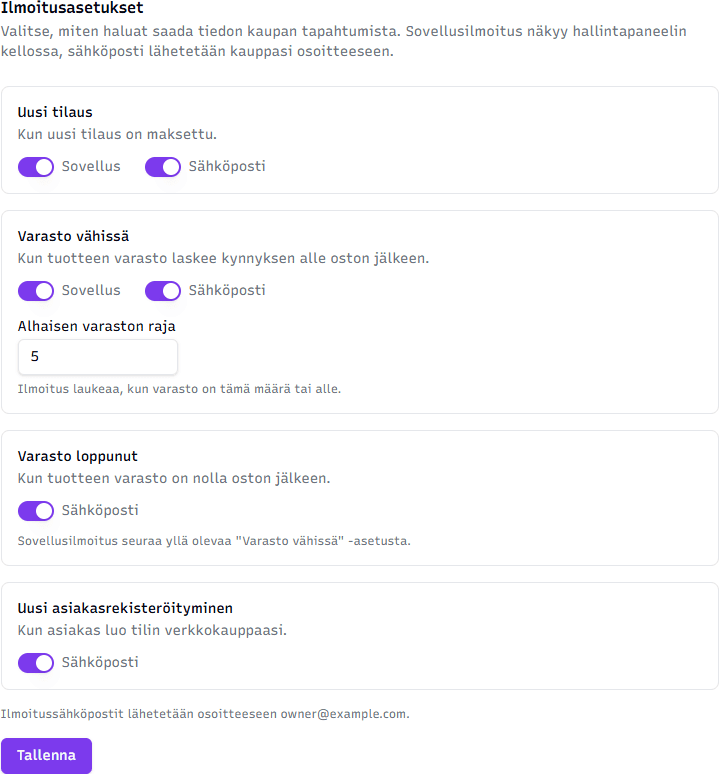
Channels
Each event has its own switches for two channels:
- In-app — the notification appears in the bell icon at the top of the dashboard. Handy while you're working in the dashboard.
- Email — the notification is sent to your store's email address. Handy when you're not logged in.
You can keep both on, just one, or turn an event off entirely.
Events
| Event | Channels | When it fires |
|---|---|---|
| New order | In-app + Email | When a new order is paid |
| Low stock | In-app + Email | When a product's stock drops below your threshold after a sale |
| Out of stock | When a product reaches zero stock after a sale | |
| New customer registration | When a customer creates an account in your store |
Low stock threshold
The Low stock event has an extra setting, Low stock threshold (default 5). The alert fires when a product's remaining stock is at or below this value after a sale. Set the threshold based on how early you want to restock.
Out of stock and the in-app notification
The Out of stock event only has an email switch. Its in-app notification (in the bell) follows the Low stock setting above — i.e. zero stock shows in the bell using the same switch as low stock, and there's no separate in-app switch for it.
Where the emails are sent
Notification emails are sent to the store owner's email address, defined in Store settings (the Email field). The bottom of the page states which address the messages currently go to.
Change the recipient in store settings
If you want notifications to go to a different address, change the Email field in Store settings. Note this is the owner's own address — not the public customer-service address.
Tips
- Keep the New order email on if you don't watch the dashboard constantly — that way you won't miss orders.
- If you get too many warnings in a busy store, lower the Low stock threshold or turn off the Low stock email and watch stock from the in-app bell instead.
Related topics
- Customizing your emails — the look of emails sent to customers
- Store settings — the owner's email address
- Managing orders — processing orders