

Shipping methods
Comprehensive setup guide for custom shipping methods and the Shipit integration
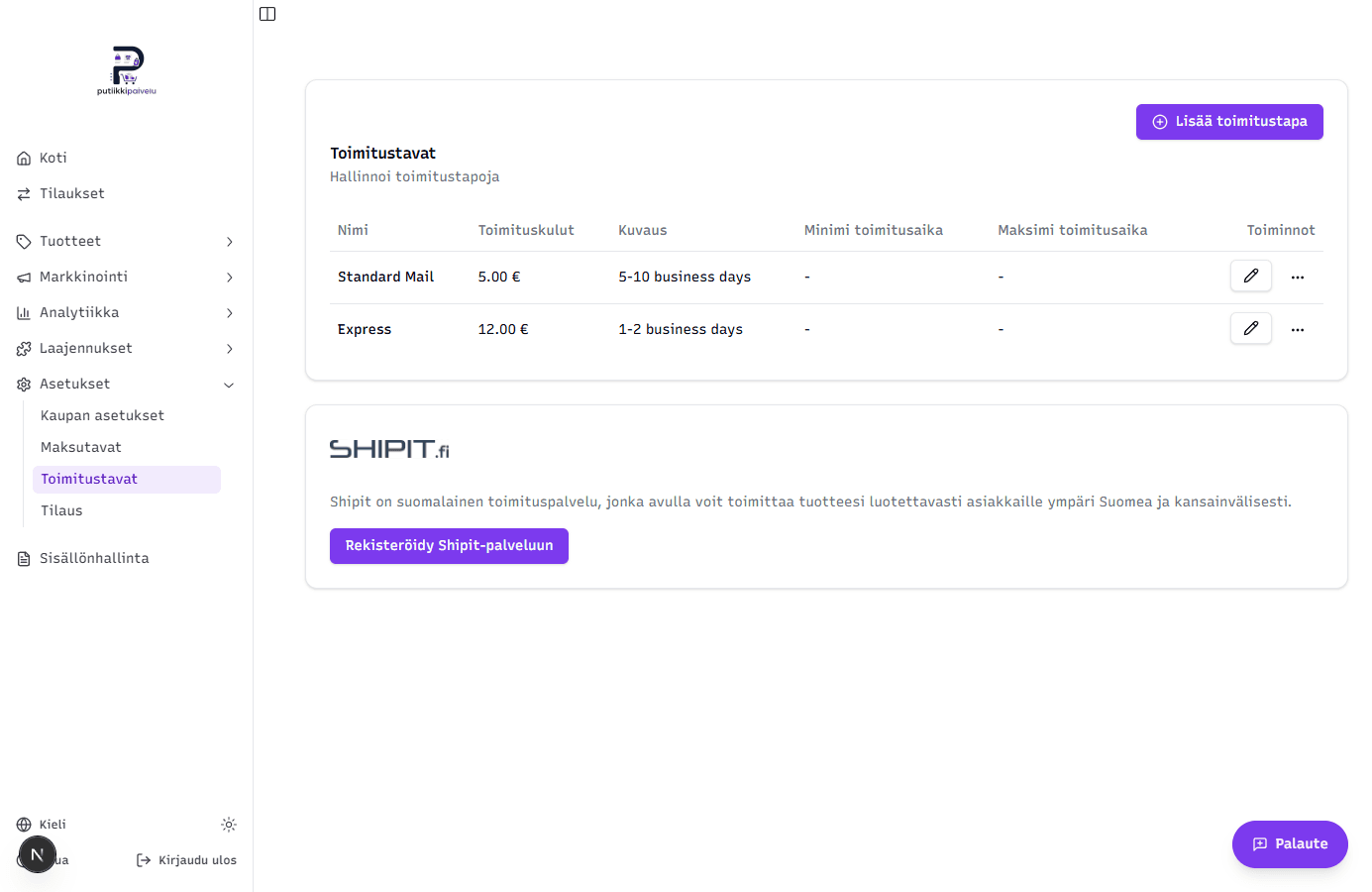
Shipping methods are the options a customer chooses from at checkout — how their order will be delivered. Putiikkipalvelu supports several different shipping methods that can be combined freely — add as many as you need, and the customer picks the one that suits them best at checkout.
Currently available methods are:
- Custom manual shipping methods — you define the name, price, and description, and you handle the packaging and shipping yourself. Good for personal delivery, "Pick up at the store", or if you already have a contract with a carrier.
- Shipit integration — connect your store to Shipit, a Finnish service that gives you access to 10+ Finnish carriers (Posti, Matkahuolto, Budbee, PostNord, DHL, etc.) through a single account. You get pre-set rates, automatic label creation, and shipment tracking.
Find the page in the dashboard under Settings → Shipping methods.
Which methods should you use?
It's often a good idea to combine several shipping methods so the customer gets a varied selection. Here's a decision table to help you decide where to focus:
| Situation | Recommendation |
|---|---|
| You sell in Finland and want familiar Finnish methods (Posti parcel, Matkahuolto pickup, Budbee home delivery) | Shipit — you get them all at once |
| You have your own contract with Posti or another carrier at a better rate | Custom shipping — use your own prices |
| You offer store pickup or local delivery | Custom shipping — Shipit doesn't cover this |
| You're just getting started and don't want to register with Shipit | Custom shipping — you can add Shipit later |
| You ship internationally (EU or worldwide) | Shipit — gives you DHL Express, PostNord, and other international carriers |
| You ship in volume (dozens of packages a week) and want automatic label creation | Shipit — saves significant time |
Mix and match as needed
Nothing prevents you from listing, say, "Posti parcel (Shipit)" + "Pick up at the store (custom)" + a method built on your own carrier contract — all at once. The customer picks whichever fits. Putiikkipalvelu shows all checkout shipping methods in the same view.
Custom manual shipping methods
This is the simpler path. You set the name, description, and price — Putiikkipalvelu just shows it at checkout. You handle the packaging, shipping, and label creation yourself, however you've arranged it.
1. Open the create form
On the Shipping methods page, click + Add shipping method in the top right.
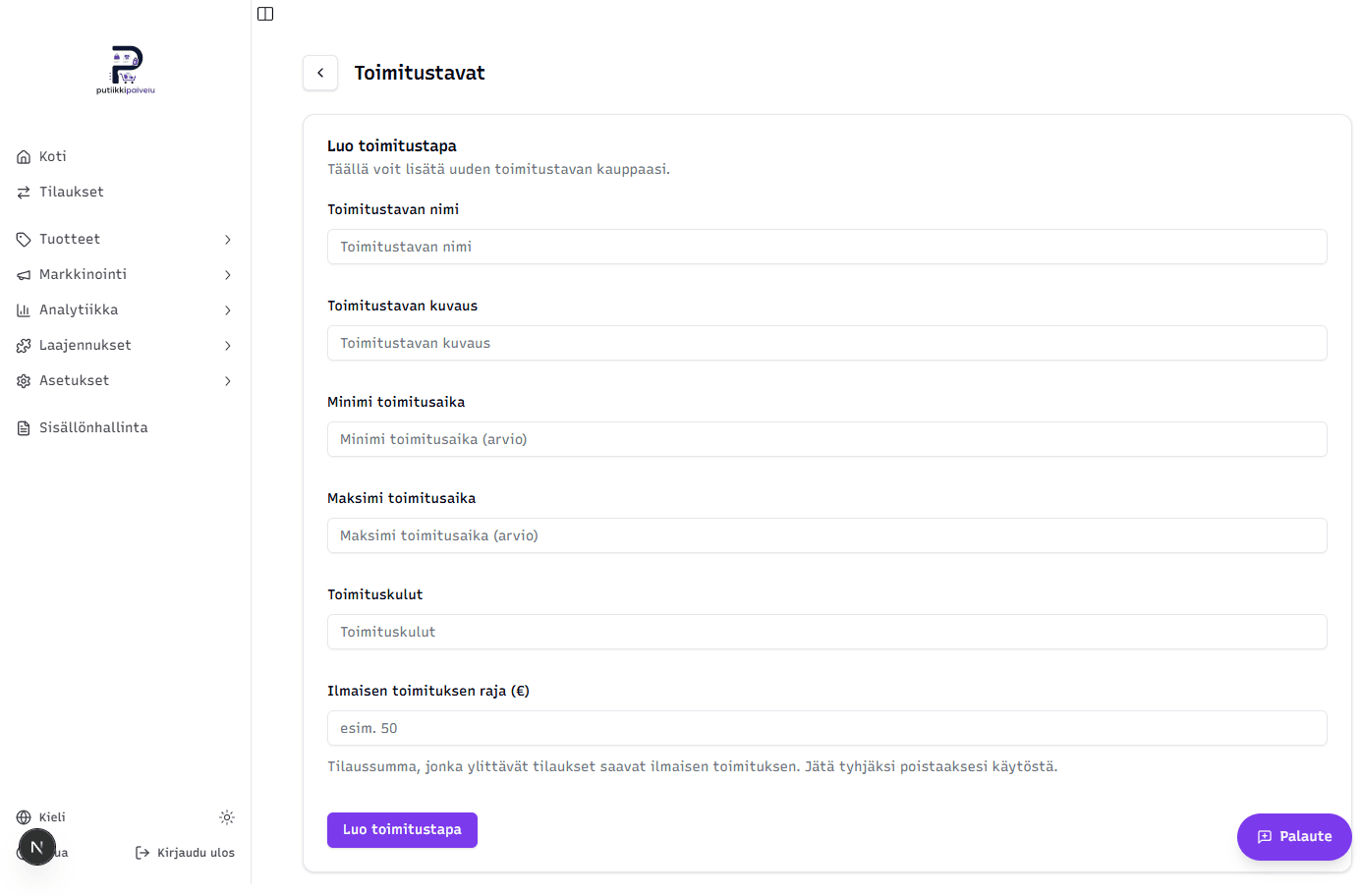
2. Fill in the fields
| Field | Description |
|---|---|
| Shipping method name | What the customer sees at checkout — e.g. "Posti parcel", "Matkahuolto pickup", "Pick up at the store", "Bike delivery in Tampere" |
| Shipping method description | A short explanation under the name, e.g. "Delivery in 1–3 business days". The customer sees this at checkout |
| Min delivery time (business days) | E.g. 1. Optional — leave blank if you don't want to show estimates |
| Max delivery time (business days) | E.g. 3. Optional |
| Shipping cost (€) | What the customer pays. 0.00 = free shipping |
| Free shipping threshold (€) | Optional — if the order total exceeds this, the customer gets free shipping. E.g. 50 means orders over €50 ship free |
3. Save
Click Create shipping method. The method appears on the list immediately and is shown at checkout from the next order onwards.
Editing and deleting
In the shipping methods list, in the Actions column:
- Pencil button — opens the edit form, where you can update the name, price, and other fields
- Three dots → Delete — removes the method. Existing orders aren't affected — they keep the name and price they were placed with
Tip — multiple custom methods
You can create several custom methods with different prices or coverage. E.g. "Cash on delivery (€5)" + "Pick up at the store (€0)" + "Express delivery (€15)". The customer picks what suits them best at checkout.
Shipit integration
Shipit is a Finnish shipping service that bundles many carriers behind a single API. With one Shipit account you get:
- Posti (parcels, pickup points, small parcel)
- Matkahuolto (parcels, Lähellä parcel, distribution service)
- Budbee (evening home delivery in larger Finnish cities)
- PostNord (Finland + the Nordics)
- DB Schenker Suomi (parcels, K-Market locker network)
- Instabox / Instabee (lockers)
- Wolt (ultra-fast local delivery)
- DHL Express, Bring, Kaukokiito, GLS, UPS, FedEx, DPD and others
In addition, Shipit handles label creation and tracking codes for you — and you often get better rates than buying from carriers directly.
Step 1 — Connect or register a Shipit account
Click Register with Shipit on the Shipit card at the bottom of the Shipping methods page. You'll be taken to a page with two tabs:
Option A — "Connect existing" (if you already have a Shipit account)
If you're already a Shipit customer, you can link your existing account by entering your API credentials.
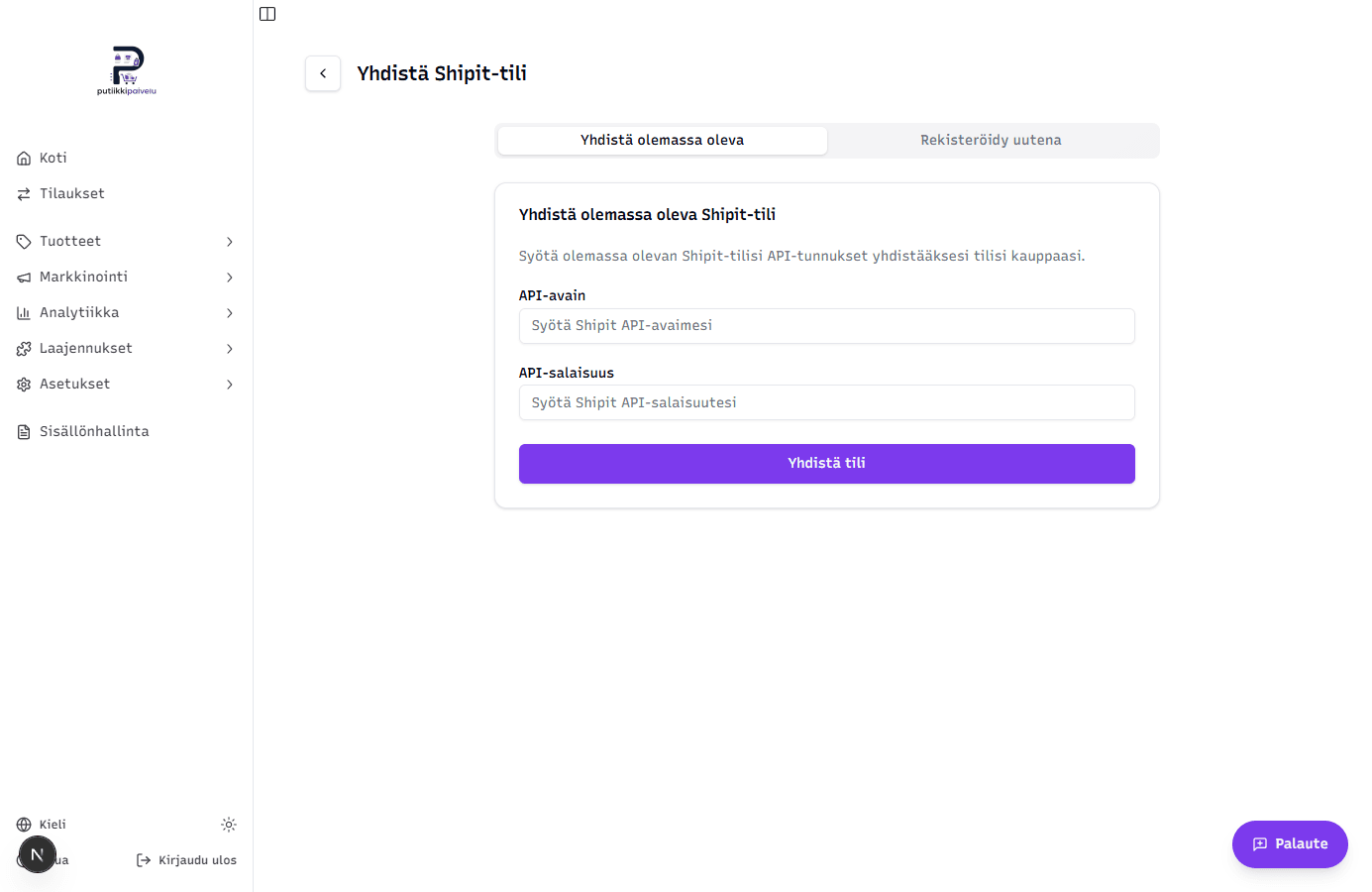
You'll find the credentials in Shipit's own dashboard (ask Shipit support if you can't find them):
| Field | Where to find it |
|---|---|
| API key | In the Shipit panel, in the API credentials section — usually a long random string |
| API secret | The Secret value from the same section. This is sensitive — don't share it externally |
Click Connect account. Putiikkipalvelu stores the credentials encrypted in AWS Secrets Manager (they can't be read back from the dashboard once entered) and returns you to the Shipping methods page.
Option B — "Register as new" (if you're not a Shipit customer yet)
If you don't yet have a Shipit account, Putiikkipalvelu can create one for you — you don't need to visit the Shipit website separately.
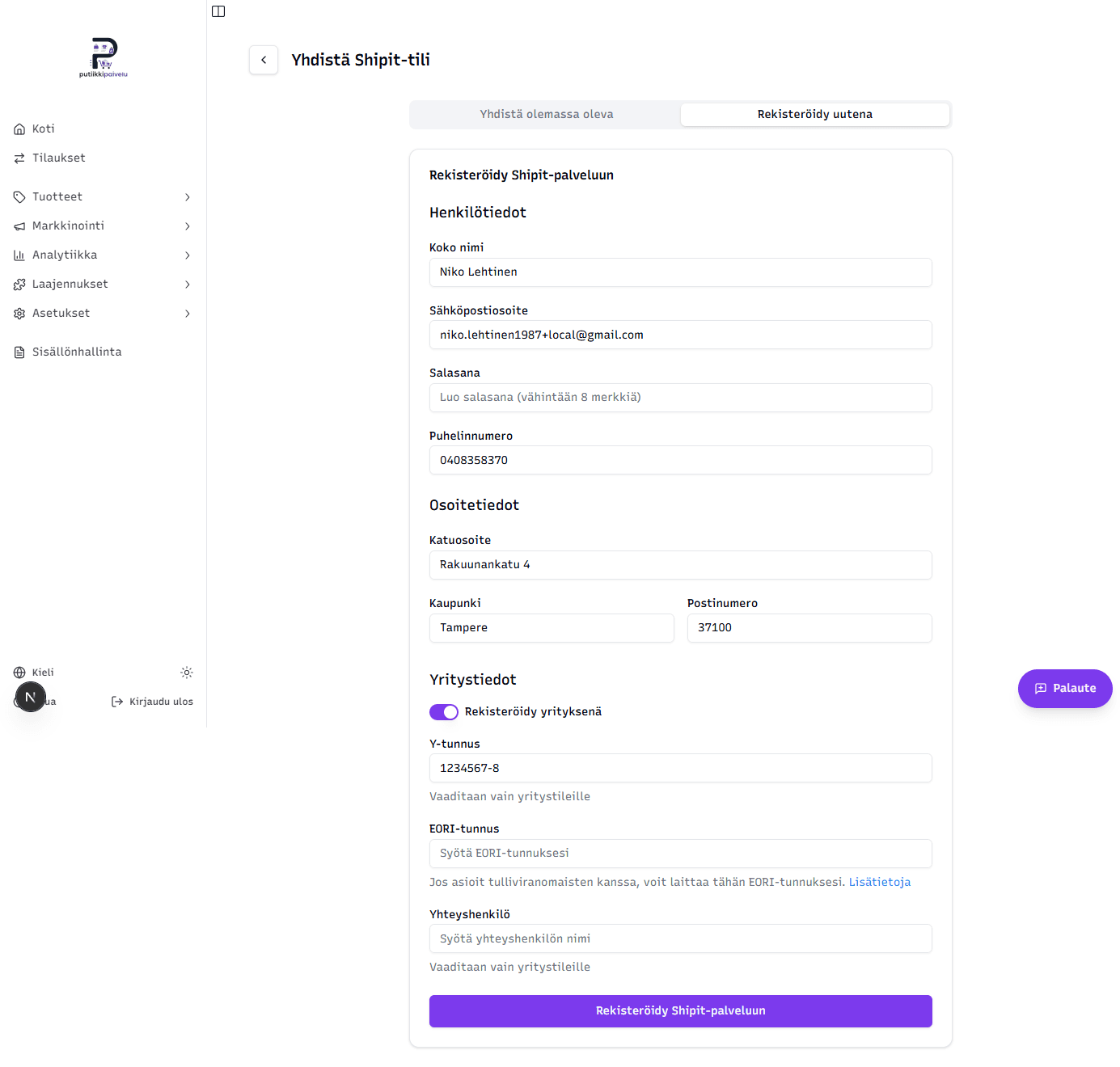
The form is prefilled as much as possible from your store settings (name, email, phone, address, Business ID). Check those values and fill in the rest:
Personal info
| Field | Description |
|---|---|
| Full name | Contact person's name |
| Email address | Shipit's correspondence comes here — can be the same as the store email |
| Password (at least 8 characters) | This is what you'd use to sign in to Shipit's own panel if you want to |
| Phone number | Contact info |
Address info — used as the sender address on shipping labels.
| Field | Description |
|---|---|
| Street address | E.g. Rakuunankatu 4 |
| City | E.g. Tampere |
| Postal code | E.g. 37100 |
Company info — toggle on only if registering as a business:
| Field | Description |
|---|---|
| Business ID | Required for business accounts |
| EORI number | Optional — only needed when shipping outside the EU and dealing with customs. More info in Shipit's guide |
| Contact person | The primary contact person at your business |
Click Register with Shipit. Putiikkipalvelu creates the account, fetches API credentials for it, and stores them encrypted — all in one click.
Step 2 — Add shipping methods from Shipit
Once the integration is connected, the Shipit card on the Shipping methods page changes into a list of shipping methods. Click + Add shipping method in the Shipit section to open the carrier picker.
Filtering and search
At the top there are two tools to help you find what you need from dozens of options:
- Filter shipping methods — dropdown that lets you choose:
- All — every method Shipit supports (Finland + EU + global)
- Domestic shipments (default) — Finland-only methods
- Pickup points — drop-off points only (lockers, R-kioski, K-Market, etc.)
- Home delivery — door-to-door methods only
- EU shipments — Europe
- Worldwide shipments — global
- Search — type a carrier name or method (e.g. "Posti", "Budbee", "DHL")
Most popular first
For Finnish customers, the familiar names matter most. Putiikkipalvelu sorts the list automatically by popularity:
- Posti — Finland's market leader, effectively a must-have
- Matkahuolto — broad pickup network, high customer satisfaction
- Budbee — urban evening home delivery, popular with younger demographics
- DB Schenker Suomi — K-Market locker service
- PostNord — Nordic shipments
- Instabox / Instabee — automated lockers
- Wolt — local express delivery
- DHL Express — international express
- Bring — Nordics
- Kaukokiito — heavy and bulky items (furniture, etc.)
Pick a method
Click a carrier card — a blue border marks the selected one. Below you'll see "Selected: ...". Click Continue to settings.
Method settings
This is where you configure how the Shipit method appears to customers and how you'll use it:
Basics
| Field | Description |
|---|---|
| Method name on the storefront | Prefilled with Shipit's name but editable. E.g. "Posti parcel" or "Pickup point delivery" |
| Shipping method description | E.g. "Delivery in 1–3 business days" |
| Price (€) | What the customer pays. Putiikkipalvelu doesn't auto-price based on Shipit — you decide the markup |
| Free shipping threshold (€) | Optional — if the order total exceeds this, the method shows up free |
Set your own price, not Shipit's directly
Shipit charges you per shipment, but you decide what to charge the customer. Check Shipit's current rates in their panel and set a price that covers their fee + packaging materials + your time.
Settings (when the method supports pickup points)
| Setting | What it does |
|---|---|
| Show pickup points | When on, the customer gets a pickup-point map at checkout to pick where the parcel goes |
| Hide outdoor lockers | When on, outdoor lockers are excluded from the pickup-point list (e.g. customers often avoid them in winter) |
Shipment automation
This decides when Shipit creates the shipping label for an order:
| Option | Use case |
|---|---|
| Automatic after payment (default) | The moment the customer pays, Shipit creates the label at the default size. You just need to print it. The easiest option for high volume |
| On label download | You open the order in the dashboard, click Download label, and at that point set the actual parcel size. Good for products of varying sizes |
| Manual | Putiikkipalvelu does nothing — you create the label yourself in Shipit's own panel. Use when you want to handle shipments fully manually |
Default parcel size
Shipit needs the parcel dimensions for method-availability checks (e.g. a large parcel doesn't fit in a small locker) and for label creation during automation.
You get presets matching common Finnish Posti locker sizes:
| Preset | Dimensions (L × W × H) | Weight | Fits |
|---|---|---|---|
| Small parcel / XS | 34 × 24 × 2.5 cm | 0.5 kg | Garment, envelope, thin item |
| Small parcel (S locker) | 39 × 29 × 9 cm | 1.0 kg | Book, small box, jewelry |
| Medium (M locker) | 58 × 34 × 17.5 cm | 3.0 kg | Clothing, medium item |
| Large parcel (L locker) | 58 × 35 × 34 cm | 5.0 kg | Large box, multiple items |
| Custom | You enter the values | You enter the value | Especially large/heavy item |
You can also enter dimensions manually — the preset switches to Custom automatically.
Maximum cart weight (kg)
Optional extra filter: if the cart's total weight exceeds this, the method isn't shown to the customer. Useful for preventing, say, a 20 kg shipment in a small locker that only takes 5 kg.
Product weight matters
The max-weight filter only works if you've added product weights under Products → [product] → Weight. Without weights, Shipit can't compute the cart total and the filter doesn't function. The weight field is in kilograms.
Save
The Create shipping method button saves the method. It appears on the Shipit shipping methods list and is visible at checkout from the next order onwards.
Multiple Shipit methods
It's a good idea to add multiple Shipit methods in parallel so the customer can pick what suits them best. A typical Finnish combo:
- Posti parcel to pickup point (locker, post office, K-Market) — most common, most popular
- Posti parcel home delivery — for those who want door-to-door
- Matkahuolto Lähellä parcel — for Matkahuolto loyalists
- Budbee Home Delivery (if you ship to Helsinki/Tampere/Turku) — evening delivery
- DHL Express (if you ship internationally) — express shipping
Editing and deleting a Shipit method
In the Shipit shipping methods list:
- Pencil button — opens the edit form
- Trash button — removes the method (but not the Shipit integration itself)
Removing the entire Shipit integration
The Shipit section header has a Delete integration button. This:
- Removes the Shipit API credentials stored in Putiikkipalvelu (also from AWS Secrets Manager)
- Removes all Shipit shipping methods from the checkout
- Doesn't remove your Shipit account itself — you can reconnect the same account from the Connect existing form
A confirmation dialog verifies the action before running.
How shipping methods appear at checkout
The customer picks the shipping method at checkout — after entering their delivery address (postal code). Putiikkipalvelu:
- Filters out Shipit methods that aren't available for the entered postal code
- Filters out methods whose max weight or parcel size doesn't match the cart
- Automatically shows free shipping if the customer has crossed the threshold you set
- Shows a pickup-point selector based on the customer's postal code, if the method has pickup points enabled
Tips and common combinations
Combine different shipping methods
Use as many shipping methods in parallel as your business needs — that way you get broad carrier coverage plus your local special cases. E.g.:
- "Pick up at the store" — custom, €0
- "Posti parcel to pickup point" — Shipit, €5.90
- "Posti parcel home delivery" — Shipit, €8.90
- "Express delivery" — custom, €15 (you handle it yourself)
Use the free-shipping threshold
"Free shipping over €50" is a well-known way to lift average order value. Each shipping method can have its own threshold — so you can make only pickup-point delivery free, while always charging for home delivery, for example.
Add weights to your products
If you use Shipit methods with weight or size limits, make sure to add product weight under Products → [product] → Weight. Without it, Putiikkipalvelu can't compute the cart's total weight and can't filter shipping methods correctly. The weight field is in kilograms.
Troubleshooting
| Problem | Likely cause |
|---|---|
| A shipping method doesn't appear at checkout | It's not available for the customer's postal code — try with a known Finnish postcode |
| All Shipit methods are missing | The Shipit integration has been removed or the API credentials no longer work — visit the Shipping methods page to check |
| The max-weight filter excludes a method even though the product is light | Products don't have weight set — Putiikkipalvelu assumes a non-zero weight |
| Labels aren't being created automatically | Shipment automation is set to Manual or On label download — check the setting |
| Auto-create on payment failed (the order has no label) | The order page's Shipment summary card shows a Create shipment button so you can create the label yourself — if it fails again, the notice shows the reason the carrier returned |
| The label was created with the wrong address | Correct the recipient details on the order page and click Re-create shipping label — see Order details |
| The customer can't pick a pickup point at checkout | The Show pickup points toggle is off, or the carrier doesn't support pickup points |
| EORI number is requested but I don't have one | EORI is only required when shipping outside the EU — you can leave it empty if you only sell within the EU |
Related topics
- Store settings — the address Shipit uses as sender info
- Payment methods
- Order details — downloading shipping labels per order