

Payment methods
Setting up and activating Stripe, Paytrail and PayPal payment integrations on the checkout
Putiikkipalvelu supports three payment integrations: Stripe for international card payments (Visa, MasterCard, Apple Pay, Google Pay, etc.), Paytrail for Finnish online-bank and mobile payments (OP, Nordea, MobilePay, Pivo, Siirto, etc.), and PayPal for wallet payments that work alongside the other two.
You'll find the page in the dashboard under Settings → Payment methods.
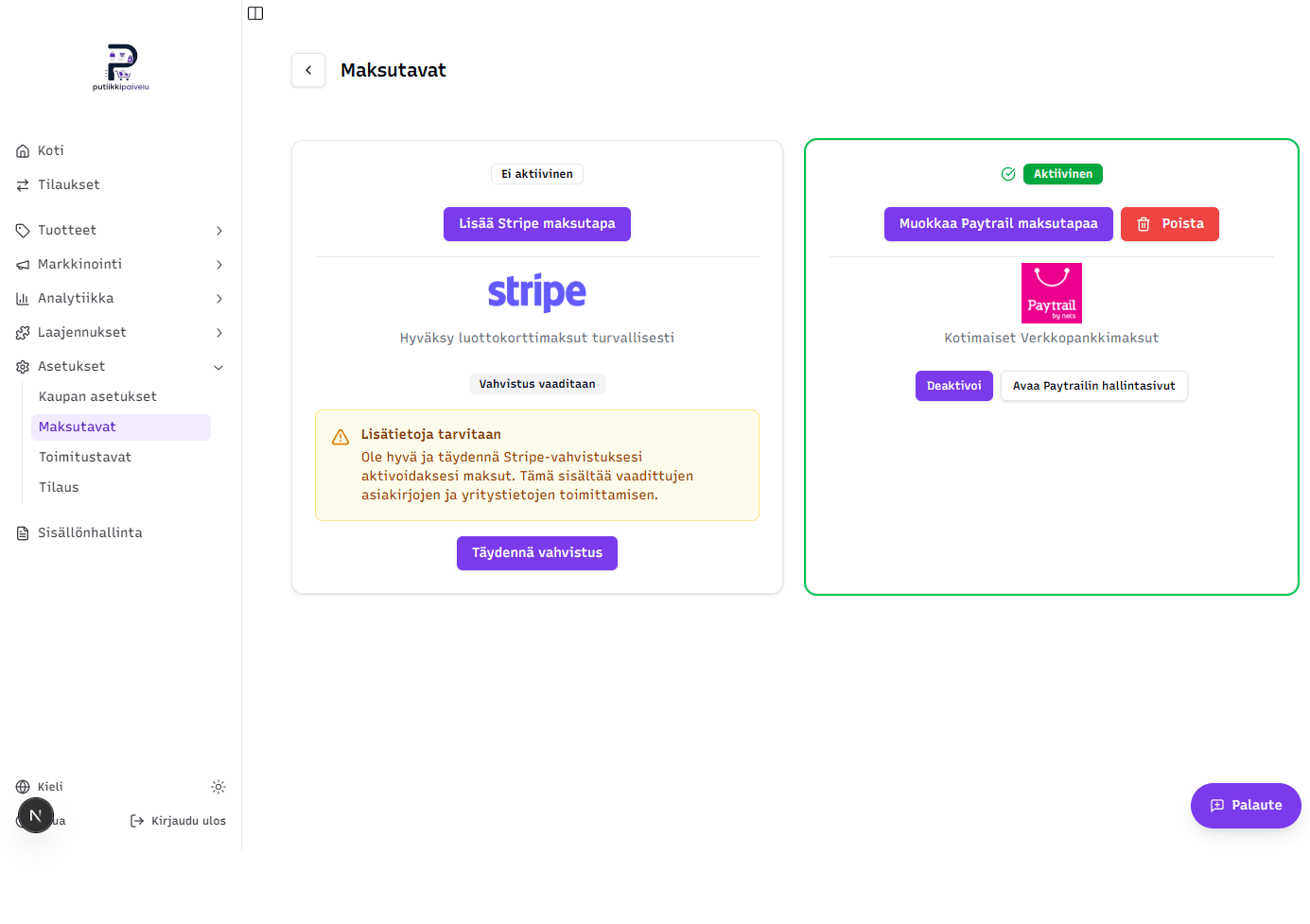
Only one primary payment method at a time
You can configure both Stripe and Paytrail, but only one of them is shown at the checkout. Activating one automatically deactivates the other. PayPal is the exception: it's a wallet payment shown alongside the active primary method — activating it doesn't deactivate anything.
Before you start
- The store's basic info is filled in (Settings → Store settings). The Payments page shows a guidance card if it isn't.
- For Paytrail and PayPal, the store's basic info needs a Business ID (Y-tunnus) — the cards are greyed out without one. See Store settings for more on the Business ID.
Stripe — guided setup
Stripe setup is guided — you click a button in the dashboard, you're redirected to Stripe's own onboarding form, and you return with the integration ready.
1. Start onboarding
Click Add Stripe payment method on the Stripe card. In the background, Putiikkipalvelu creates a Stripe Connect Standard account in Finland and builds a Stripe account onboarding link, then redirects the browser to it.
2. Fill in the details on Stripe
Stripe's form asks for things like:
- Business type and Business ID (if a business) or social security number (if a private individual)
- Bank account for payouts
- Description of the online store (industry, products)
- Verification documents (ID, possibly business documents)
Stripe handles identification and KYC requirements on your behalf — Putiikkipalvelu doesn't store your bank or personal data.
3. Return to Putiikkipalvelu
Stripe's page has a Return to Putiikkipalvelu button. Clicking it brings you back to the dashboard where the Stripe card status updates automatically.
Stripe statuses
The Stripe card can show five different statuses, each with its own action button:
| Status | What it means |
|---|---|
| Inactive | Not yet set up — click Add Stripe payment method |
| Verification required | The Stripe account exists, but some details are still missing. A yellow Continue setup button takes you back to Stripe at the spot you stopped |
| Restricted | Stripe has restricted the account (e.g. requesting more documents). Payments can't be received until it's resolved in the Stripe Dashboard |
| Disabled | Set up but not activated on the checkout. The card has an Activate button |
| Active | In use on the checkout (green border). Deactivate turns it off without removing it |
Removing Stripe
Active or disabled Stripe integrations can be removed with the Delete button. The confirmation dialog reminds you that earlier orders are preserved, and that re-onboarding requires creating a new Stripe account from scratch.
Paytrail — manual entry
Paytrail requires you to register on Paytrail's own service first and obtain your Merchant ID and Merchant Secret from there. You then enter them in a dialog inside the dashboard.
1. Find the Merchant ID and Merchant Secret in Paytrail
Paytrail has its own guide for finding these credentials in their Merchant Panel:
How to find your Merchant ID and Merchant Secret — Paytrail support article (Finnish)
In short:
- Sign in to the Paytrail Merchant Panel at merchant.paytrail.com
- Pick the right shop if you have several
- Merchant ID is the numeric identifier shown in the panel
- Merchant Secret is in the Technical details section — copy it carefully
2. Enter the credentials in Putiikkipalvelu
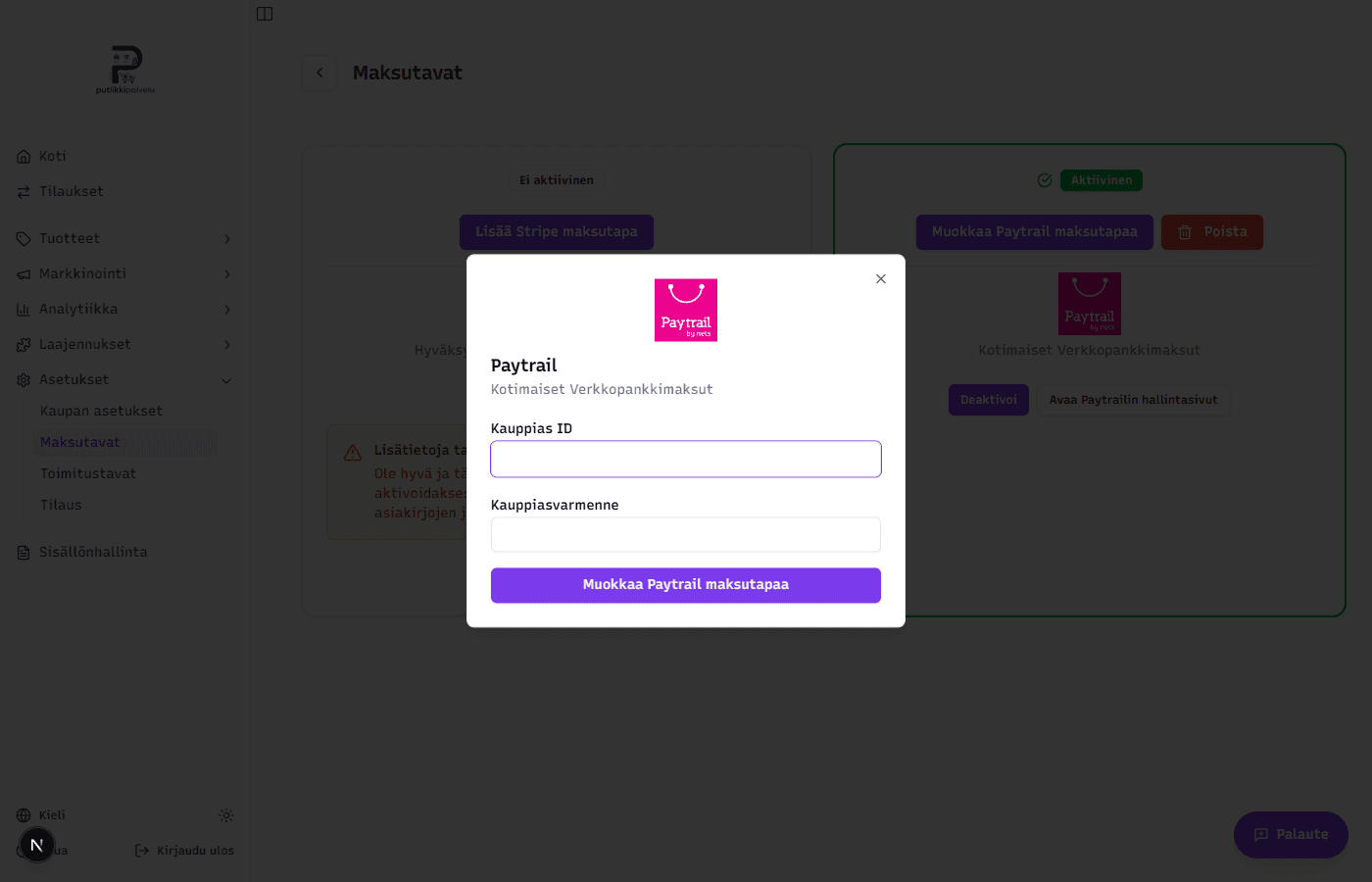
The Add Paytrail Payment Method button on the Paytrail row opens a dialog with two fields:
| Field | What goes here |
|---|---|
| Merchant ID | The numeric ID copied from the Paytrail panel |
| Merchant Secret | The secret key copied from Paytrail's Technical details |
The Save details button saves the credentials. The Merchant Secret itself is encrypted and stored in AWS Secrets Manager — it can no longer be read from the dashboard once entered.
Test credentials are blocked in production
Paytrail's public test credentials (Merchant ID 375917 and Merchant Secret SAIPPUAKAUPPIAS) are blocked in Putiikkipalvelu. Always use your real shop's credentials.
Paytrail statuses
| Status | What it means |
|---|---|
| Setup Required | Credentials haven't been entered yet — Add Paytrail Payment Method opens the input dialog |
| Inactive | Credentials saved but not activated on the checkout. The Activate button switches it on |
| Active | In use on the checkout (green status badge). Deactivate turns it off without removing it |
Updating credentials
If Paytrail issues you new credentials (e.g. the secret has leaked), click Edit on the Paytrail row and enter the new values. The old secret is replaced immediately.
Removing Paytrail
The Delete button wipes the integration entirely. The confirmation dialog reminds you that earlier orders are preserved — removal only affects new orders.
PayPal — a wallet alongside the others
PayPal doesn't compete with Stripe and Paytrail — it complements them: when active, customers see a Pay with PayPal button at the checkout in addition to the regular payment methods. Setup uses your own PayPal Business account — you create an app in PayPal's developer portal and paste its Client ID and Client Secret into the PayPal card's input dialog.
The whole path is documented step by step in its own article: Setting up PayPal payments.
Activating on the checkout
Once you've configured at least one payment method, activate it for the checkout. This happens in two ways:
- Stripe automatically becomes active once Stripe's onboarding is fully completed (the status changes to Active)
- Paytrail and deactivated Stripe integrations are activated using the Activate button at the bottom of the card
Activating one deactivates the other
You can have only one primary payment method (Stripe or Paytrail) active at a time. If Stripe is active and you click Activate on the Paytrail card, Stripe automatically moves to Disabled. Earlier orders aren't affected by the switch — it only changes which method new customers see at the checkout. Activating PayPal affects neither.
Which one to choose?
| Situation | Recommendation |
|---|---|
| Customers are mostly Finnish and want online-bank or MobilePay payments | Paytrail — covers all domestic banks and mobile payment apps |
| Customers are international and want card payments (incl. Apple Pay, Google Pay) | Stripe — works everywhere and supports a broad range of cards |
| You don't have a Business ID and don't want to register a business | Stripe — doesn't necessarily require a Business ID |
| You have a Business ID and customers expect Finnish payment methods | Paytrail — Business ID is required |
| You have international buyers who prefer paying with PayPal | PayPal alongside either one — its own guide |
You can switch between methods at any time — both can be configured side by side and activation can be toggled as needed.
Related topics
- Setting up PayPal payments
- Store settings — Business ID and other basics
- Shipping methods
Notifications and notification emails
Choose which store events you're notified about and how — as an in-app notification in the dashboard bell, or as an email to your store address.
Setting up PayPal payments
Enable PayPal at the checkout with your own PayPal Business account — alongside Stripe or Paytrail.