

Creating a product
Comprehensive guide to adding a product — details, images, additional info, categories, and SEO
Creating a product is one of the most frequent tasks. This guide covers every field on the product form in detail. A short walkthrough for the very first product is in Adding your first product.
Product image aspect ratio
When you add your very first product, you pick a single aspect ratio for product images: either Square (1:1) or Portrait (3:4). The same ratio applies to every product image in your store, and the choice cannot be changed once the first product has been saved.
- Square (1:1) works well for electronics, jewelry, and home decor.
- Portrait (3:4) works well for clothing, fashion, and accessories.
A consistent aspect ratio keeps the product listing visually clean — every image you upload later is automatically cropped to this shape. For more on the aspect ratio choice, see Adding your first product.
Form overview
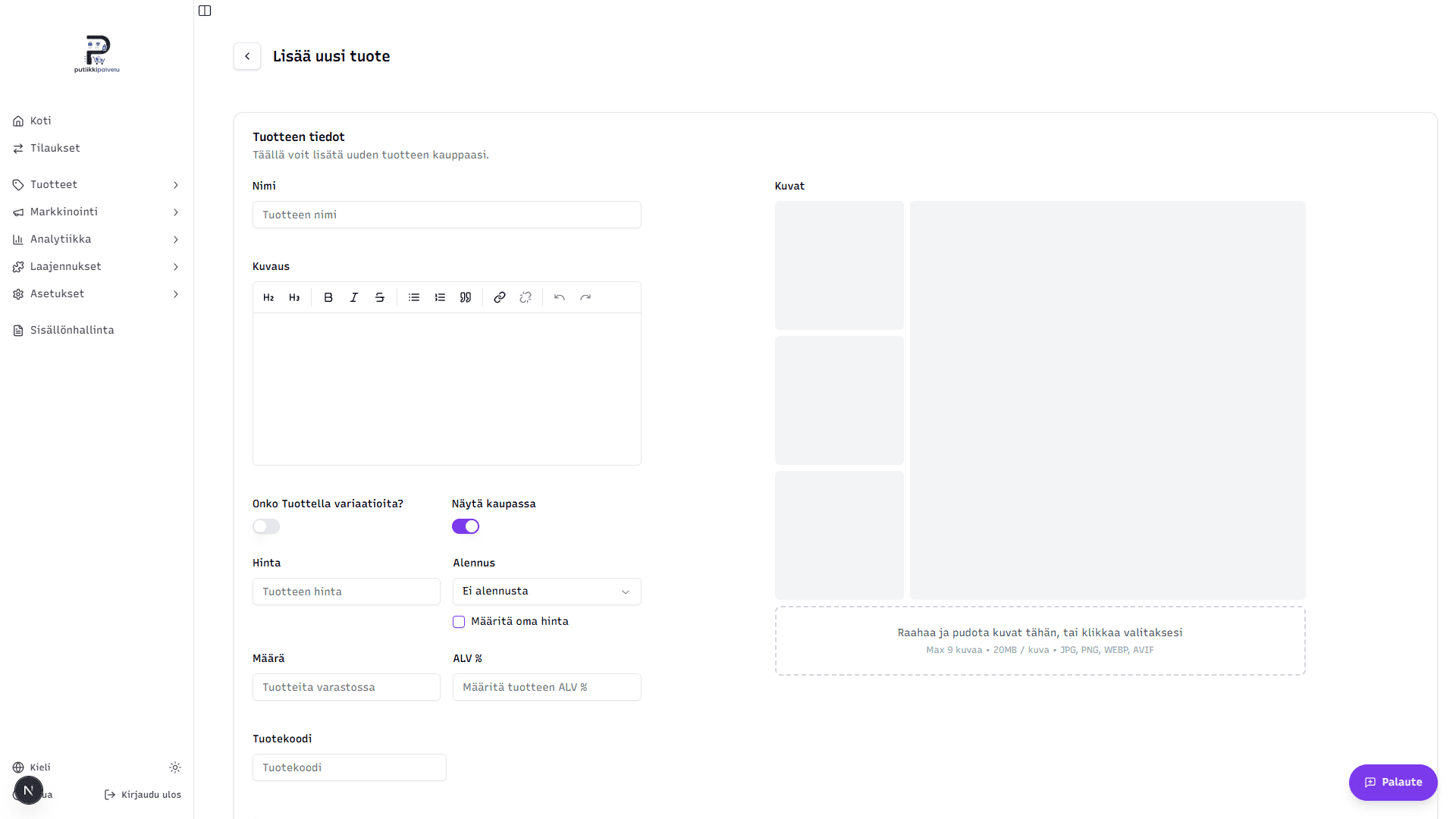
The product form is split into a left column (basic and additional info) and a right column (images). Categories and SEO settings sit below.
Basic information
-
Name — the product's public name in the store. Required.
-
Description — product description with formatting options. Available: headings (H2/H3), bold, italic, strikethrough, ordered and bulleted lists, blockquotes, and links.
-
Does the product have variations? — toggle for products with options (e.g. size or color). When on, saving the form takes you straight to the variation creation step. Variations are covered in the Product variations article.
-
Show in store — toggle that decides whether the product appears in the store immediately or stays hidden. On by default. Useful for hiding the product while you finish images and the description.
-
Price — sale price in euros, VAT included.
-
Discount — two ways to set a discount price:
- Pick a preset discount percentage from the dropdown (e.g. -10%, -25%, -50%)
- Or check Set custom price and enter your own discount price in euros
Alongside a discount, the storefront automatically shows the 30-day lowest price required by law. If the product does not yet have 30 days of price history, the form warns that no reference price can be shown. Read more in 30-day lowest price.
-
Quantity — stock count. Leave empty if the product has no stock limit.
-
VAT % — the product's VAT percentage. Finland's standard rate is 25.5. If left empty, the store-level default is used.
-
Product code (SKU) — your internal code for inventory tracking. Not shown to customers.
Product images
Drag and drop images onto the Images area, or click it to choose files. JPG, PNG, WEBP, and AVIF are supported. Up to 9 images per product, max 20 MB each.
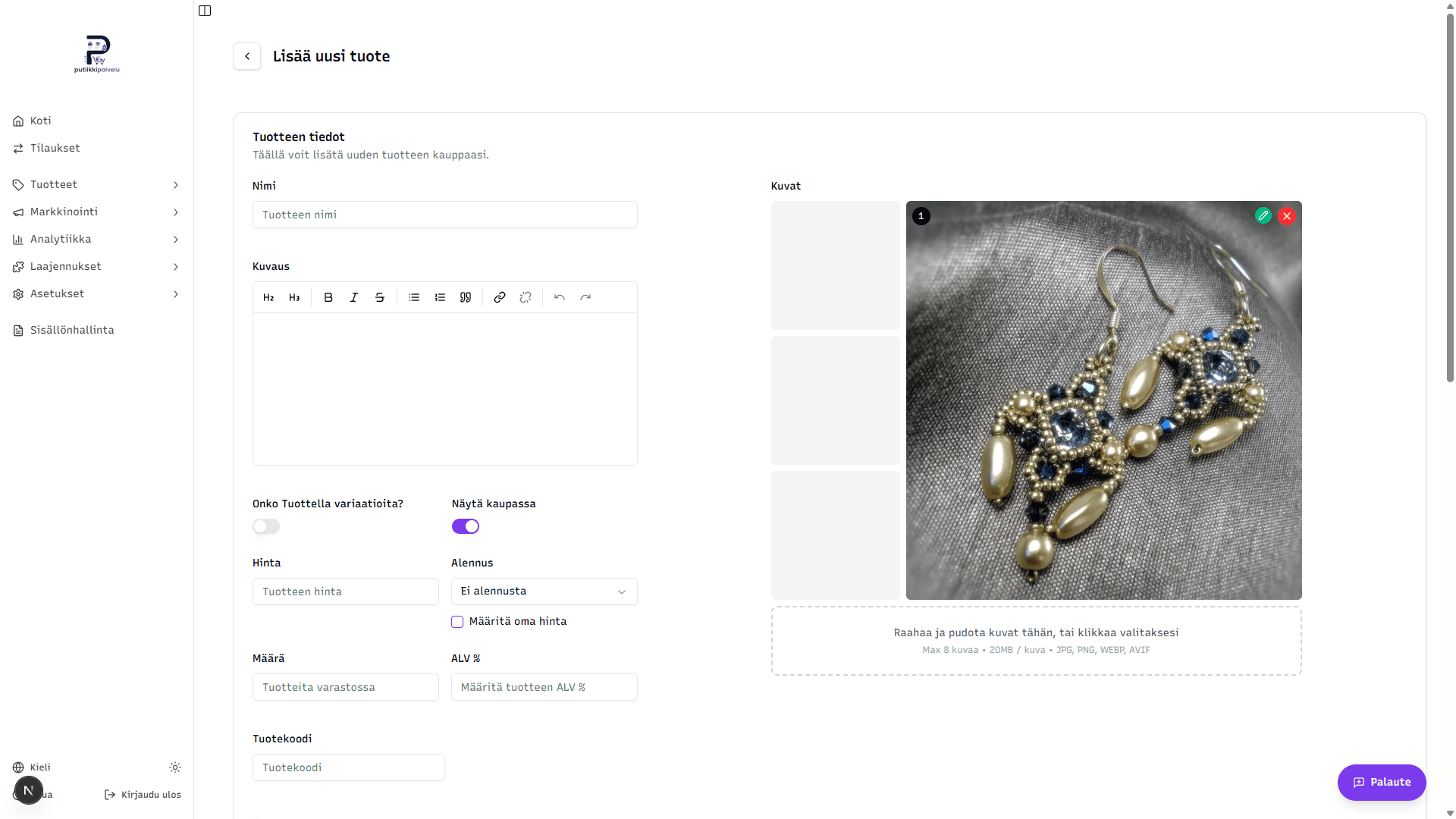
- Main image — the first image (number 1) is the product's main image. It's used in the product listing and in social media shares.
- Order — drag images to reorder them.
- Crop editing — the green pencil in the top-right corner of an image opens the cropping tool. The aspect ratio is locked to your store setting, but you can move the crop area to whichever part of the photo you want.
- Removing an image — the red cross deletes the image from the list.
Cropping tool
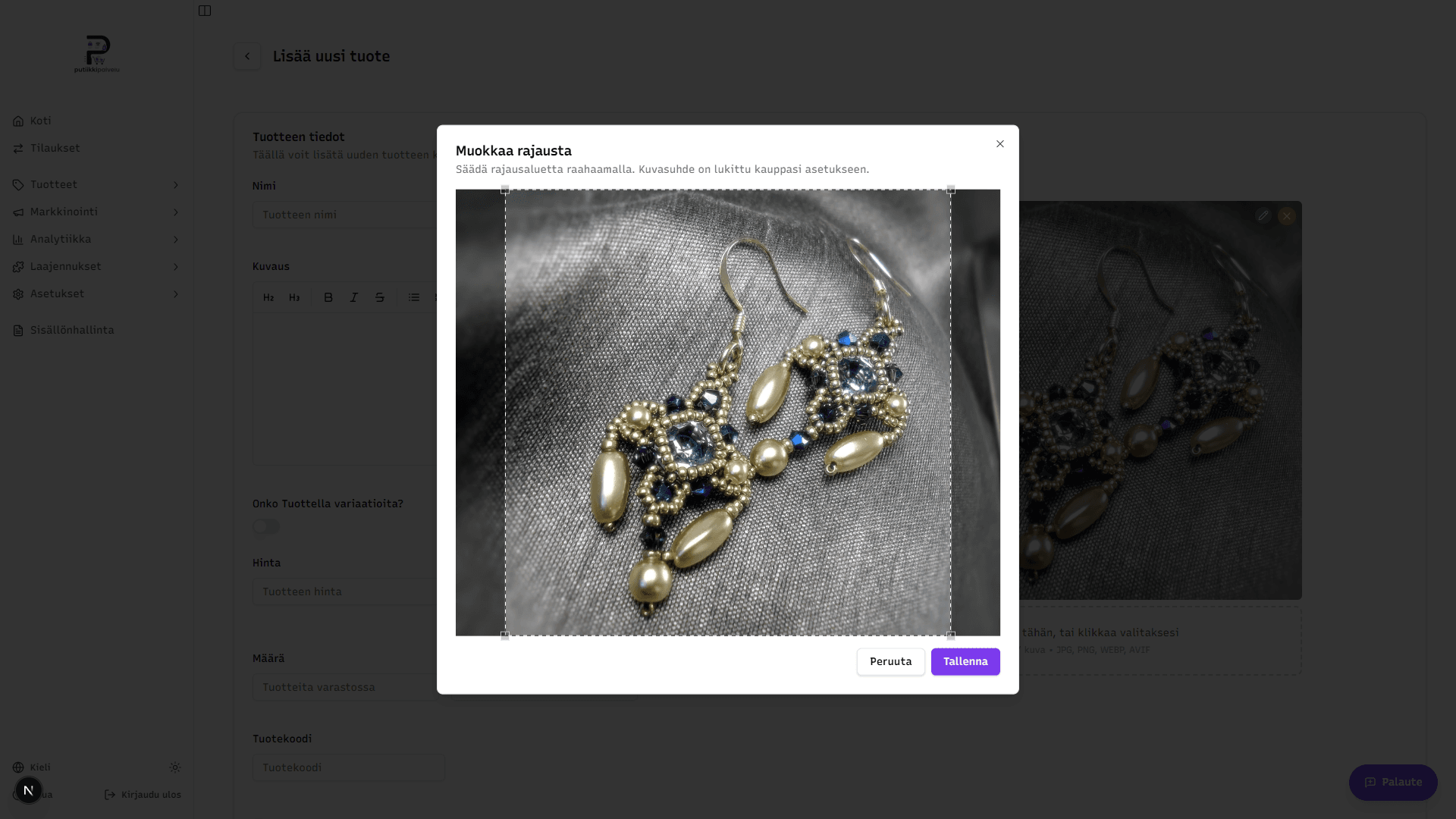
Clicking the green pencil opens the Edit crop dialog. Drag the crop area to adjust where it sits on the image — the aspect ratio is locked to your store setting, so the shape can't be changed, but the position can. Click Save to apply the changes or Cancel to close without saving.
Automatic cropping
On upload, images are automatically center-cropped to the chosen aspect ratio. If the auto-crop doesn't land in the right spot, click the green pencil to adjust the crop area.
Digital product
Check the Digital product box if you sell downloadable content (e.g. a PDF guide or media files). Digital products don't need a shipping method, and their extra fields are covered separately in Digital products.
Additional info
The Additional info section is collapsed by default — click the heading to expand it. The fields are optional, but filled-in data helps with analytics, search engines, and shipping calculations.
- Weight — the product's weight in kilograms. Default 0.5 kg. Affects shipping costs if you use weight-based shipping methods.
- GTIN / EAN — barcode (e.g. 13-digit EAN). Required for Google Shopping feeds and other marketplace integrations.
- Brand — the product's brand. Used in Google Shopping feeds and shown on the product page if your theme uses the brand field.
- Cost price — your purchase price in cents. Used only for analytics margin calculations — never shown to customers.
- Discount duration — check Schedule sale to limit the discount to a specific time window. The fields that appear let you pick the start and end dates of the sale.
Categories
The Categories picker shows your store's full category tree. Click the arrow to expand a top-level category, or type in the search field to filter results. You can pick one or more categories — the same product can belong to multiple categories.
A deeper guide to building the category structure is in the Categories article.
Search engine optimization
- SEO Title — the product's title in search engines. If left empty, the product name is used.
- SEO Description — short description for search engines. If left empty, the product description is used.
The Preview box below shows what the product would look like in Google search results. It updates in real time as you fill in the fields.
Saving the product
Finally, click Create product at the bottom of the page.
- If Does the product have variations? was on, you're taken straight to the variation creation step.
- Otherwise, you're returned to the product listing with a success notification.
Common errors
- Price missing or 0 — make sure you typed a price before saving.
- Images won't upload — check that the file format is JPG, PNG, WEBP, or AVIF and the image isn't over the 20 MB limit.
- Image looks off — automatic cropping doesn't always land in the right spot. Click the green pencil to adjust the crop.
Related topics
- Adding your first product — quick walkthrough and aspect ratio choice
- Categories — building the category tree
- Product variations — adding sizes, colors, and other options
- Digital products — selling downloadable products