

Digital products
Sell files, downloads, and other digital products without physical shipping
Digital products are downloadable files — e.g. e-books (PDF), images, music, or software licenses — without physical shipping. After payment the customer receives a download link by email, and the files can also be re-downloaded from order history if the customer is signed in.
Requirements
- Subscription tier at least BASIC — digital products are not available on the free plan. A paid plan unlocks the feature.
- File size per file depends on subscription tier:
- BASIC — up to 50 MB / file
- PRO and ENTERPRISE — up to 1 GB / file
- Number of files per product is unlimited. You can attach several files under the same digital product (e.g. PDF + source files + bonus material) — they're all delivered together with the purchase.
Upgrading the plan
If you need a larger file size than 50 MB, upgrade to PRO from Settings → Subscription.
Creating a digital product
Open Products → Product listing and click + Add product (basic fields are covered separately in Creating a product).
Fill in the regular product fields (name, price, description, categories, images, SEO) and check the Digital product checkbox at the bottom of the form. A three-field section opens below it:
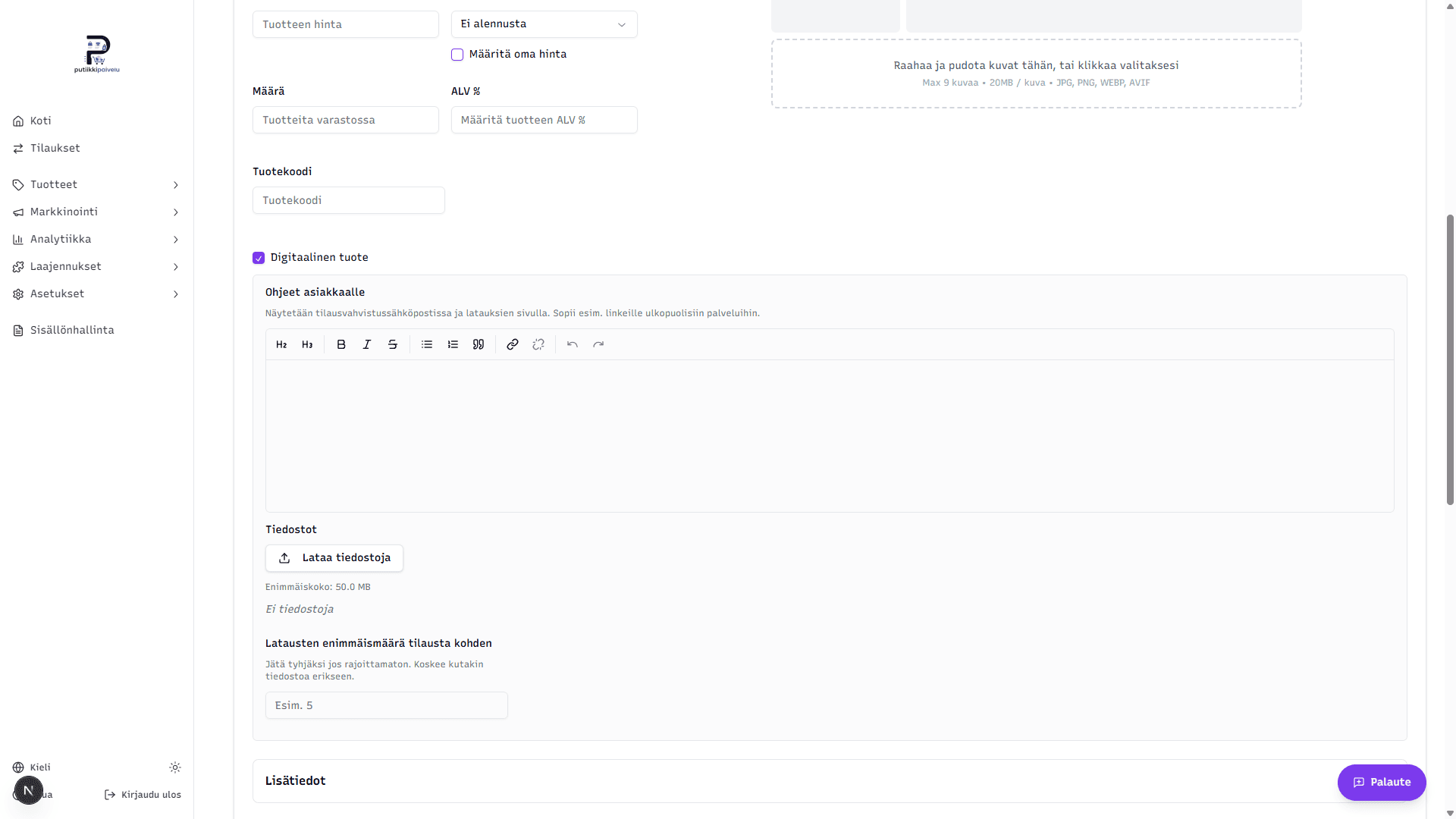
Customer instructions
A free-form rich text field shown to the customer in the order confirmation email and on the downloads page. Good things to put here:
- Installation or usage instructions
- Links to external services (e.g. license server, course portal)
- Support contact details for problems
The field is optional — you can leave it empty if the file downloads alone are enough.
Files
Click Upload files and choose one or more files from your computer. All common formats are supported: PDF, ZIP, MP3, MP4, EPUB, images, documents, and so on. Directly executable program files are blocked for security reasons (e.g. .exe, .bat, .sh, .msi, .dmg, .apk).
- Upload progress is shown as a bar for each file.
- After upload, the file appears in the list with its name, size, and type.
- Renaming — click the file name to give it a clearer customer-facing display name (e.g. "User Guide.pdf" instead of "final_v3_FINAL.pdf").
- Deleting — the trash icon. If the file has already been purchased, the system hides it from new buyers but keeps it available to existing orders (a notification will tell you so).
File too large
If your file exceeds the tier's limit (50 MB on BASIC), you'll see "File is too large". Compress the file or upgrade your subscription.
Maximum downloads per order
A number field that limits how many times a single file can be downloaded for one order.
- Empty = unlimited (the customer can re-download as many times as they want)
- e.g. 5 = each file can be downloaded at most 5 times per order
Use this to discourage large-scale link sharing, for example. For most products unlimited is the friendliest choice — the customer might need to re-download from a new device.
Limit is per file
If a product has e.g. a PDF + a ZIP and the limit is 5, each file can be downloaded 5 times separately — 10 downloads per order in total.
Saving
Click Create product at the bottom of the form. Digital products don't have stock or a shipping method.
Product type can't be changed after creation
Once a digital product is saved, it can't be turned into a physical product (or vice versa). Create a new product of the right type if needed. Files and instructions can still be edited later.
What the customer sees
1. After payment, an order confirmation email
As soon as the payment is processed (Stripe or Paytrail), the customer gets an order confirmation email containing:
- A Product instructions box with the Customer instructions you wrote, per purchased product
- A Download files button that goes straight to the downloads page. The link contains a security token, so it works without signing in — and the same link keeps working as long as the order's downloads are valid, so the customer can come back to it later too.
2. The downloads page
The button opens your store's downloads page (e.g. yourshop.com/orders/<order-id>/downloads?token=...). From there the customer can:
- Read the Customer instructions text
- See each file's name and size
- Click Download for each file
- See the remaining download count if you've set a limit (e.g. "2 / 5 used")
When a single file's download limit is reached, that file's Download button is disabled and the file can no longer be downloaded. Other files on the same order keep working up to their own limits.
3. Signed-in customer's order history
If the customer has an account on your store's customer portal, they can also re-download from the My orders page. Each digital order shows a Download digital products button that opens the same downloads page — no need to dig up the old confirmation email.
Managing an order's downloads from the dashboard
You can manage downloads on the order's own page under Orders → [order] in the Digital downloads section:
- Resend download link — generates a new security token and re-sends the order confirmation email to the customer. Any previous email links stop working. Use this when a customer reports losing the email.
- Revoke download links — invalidates all email-based download links. Signed-in customers keep access through their order history. Use this if you suspect a link has leaked.
Link validity
The download link in the email is valid indefinitely (until revoked or replaced by a new one). If a guest customer loses the email, click Resend download link on the order page — that issues a fresh link in the same go.
Related topics
- Creating a product — basic fields that digital products also need
- Adding your first product — quick walkthrough for new users