

Product variations
Sizes, colors, and other variations — own price, stock, and images per variation
Variations are different options of the same product — for example, a T-shirt in sizes S, M, and L, or the same product in different colors. Each variation has its own price, stock count, product code, and optionally its own image.
Adding variations is a two-step process:
- Creating variation options — you define what kind of options your store uses (e.g. Size, Color) and their possible values (S/M/L or Red/Blue).
- Adding variations to a product — you combine option/value pairs into actual variations under a specific product.
Creating variation options
In the dashboard sidebar, open Products → Variation settings. The page has two cards: Add new option on the left, and Product variation settings on the right showing all options you've already created.
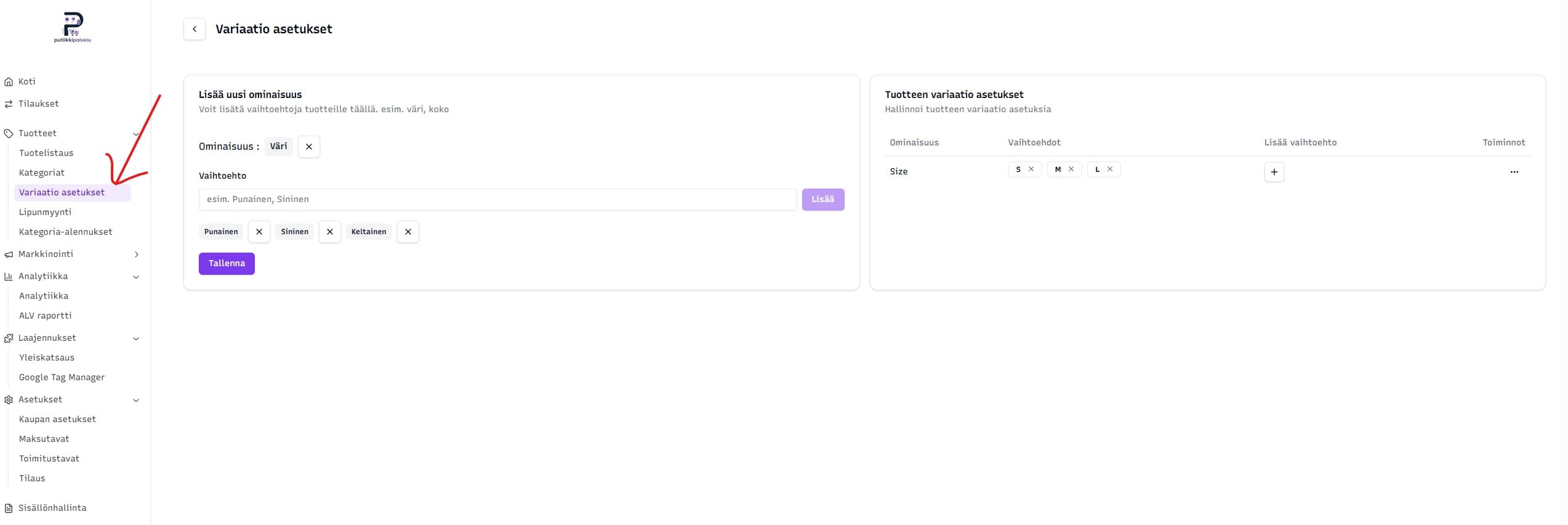
Adding a new option
- Type the option name in the Option name field (e.g. Size or Color).
- Type values one at a time in the Value field and press Add after each. Added values appear as a list and can be removed with the cross icon.
- Once all values are added, press Save — the option moves to the right-hand list.
Managing existing options
From the right-hand table you can:
- Remove a single value by clicking the cross next to it
- Add new values to an existing option using the
+button in the Add value column - Delete the entire option from the Actions menu (three dots) at the end of the row
Options are store-wide
The same option (e.g. Size) is used across all product variations in the store. You don't need to recreate Size for each product — it's available everywhere in the store.
Adding variations to a product
There are two paths to the variations page:
- When creating a new product — turn on the Does the product have variations? toggle and click Create product. You're taken straight to the variations page.
- For an existing product — open Product listing, click the Actions menu (three dots) at the end of the row, and pick Add variation (no variations yet) or Edit variations (already has variations).
The variation management page
Both paths land on the product's variation page. It has two cards: Created variations at the top, and Create product variation form below.
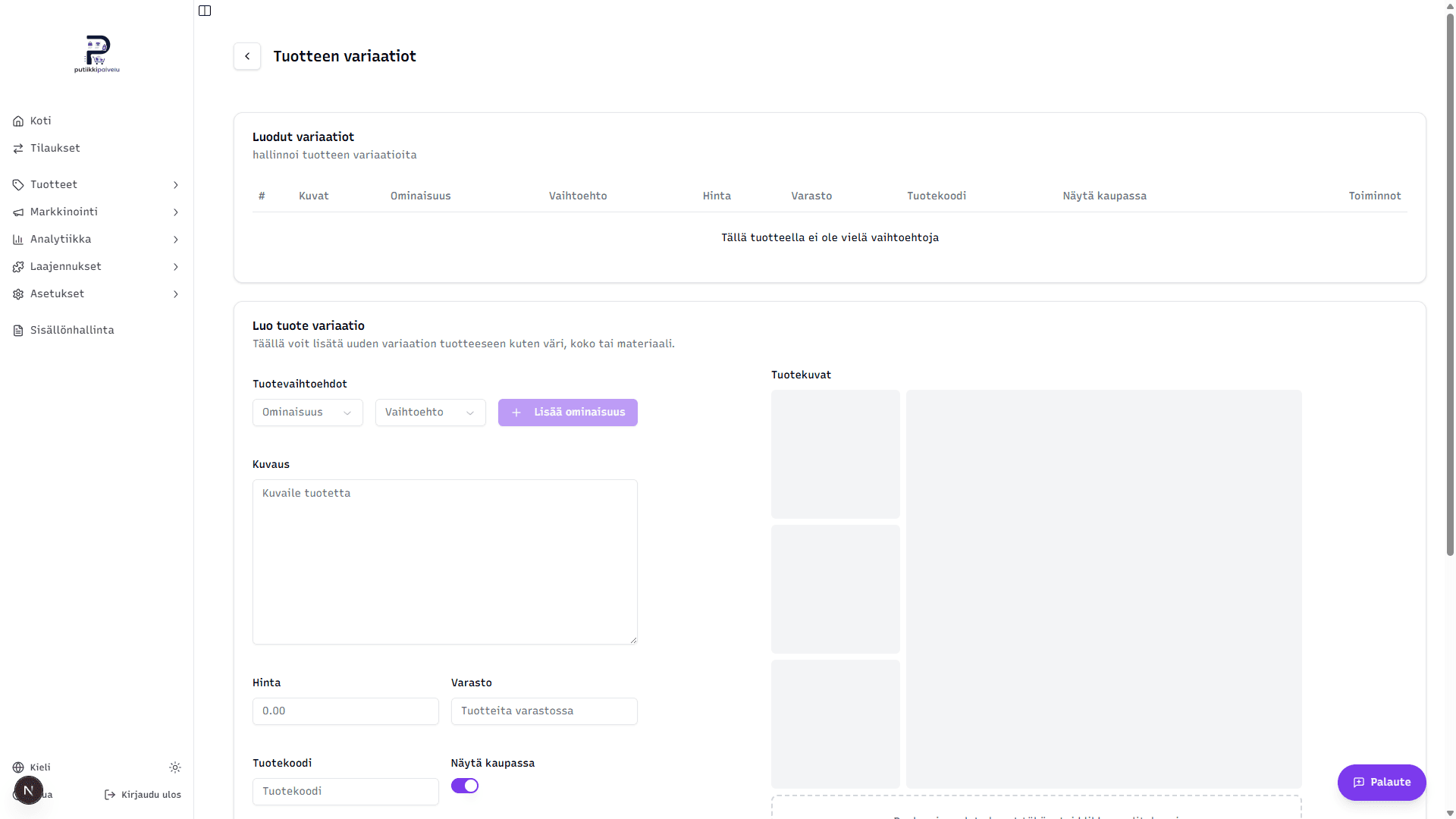
Creating a variation
Use the Create product variation form:
- Product options — pick an Option from the first dropdown (e.g. Size) and a Value from the second (e.g. S). Click + Add option. You can combine multiple options on the same variation (e.g. Size: M together with Color: Red).
- Price — variation's own price in euros.
- Stock — variation's own stock count.
- Product code (optional) — variation-specific SKU.
- Show in store — whether this variation is visible to customers.
- Additional info — Weight, GTIN/EAN, Brand, and Cost price work the same as on the main product form. Leaving e.g. weight empty makes the variation use the main product's weight.
- Discount — preset discount percentage or a custom price. Scheduled sale window is supported here too.
- Product images — drag and drop images onto the area on the right. More on image handling in the Creating a product article.
Finally, click Save variation. The variation moves into the table at the top.
One option type per product
Once you've created the first variation with a specific option (e.g. Size), the same option is locked for all the product's other variations. The form displays "This option must use the following options: Size" as a reminder.
The Created variations table
Once you have variations, they show up in the top table:
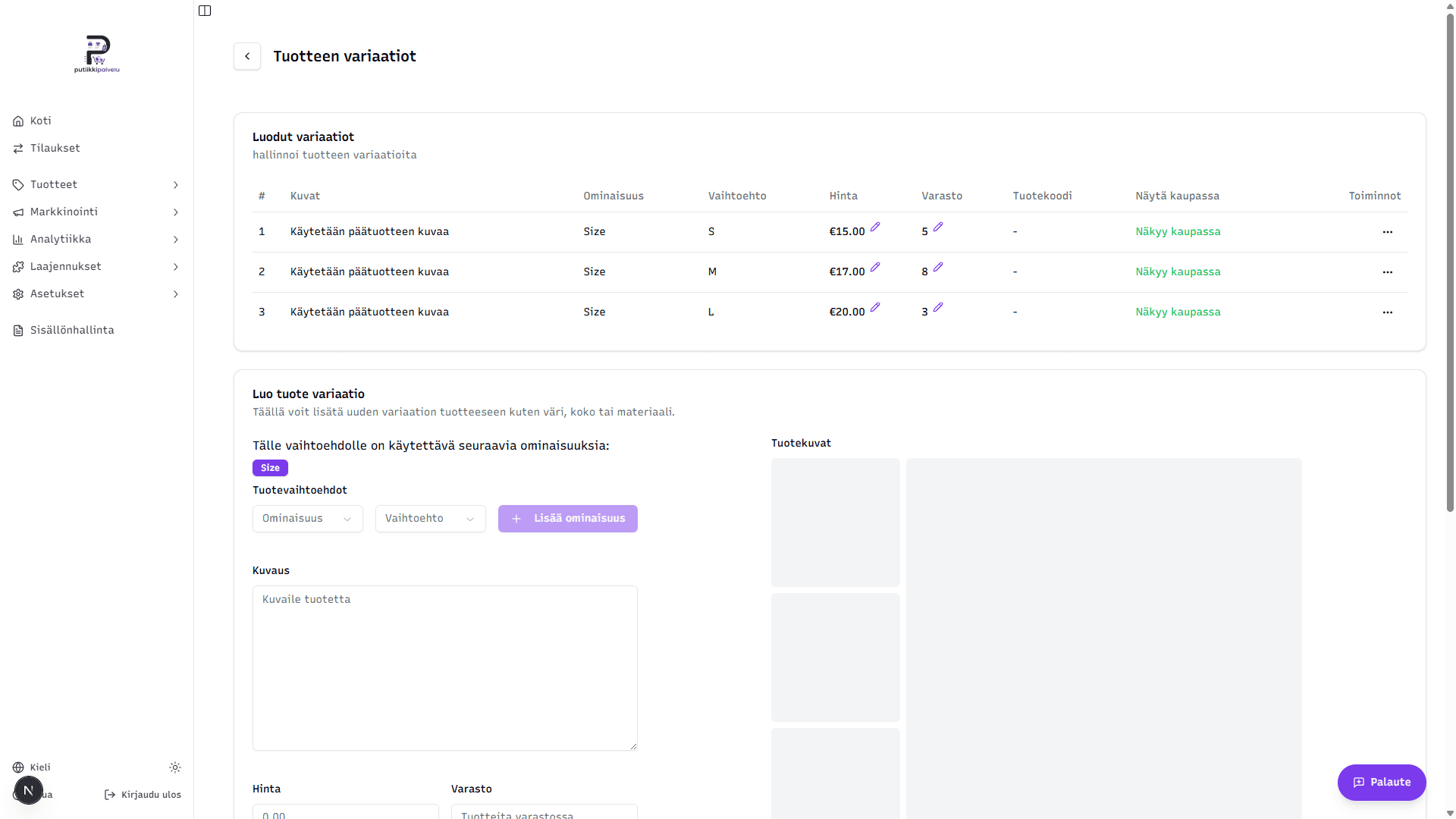
Table columns:
- # — variation index number
- Images — variation thumbnail. If the variation has no image of its own, it shows Uses main product image (the customer is shown the product's main image)
- Option and Value — e.g. Size and S
- Price and Stock — quick-editable in the table itself via the small pencil icon
- Product code — variation SKU or
- - Show in store — green Visible in store or red Not visible
- Actions — three dots at the end of each row open Edit and Delete options
Editing a variation
A single variation can be edited two ways:
- From the variations page — the Actions menu (three dots) on the row → Edit
- From the product listing — expand the product using the chevron at the end of the row and click on the variation's option/value text (e.g. Size: S)
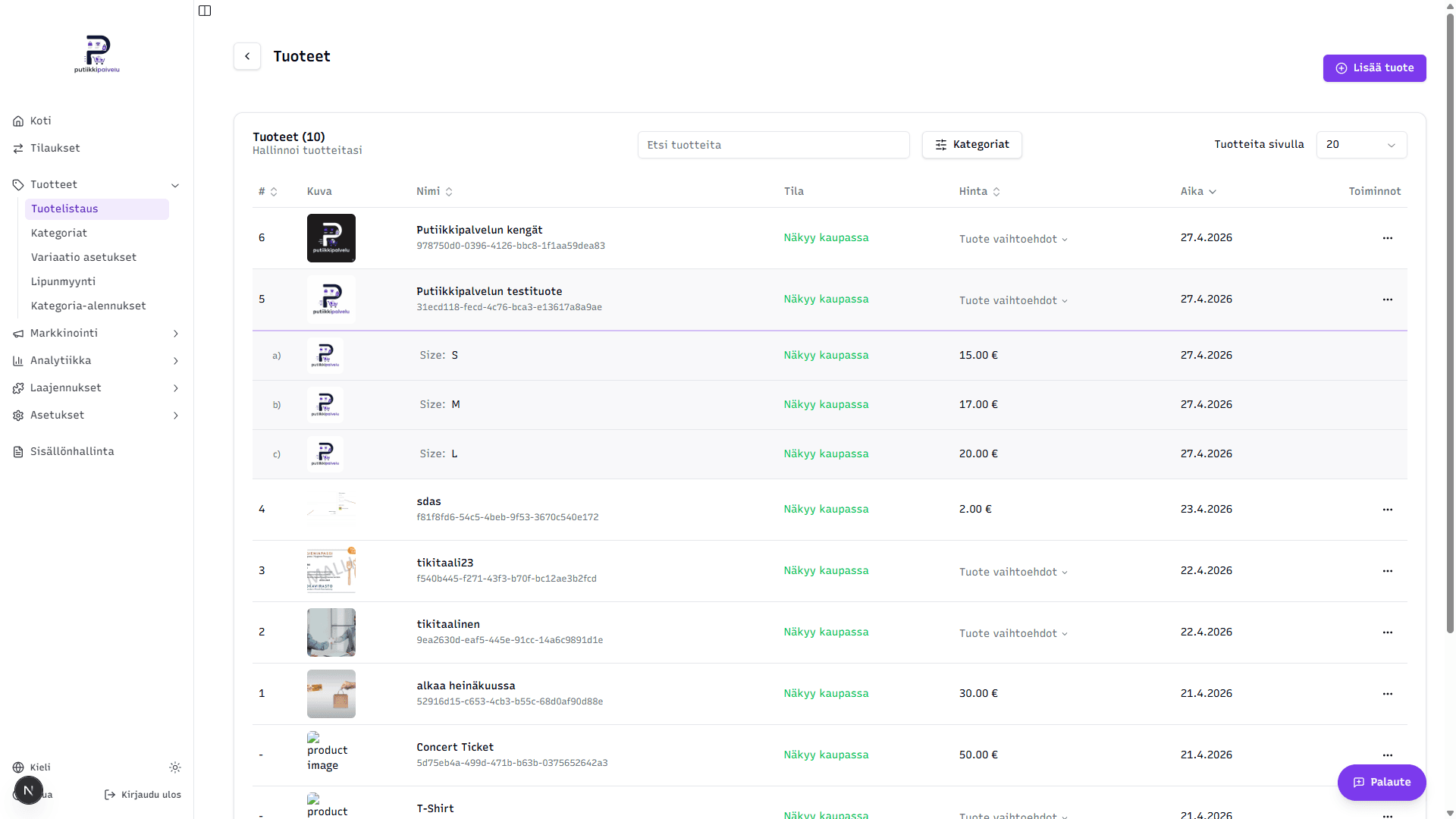
Both routes open the same Edit variation page where you can change price, stock, descriptions, images, and every other variation field.
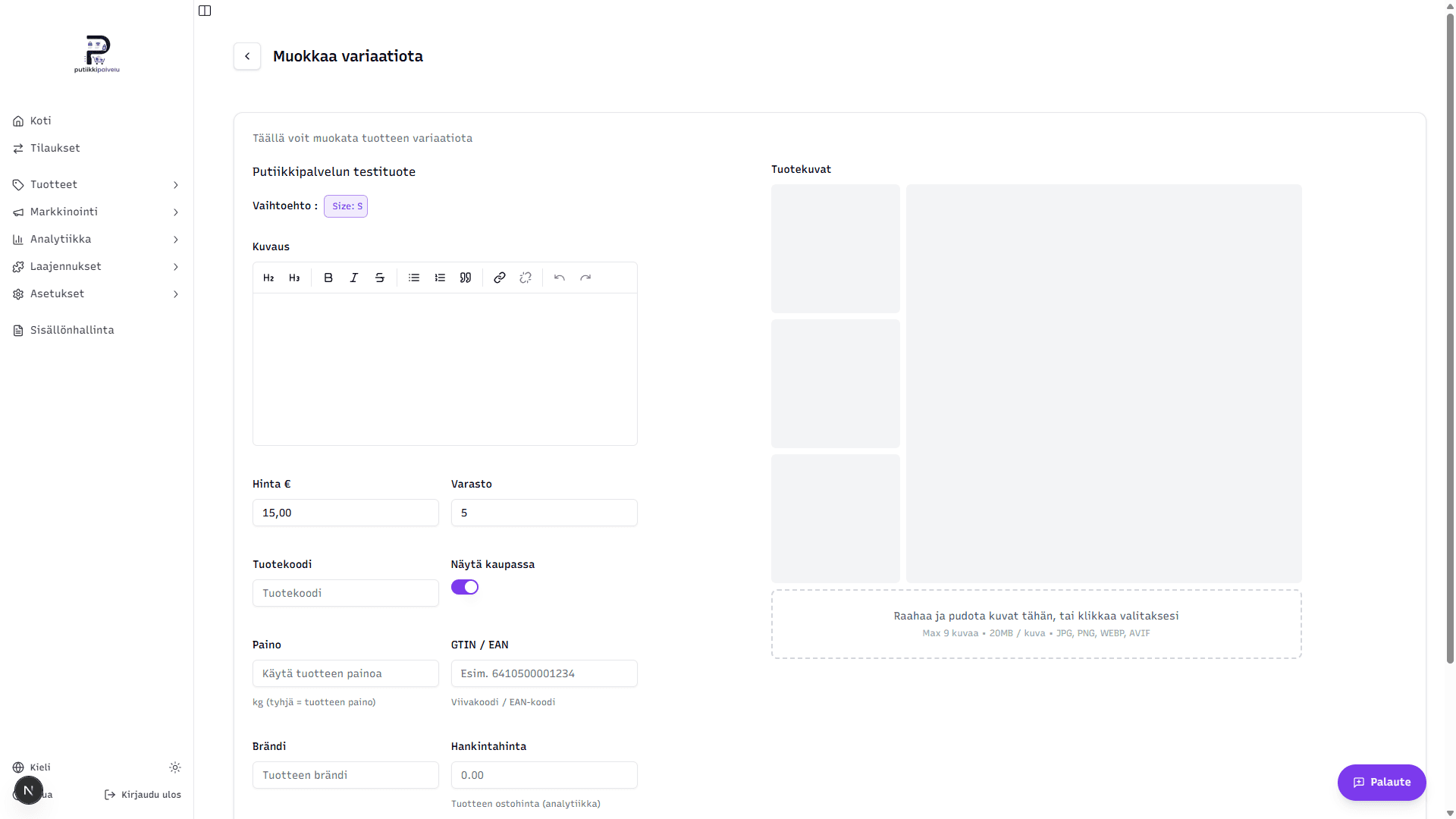
Variation-specific images and falling back to product images
Each variation can have its own images. Add them on the edit page's Product images area, the same way as for the main product.
- If the variation has its own images — they're shown when the customer picks this variation on the product page in the store.
- If the variation has no images — the main product images are used automatically. The variation table in the dashboard shows "Uses main product image" in this case.
This is useful when, for example, different sizes look identical — the main product images are enough and you don't need a separate image for each size. For color variations, on the other hand, it's almost always worth adding a variation-specific image.
Deleting a variation
On the variations page, the Actions menu's Delete button removes the variation. Deletion happens immediately without a separate confirmation.
Delete is permanent
A deleted variation cannot be restored. If you want to hide a variation only temporarily, turn its Show in store toggle off instead — the variation disappears from the store but stays in the dashboard.
Related topics
- Creating a product — main product details that variations build on top of
- Adding your first product — quick walkthrough for new users