

Adding a payment method
Set up Stripe and/or Paytrail as a payment method
Putiikkipalvelu supports two payment providers: Stripe (card payments and Apple/Google Pay) and Paytrail (Finnish online bank payments and MobilePay). Pick one — only one payment method can be active at a time. You can also optionally enable PayPal as a wallet payment alongside either one — see Setting up PayPal payments.
Navigating to the payments page
In the dashboard sidebar, open Settings → Payment methods and click the Add button for the provider you want to enable.
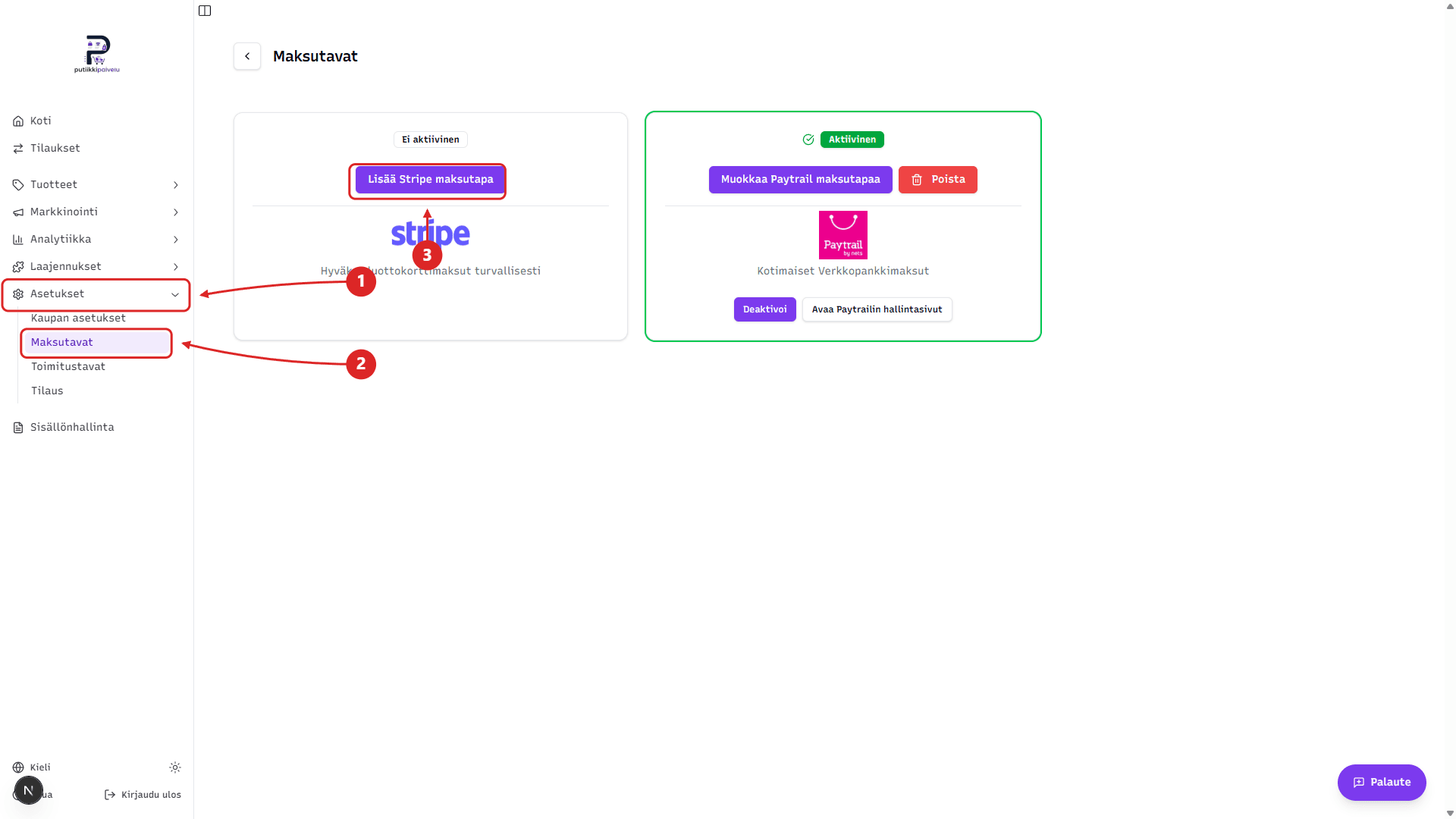
Setting up Stripe
Stripe requires a separate Stripe Connect account. Putiikkipalvelu creates the account on your behalf and links it to your store automatically — you don't need to register beforehand.
When you click Add Stripe payment method, you're redirected to Stripe's onboarding flow, where you'll fill in:
- Email address and phone number
- Company basics (company form, name, business ID, address)
- Bank account for payouts (IBAN)
- Owner or representative identity verification (ID card or passport)
- Tax information
Once you've completed the required information, you're returned automatically to the Putiikkipalvelu dashboard, and the Stripe card status shows Active.
Verification can take time
Stripe verifies the details in the background. The status may show "Verification in progress" for a while, and Stripe may ask for additional information by email. If you don't finish onboarding in one go, you can resume later from the same page using the same button.
Setting up Paytrail
Paytrail requires a separate contract with Paytrail.
- Sign up with Paytrail at paytrail.com
- Once your contract is active, sign in to the Paytrail merchant dashboard and copy your:
- Merchant ID
- Secret Key
- In Putiikkipalvelu, click Add Paytrail Payment Method and paste both into the form that opens
- Save
After saving, the payment method is still Inactive — switch it on at the checkout with the Activate button.
What if the keys are wrong?
If the Merchant ID or Secret Key is incorrect, the form shows an error and the connection won't be made. You can always edit the keys later from the Edit button on the Paytrail row.
Activating the payment method
After a successful connection, you still need to activate the payment method by clicking Activate so it shows up for customers at checkout. This applies to both Stripe and Paytrail.
Once activated, you can temporarily disable the payment method with Deactivate without losing the connection or keys — you can reactivate it whenever you want.