

Adding your first product
Add your first sellable product to your store
Adding a product is straightforward: name, price, image, and stock quantity are enough to get started. You can fill in more details later.
Navigating to add a product
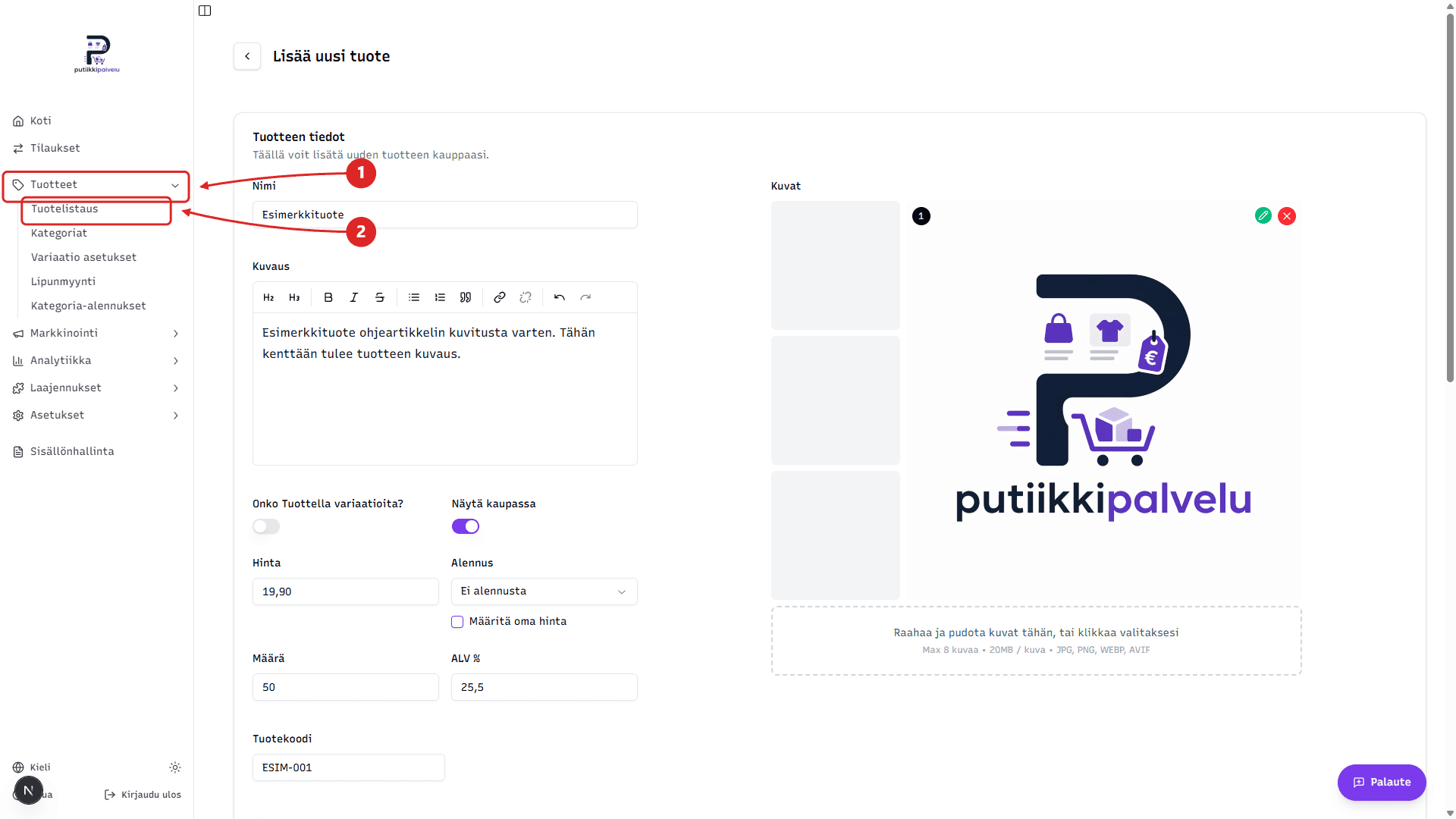
In the dashboard sidebar, open Products → Product listing, then click + Add product in the top-right corner of the page.
Choose the product image format (first time only)
When you add your store's first product, a dialog opens asking you to pick the aspect ratio used for product images. Two options:
- Square (1:1) — works well for electronics, jewelry, and home decor
- Portrait (3:4) — works well for clothing, fashion, and accessories
Important choice — cannot be changed later
The same aspect ratio applies to every product image in your store. Once you've added your first product, the choice is locked — all future images are automatically cropped to this shape so that the product listing stays visually consistent.
Pick the ratio that fits the majority of your products. If you sell both clothing and jewelry, for example, think about which group is larger — choose based on that.
After picking a ratio, click Confirm choice and the product form opens.
Product information
Basics:
- Name — the product's public name in the store
- Description — longer product description with formatting options (headings, lists, styling)
- Price — sale price in euros, VAT included
- Quantity — number of items in stock
- VAT % — the product's VAT percentage (typically 25.5 in Finland)
- Product code — your own SKU for inventory tracking
- Images — at least one image; the first one becomes the main image
- Categories — search and select the categories the product belongs to
Optional settings:
- Does the product have variations — different sizes, colors, or other options. Covered in a separate article
- Show in store — publish immediately or keep the product hidden
- Discount — preset discount percentage, or Set custom price for special pricing
- Digital product — a downloadable file or any product without physical shipping
Search engine optimization (optional)
- SEO Title — product title shown in search engines
- SEO Description — short description for search engines
Saving the product
Finally, click Create product at the bottom of the page.