

Shop & info blocks
Store-specific blocks — Latest products, Opening hours, and Table
This group contains blocks related to either your store's products (Latest products) or practical information for visitors (Opening hours, Table).
Latest products
Automatically displays the newest products from your store. You don't need to choose products manually — the block always fetches the latest ones from the system.
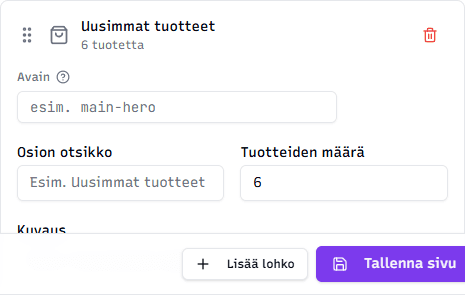
Fields:
- Section title (optional) — e.g. "Latest products" or "Just arrived"
- Number of products — how many products to show (1–24, default 6)
- Description (optional) — e.g. "Check out the latest additions to our range"
Block content updates automatically
You don't need to update this block when you add new products — the block fetches them automatically. Older products fall out of view as newer ones take their place.
Tip: Use this block on the home page so a new visitor immediately sees what your store currently offers. Six products is a good number — more than 12 can overwhelm the reader.
Opening hours
Displays a calendar or list of days with their opening hours. Excellent for physical shops, restaurants, or services whose opening hours vary.
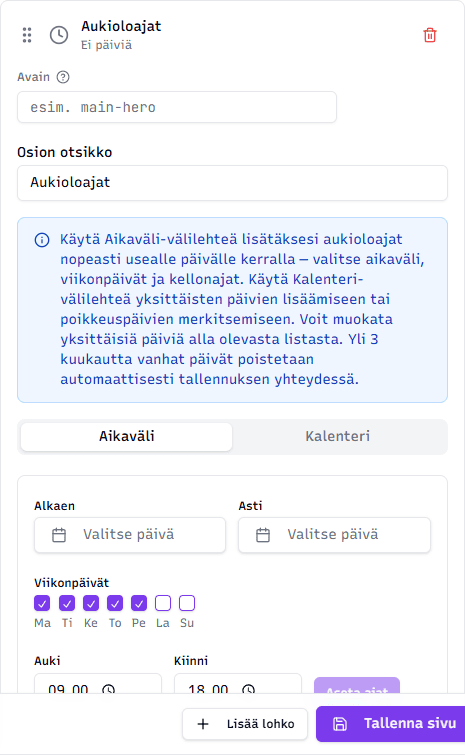
Fields:
- Section title (optional) — e.g. "Opening hours"
- Day setup — two ways to add days:
- Range tab: choose a start date, end date, weekdays, and opening hours. The block automatically creates all days that fall within the chosen weekdays in this range.
- Calendar tab: click individual days from the calendar and set opening hours for each separately.
- Set days — a list showing all days set so far, grouped by month. You can edit each day's hours, add a note (e.g. "Christmas wine evening"), or delete the day with the trash icon.
Tip: Use the Range tab when you want regular opening hours (e.g. "Mon–Fri 9 a.m.–6 p.m. for all of June"). Use the Calendar tab to add individual exception days (holidays, special openings).
Table
A simple table with a header row and data rows. Suitable for price lists, restrictions, terms, and other information presented as rows and columns.
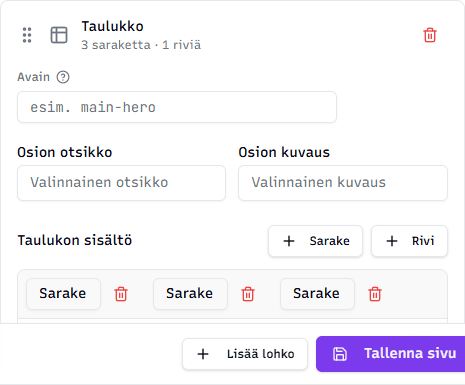
Fields:
- Section title (optional) — e.g. "Price list"
- Section description (optional)
- Header row (columns) — you can edit a column name by clicking it. Add columns with the + Column button, delete with the trash icon.
- Data rows — add with the + Row button. Click a cell to type its content. Delete a row with the trash icon.
Tip: Keep tables concise — more than 5 columns or 15 rows are hard to read on mobile. If you have a lot of data, consider splitting the table into multiple parts or grouping the information differently (e.g. with the Accordion block).
Related topics
- Editing content — practical workflow
- Text & content blocks — text blocks
- Images & media blocks — image blocks
- Sections & layouts blocks — page structural sections