

Images & media blocks
Image-focused blocks — Gallery, Image grid, and Carousel and text
This group contains image-focused blocks. Use them when you want to show several images at once or combine images with text in a visually striking way.
Supported image formats
All image blocks support JPG, PNG, WEBP, and AVIF files. Maximum size is 10 MB per image. Recommended dimensions depend on the block — generally 1200–1920 pixels wide is enough.
Gallery
A gallery of multiple images — suitable for product walls, location showcases, or inspiration galleries.
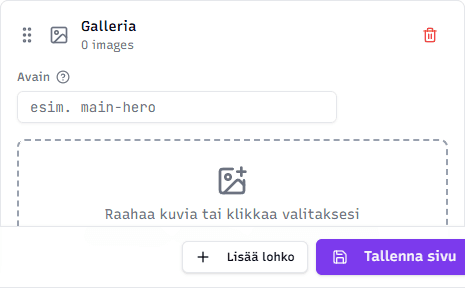
Fields:
- Image upload — drag images in or click to choose files. The block can hold 1–10 images.
- Alt text — for each image you can write a short text description that describes the content for visually impaired visitors and is also visible to search engines.
Tip: Write Alt texts. A good alt text describes what's in the image, e.g. "Red linen tablecloth on a white table" — don't repeat your store or section name.
Image grid
An image grid with 2–4 columns where each cell contains an image + text content. Suitable for service introductions where each item has its own image and description, or for showing team members.
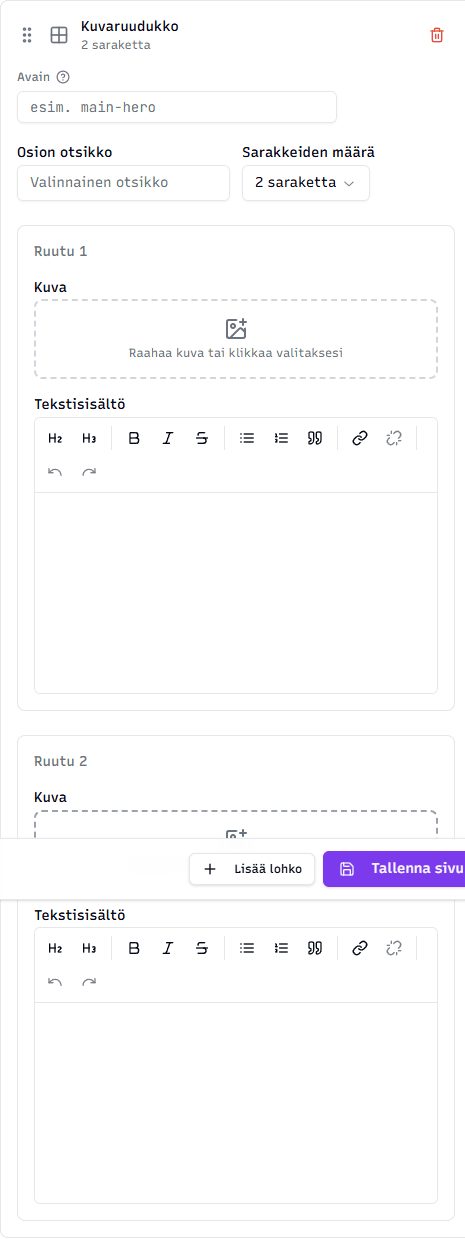
Fields:
- Section title (optional)
- Number of columns — 2, 3, or 4 (controls how many cells fit side by side)
- Cells — one cell per column:
- Image — drag or choose a file
- Text content — rich text (headings, bold, lists, links)
Tip: Use images of similar size and style in the same grid so the block looks balanced. For example, all landscape orientation or all square images.
Carousel and text
Text content and an image carousel side by side — images in a swipeable carousel on one side, text on the other. This block is good when you want to show several images in a confined space combined with a strong message.
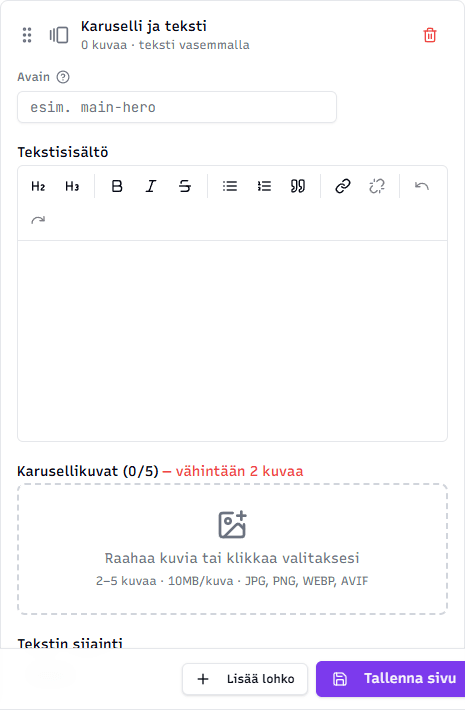
Fields:
- Text content — rich text (same editor as Text content)
- Carousel images — 2–5 images. Add by dragging or clicking.
- Alt text — write under each image
- Text position — Left or Right (controls whether the text appears on the left or right of the carousel)
Tip: When you use this block to introduce services or products, pick 3–4 images. More than five images can frustrate visitors who don't have time to see them all.
Related topics
- Editing content — practical workflow
- Text & content blocks — text blocks
- Sections & layouts blocks — page structural sections