

Category sales
Apply one discount across every product in a category at once
Category sales is a fast way to give the same percentage discount to every product in a chosen category — for example -20 % on all Trousers — without having to edit each product separately. You'll find the page in the sidebar under Marketing → Category sales.
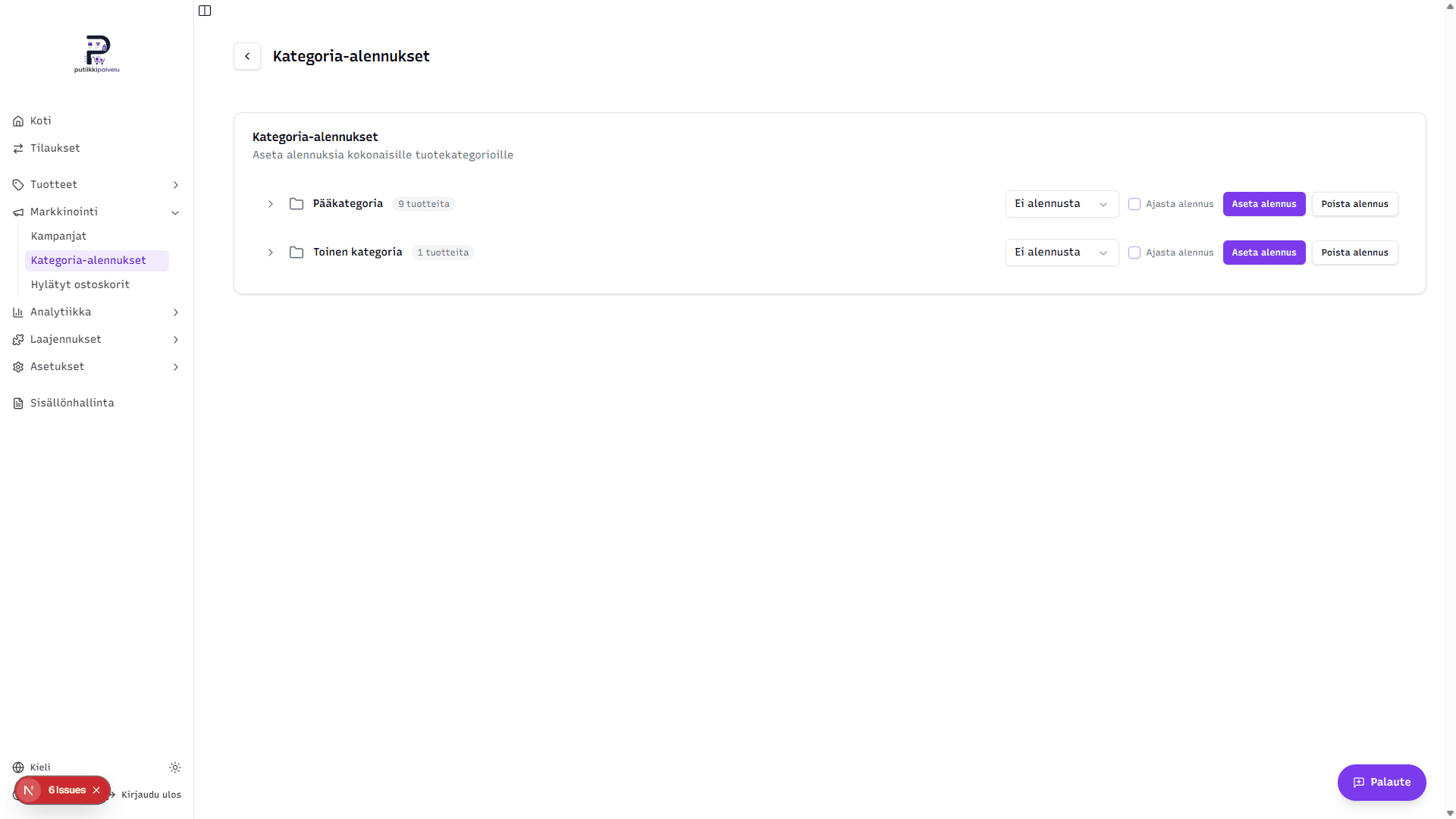
Page layout
This is a single-list page — no tabs, no separate creation view. The list shows every category in your store as a tree. Top-level categories are visible by default; subcategories appear when you click the chevron on the left of a row.
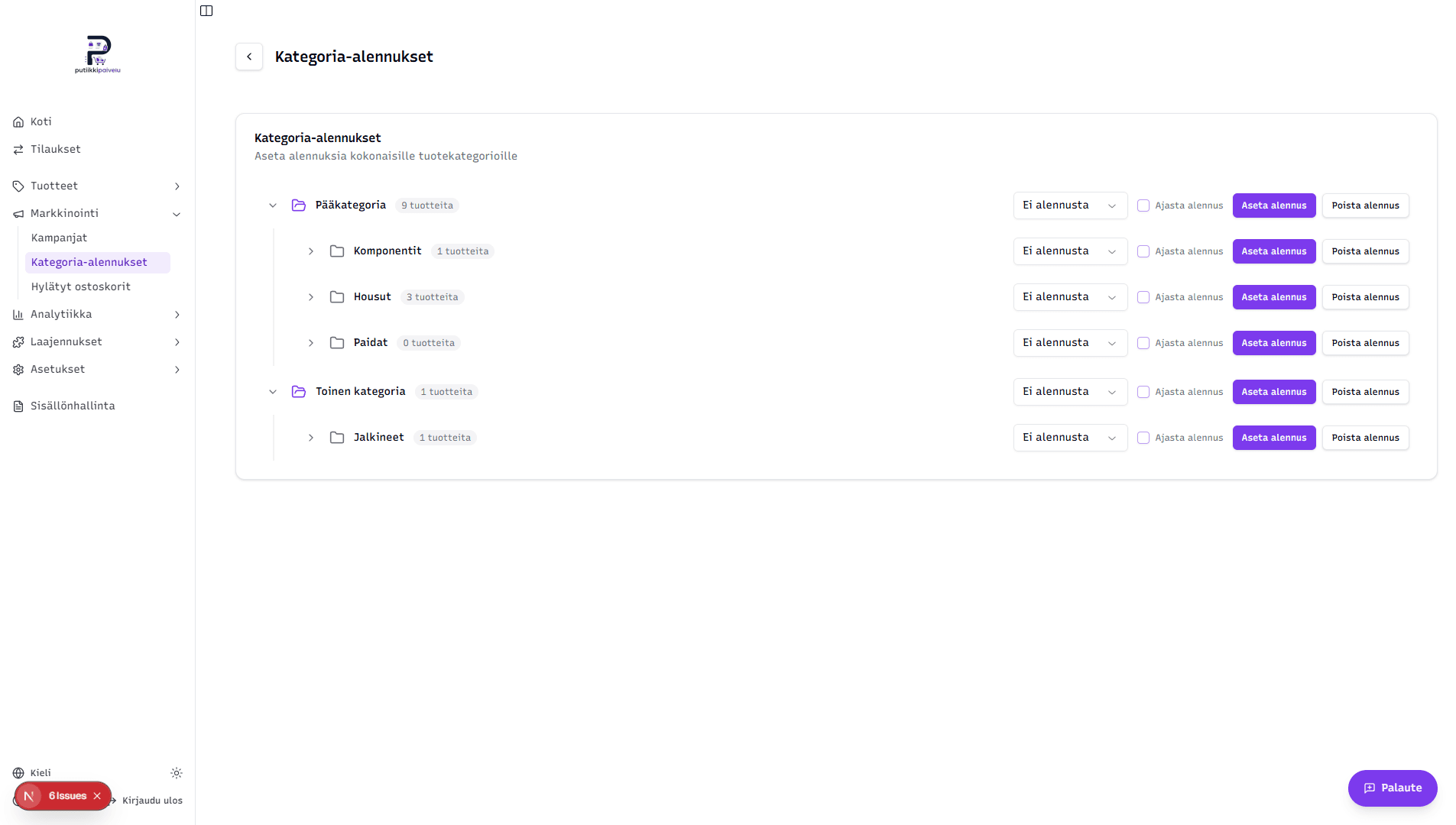
For each category row you'll see:
- Category name and how many products are tagged directly to it (e.g. "3 products"). The number is based on products tagged to this category specifically — products in subcategories are not counted.
- Discount picker — fixed steps from No discount to -10% through -90% in 10-percent increments.
- Schedule sale checkbox — when ticked, you can set a start and end date for the discount.
- Apply sale button — applies the current settings to every product in the category.
- Remove sale button — clears all sales from every product in the category.
The product count refers to DIRECT products only
For example, Main category might show 9 products even though its subcategories contain many more in total. The count only includes products tagged directly to the parent without any subcategory selection. Subcategory products show up under their own rows.
Applying a sale
-
Find the category in the list. Expand branches with the chevron until you find the one you want.
-
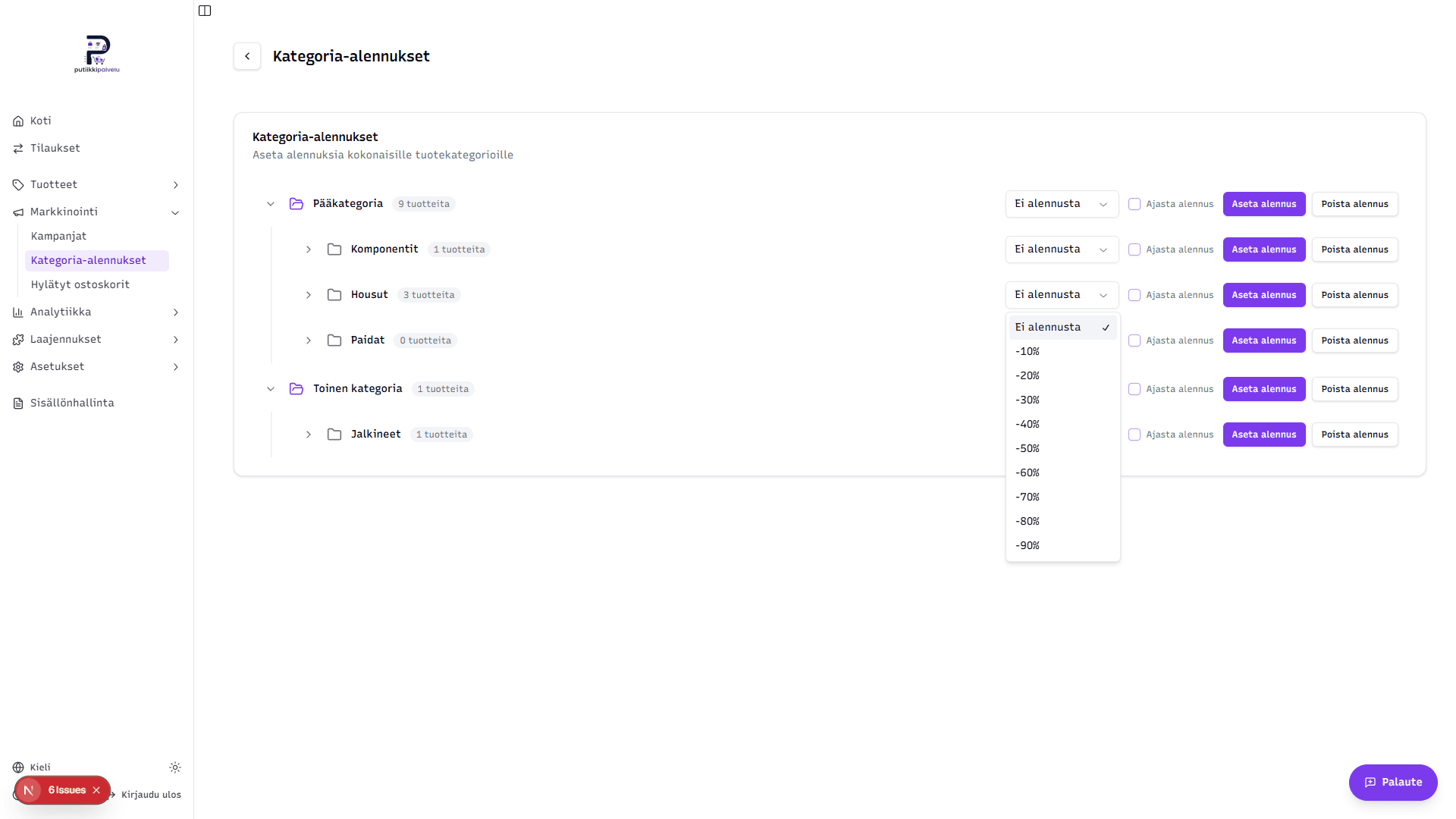
Pick a discount from the row's No discount dropdown. Options are -10 % to -90 %.
-
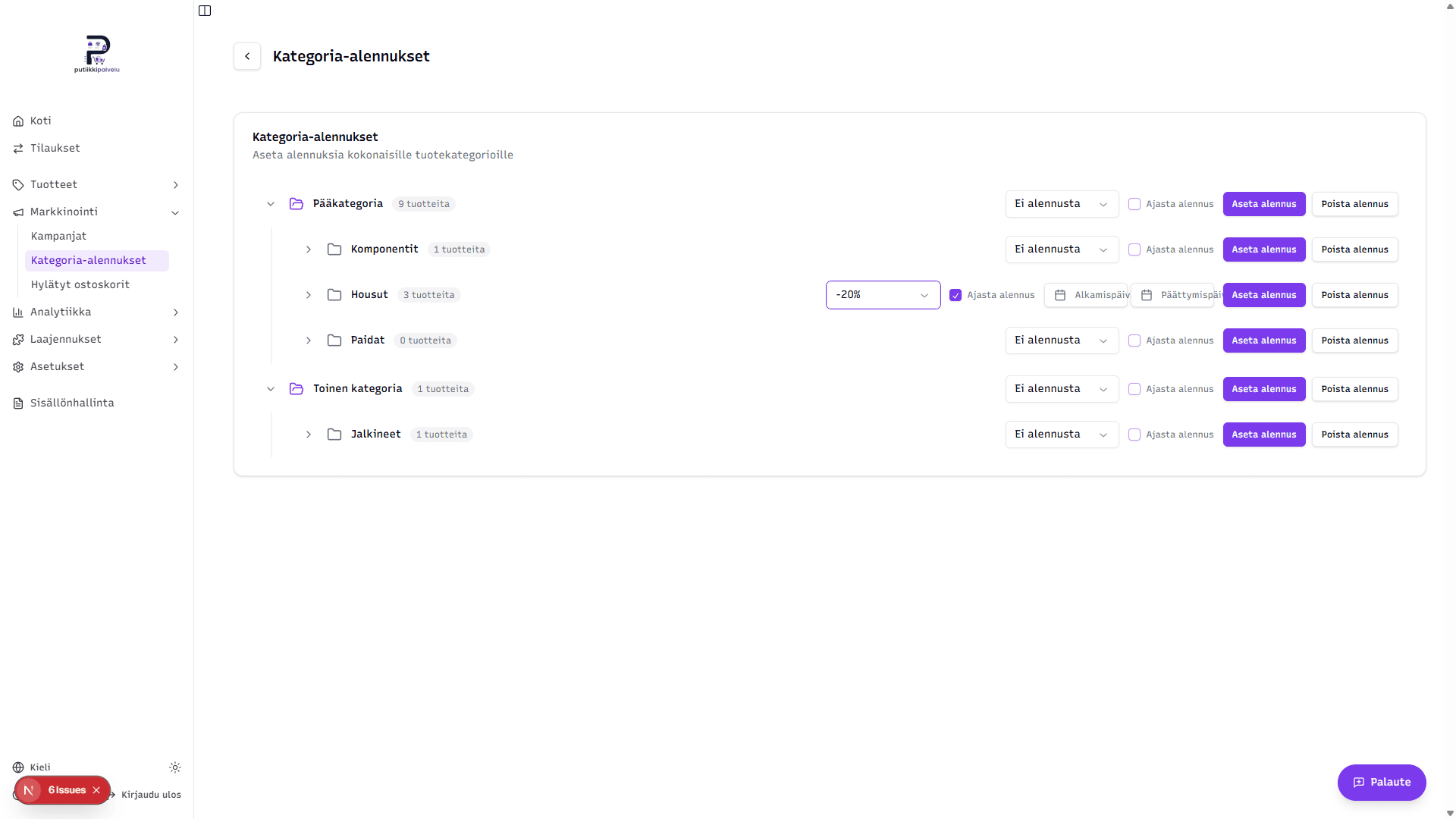
Optionally tick Schedule sale and pick start and end dates if you want the discount to run for a limited period only.
-
Click Apply sale. The page asks for confirmation before the change goes through.
The confirmation dialog
The dialog shows the discount, the category name, and how many products will be affected. It also warns that any existing per-product sales on those products will be overwritten.
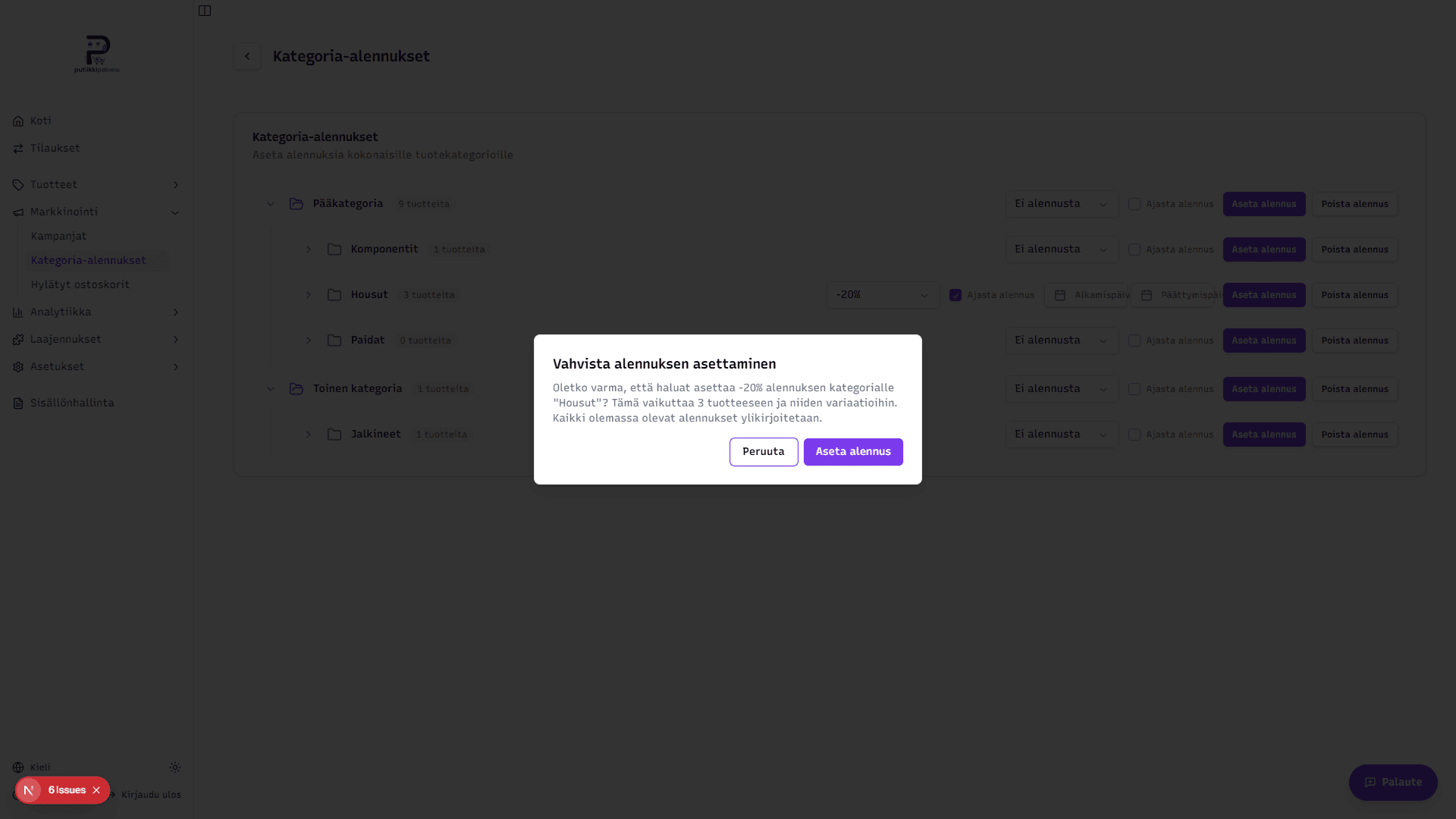
Click Apply sale to confirm or Cancel to abort.
Overwrites per-product sales
If some products in this category already have a different per-product sale set (e.g. one product at -50 % and others at full price), applying a category sale replaces all of them with the percentage you picked. This is intentional — the whole point of a category sale is to put the entire category on the same discount.
What happens behind the scenes
(You can skip this section — it's only useful if you want to understand what the system actually does.)
When you click Apply sale, every product in the category and all of their variations are updated with:
- Sale percent — e.g. -20 %
- Sale price — calculated as normal price × (1 − sale percent). For example 25.00 € → 20.00 € at -20 %.
- Start and end date — if scheduling is on; otherwise empty.
The product shows the discount in the storefront the moment the current time is past the start date and before the end date. If no schedule is set, the discount appears immediately after saving.
How scheduling works
The Schedule sale checkbox lets you pick a date range:
- Start date only (end empty) — the discount starts then and runs indefinitely until you remove it manually.
- End date only (start empty) — the discount is on right away and ends on the chosen date.
- Both dates — the discount is only visible during that window.
- Neither date (Schedule sale off) — the discount applies immediately and stays on until you remove it.
The end-date calendar disables past dates and dates before the chosen start date.
Reading the active sale state
If a category is already set with the same discount — meaning every product in it shares the same sale percent and dates — the row pre-fills the discount when you open the page.
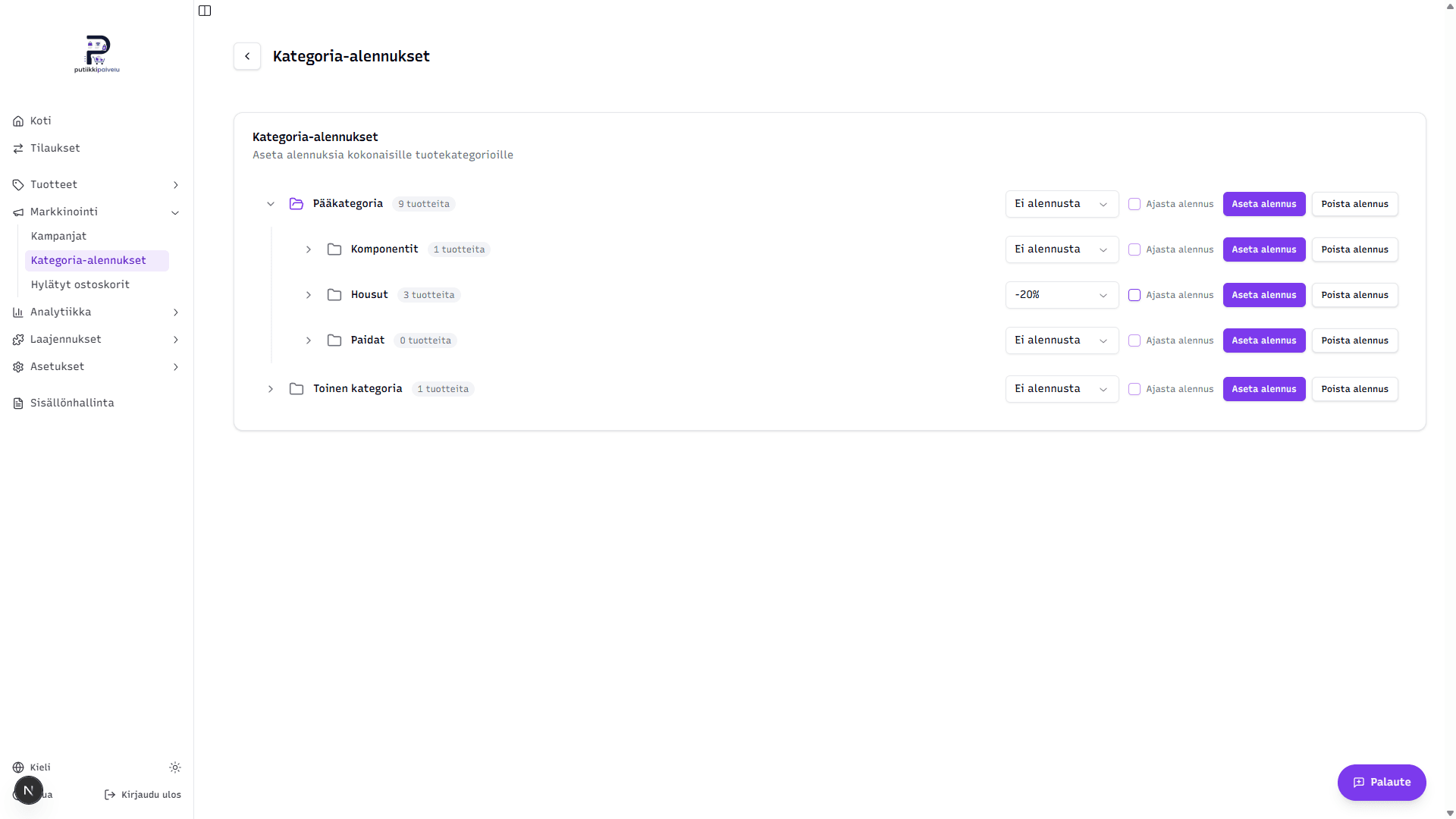
If the products in the category have different sales (some at -10 %, some at -20 %, some at full price), the picker shows No discount even when some products are on sale. In that case you'd inspect individual products on the product page to see their actual sale state.
Category sales and per-product sales aren't separate systems
Both a category sale and a sale set on the product's own page write to the same fields on each product. The category page is just a shortcut for bulk-updating those fields. That's why No discount really means "the products are in mixed states" — not "the category itself has nothing set."
Removing a sale
Click Remove sale on the right side of the row. A confirmation dialog appears:
Are you sure you want to remove the sale from category "Trousers"? This will affect 3 products and their variations.
After confirming, the system clears all sales from every product in the category — including any that were previously set per product. On success the bottom-right shows a "Sale removed from N products" toast.
Remove sale also clears per-product sales
If you only want to remove the sale from some of the products, go to the Products page and edit those products individually. The Remove sale button on this page applies to the category as a whole.
Relationship to subcategories
Category sales do not cascade down into subcategories. When you apply a sale to Main category, only products tagged directly to Main category are affected — products in subcategories like Trousers or Shirts are left alone.
If you want the entire tree (Main category + every subcategory) to share the same discount, you'll need to apply the same sale to each subcategory individually.
Tips
- Products in multiple categories: If a product belongs to several categories, the most recently applied category sale wins. For example, if a product is in both Trousers and Winter deals and you apply -20 % Trousers first and then -50 % Winter deals, the product ends up at -50 %.
- Short-lived campaigns: Use Schedule sale for things like holiday or seasonal sales — the discount starts and ends automatically without you needing to remember.
- Permanent price drops: You can leave both start and end dates empty for a permanent price level, and use Remove sale when it's time to reset prices.
Related topics
- Creating a product — per-product sales
- Categories — managing the category structure
- Campaigns — Buy X, Pay Y deals and discount codes