

Abandoned checkouts
Automated reminder emails for customers who didn't finish paying
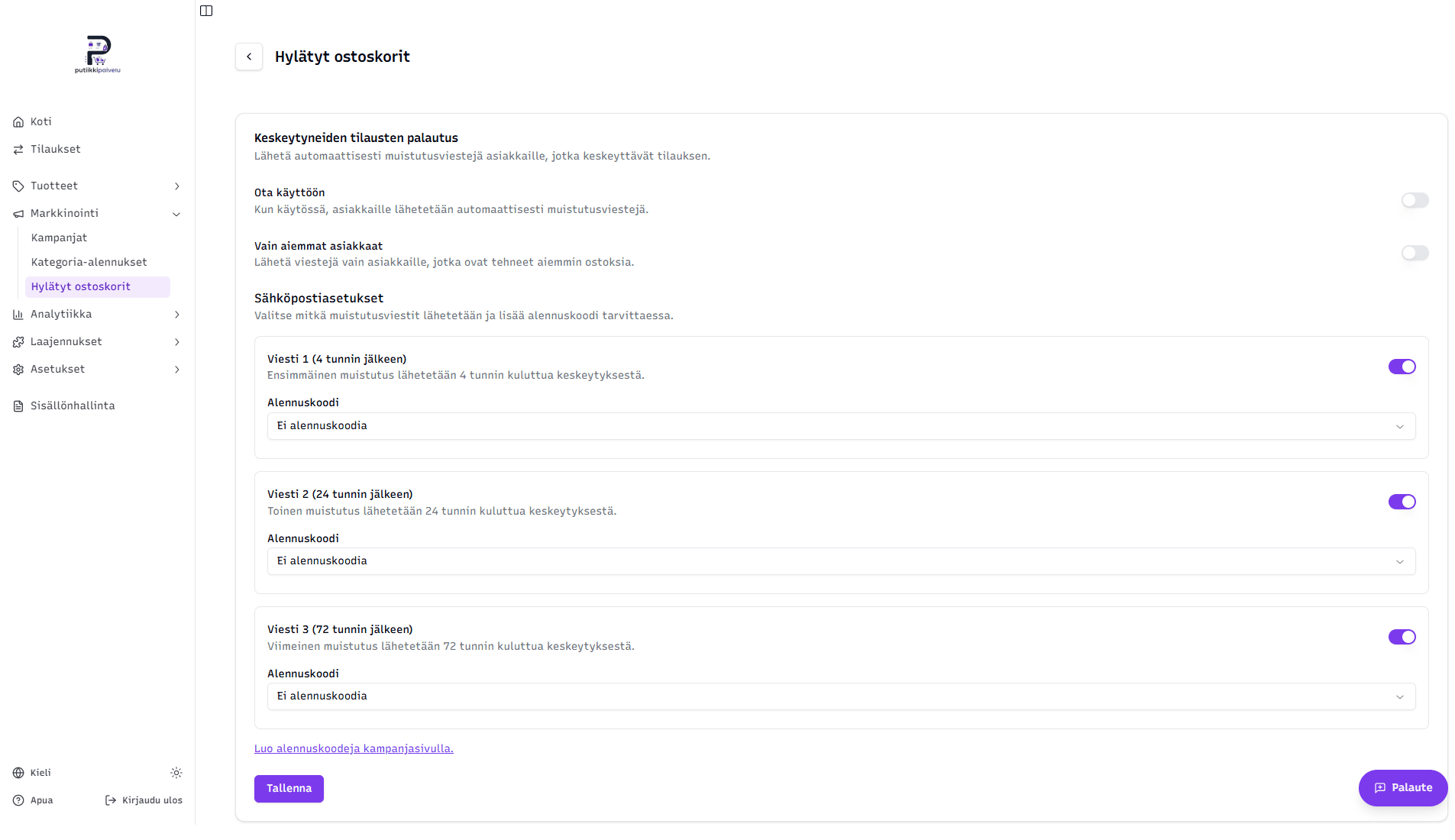
The Abandoned checkouts feature sends automatic reminder emails to customers who reached checkout but didn't confirm payment. With well-tuned reminders you'll recover a portion of those interrupted sales — often a small nudge or a discount code is enough to bring the customer back. You'll find the page in the dashboard sidebar at Marketing → Abandoned checkouts.
When is a cart counted as abandoned?
A reminder is sent to a customer who:
- Got far enough into checkout to enter their email and clicked the pay button (Stripe or Paytrail).
- Didn't complete the order — for example, closed the tab, navigated back, the card was declined, or the bank payment was cancelled.
Just adding products to the cart isn't enough — the feature only kicks in once the customer has entered their email at checkout. This is by design: without an email address there's no way to send a reminder.
Page layout
The page is split into two sections:
1. General settings
- Enabled — the master switch. When off, no reminders are sent even if the per-email switches below are on.
- Previous customers only — when on, reminders only go to customers who already have at least one paid order in your store. Useful if you want to focus on bringing back loyal customers and avoid emailing one-time visitors.
2. Email settings
Three cards, each with:
- Active toggle — turn an individual reminder on or off.
- Discount code dropdown — pick one of your existing active discount codes to include in the email.
Send timings are fixed — they can't be changed:
| Sent after the cart is abandoned | |
|---|---|
| Email 1 | 4 hours |
| Email 2 | 24 hours |
| Email 3 | 72 hours (3 days) |
Adding a discount code to a reminder
Open the Discount code dropdown on the email card you want. The dropdown shows every active discount code in your store — codes you've created at Marketing → Campaigns → Discount codes and whose Active toggle is on.
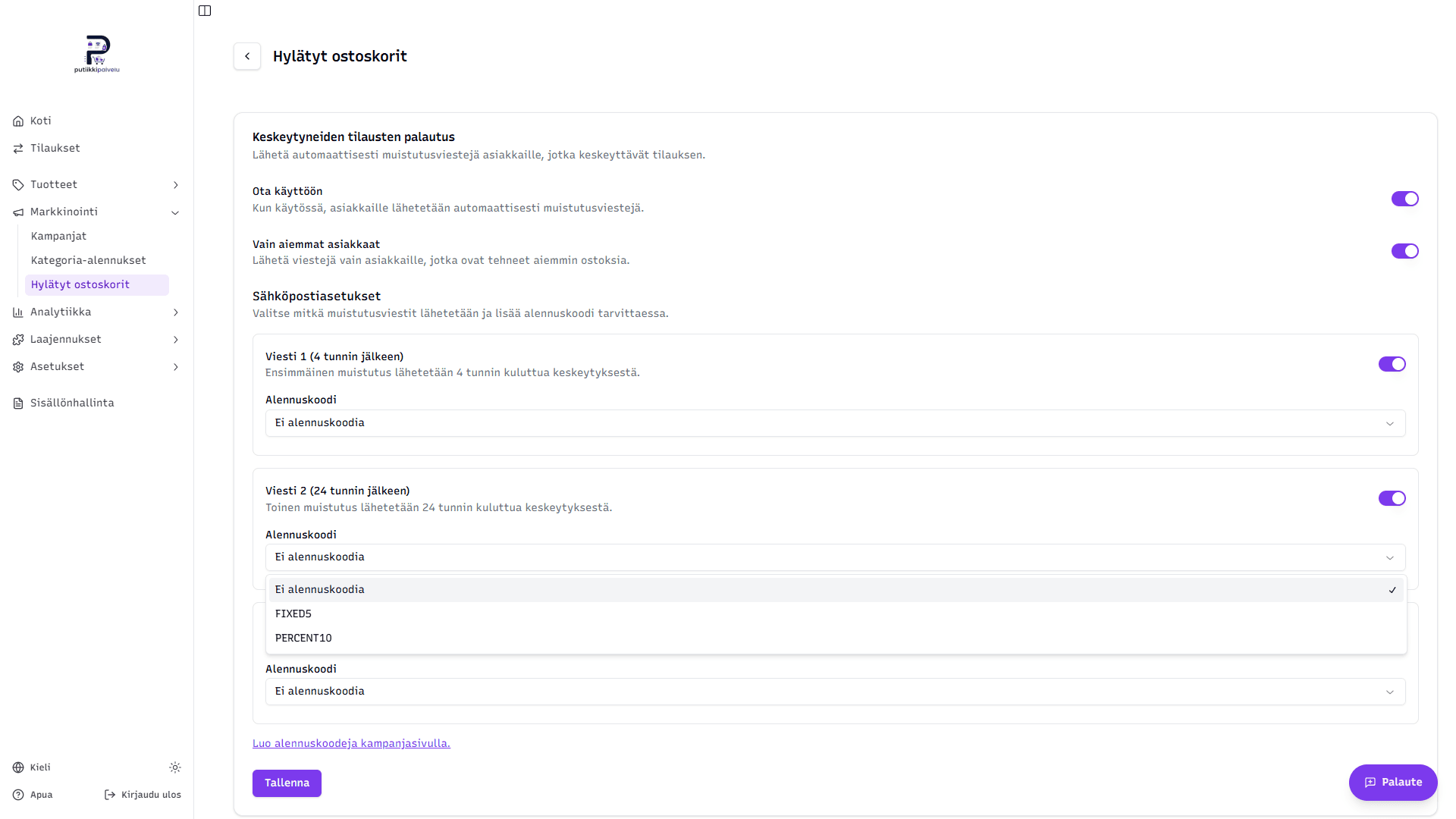
- No discount code — the email goes out without a discount incentive. Suits the first reminder where a plain nudge may be enough.
- A code name — the email includes the code in both the subject line and the body, and the subject becomes "... + discount code - {your store name}".
Strategy tip
A common tactic is to leave Email 1 without a code (just a reminder) and only add a code to Email 2 or Email 3. That way customers don't learn to expect a discount on every abandonment — the code is only offered if the plain reminder didn't work.
Don't see your codes in the dropdown?
If the dropdown only shows "No discount code", you don't have any active discount codes yet. Create one first at Marketing → Campaigns → Discount codes. The link "Create discount codes on the campaigns page" at the bottom of this page takes you straight there.
Example of a configured setup
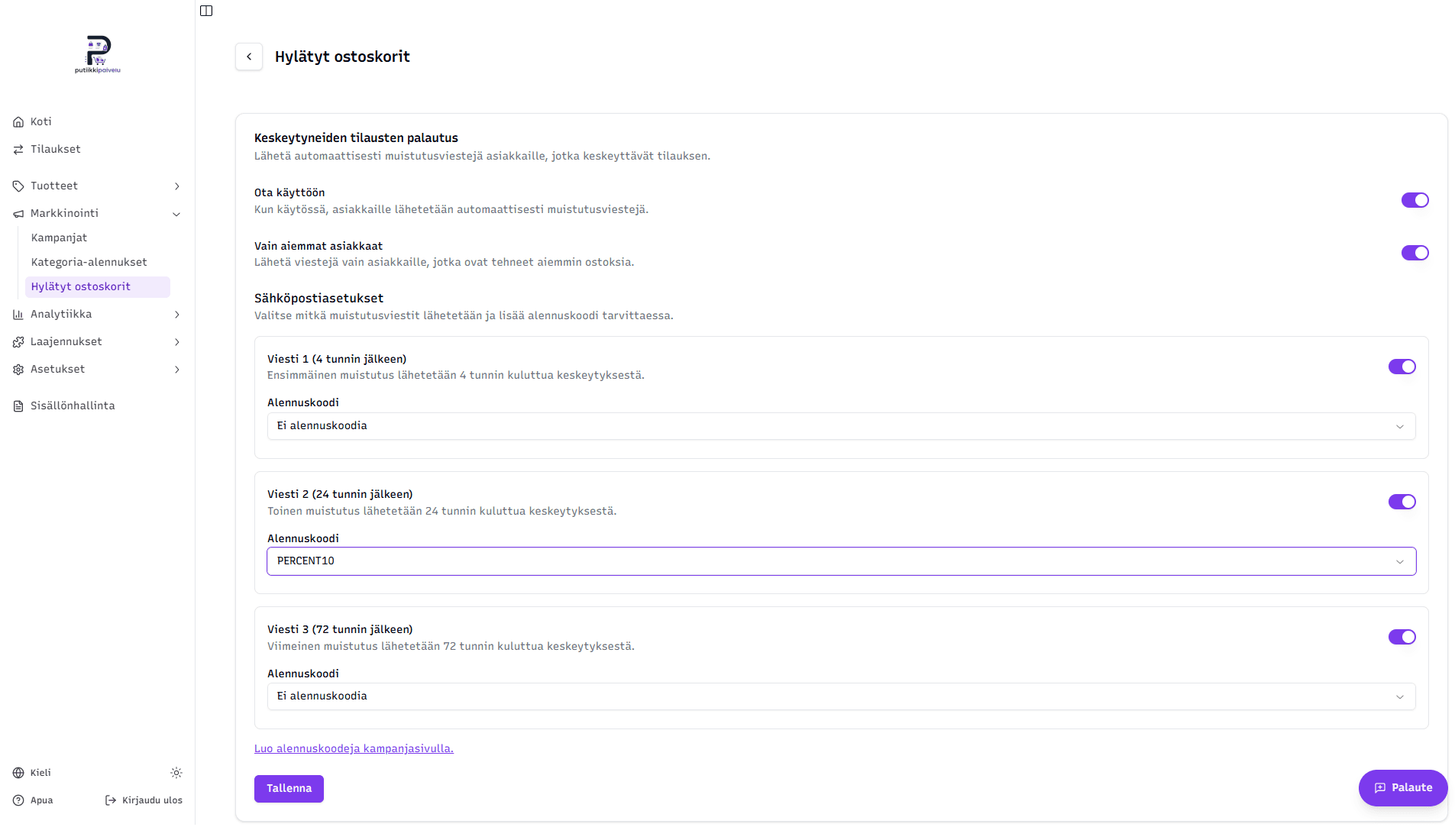
In the example above:
- The feature is on and only targets previous customers.
- All three reminders are on.
- Only the second email (at 24 hours) includes the discount code PERCENT10 — the first email is a plain reminder, and the third is a final reminder without a fresh offer.
Click Save at the bottom to apply the settings.
How emails progress
The system periodically scans abandoned checkouts and sends one email per scan — for example it won't send Email 2 before Email 1 has been sent. So a customer receives at most three reminders for one abandoned cart:
- 4 hours after abandonment → Email 1 (if enabled)
- 24 hours after abandonment → Email 2 (if enabled)
- 72 hours after abandonment → Email 3 (if enabled)
Reminders stop in any of these cases:
- The customer completes the purchase — once payment succeeds the cart is marked recovered and any remaining reminders are skipped.
- The customer unsubscribes — every email contains an "Unsubscribe" link at the bottom. When clicked, the customer is removed from the list and won't receive further reminders from your store.
- The customer starts a new checkout — a new abandonment resets the counters and the cycle starts from scratch.
The customer always gets a back-to-cart link
Every reminder includes a return-to-cart link that takes the customer directly to checkout with the same cart contents. They don't have to find the products again — the entire cart is saved as it was at the moment of abandonment.
Tracking the stats
The dashboard home (Dashboard → Home) has an Abandoned checkouts card that shows last-30-day stats:
- Abandoned — how many carts were abandoned in total.
- Recovered — how many of those came back and paid.
- Recovery rate — the recovered share as a percentage.
Watching this card tells you whether your reminders are actually working. If the feature is off, the card shows a hint about turning it on.
Common questions
Can I change the timing (e.g. 4 h → 1 h)?
No — the timings are fixed at the system level (4 / 24 / 72 hours) and not currently configurable per store. You can however choose which emails to send: if you only want one reminder, leave just Email 2 on and turn the others off, for example.
Can I edit the email content?
The email template is system-level and Finnish-language, and automatically inserts your store name, cart contents, and the discount code you picked. You can't currently edit the wording.
Will an email go out if the customer didn't enter their address?
No — the feature requires the customer to have reached checkout far enough to fill in the email field. If they abandoned the cart before checkout, the system can't send a reminder.
How often does the system check for abandoned carts?
The system runs a check on a regular schedule. In practice the timings (4, 24, 72 hours) are accurate to the minute, but may round up by a few minutes depending on when the next scan lands.
Related topics
- Campaigns — create discount codes you can attach to reminders
- Order details — the individual order page