

Campaigns
Buy X Pay Y deals and discount codes on a single page
The Campaigns page is where you create offers that activate automatically in the cart once the customer meets the rules. The page has three tabs: Campaigns lists every campaign you have, Buy X, Pay Y is the campaign form, and Discount codes is where you create and manage codes. You'll find it in the dashboard sidebar at Marketing → Campaigns.
Free shipping is configured elsewhere
A free-shipping threshold (e.g. "free shipping on orders over 50 €") is not a campaign — it's a setting on the shipment method. You'll find it under Settings → Shipment methods, in each method's Free shipping threshold field.
Tab 1 — Campaigns (the list)
The Campaigns tab lists every campaign you have. The list starts empty; new campaigns are created from the Buy X, Pay Y tab.
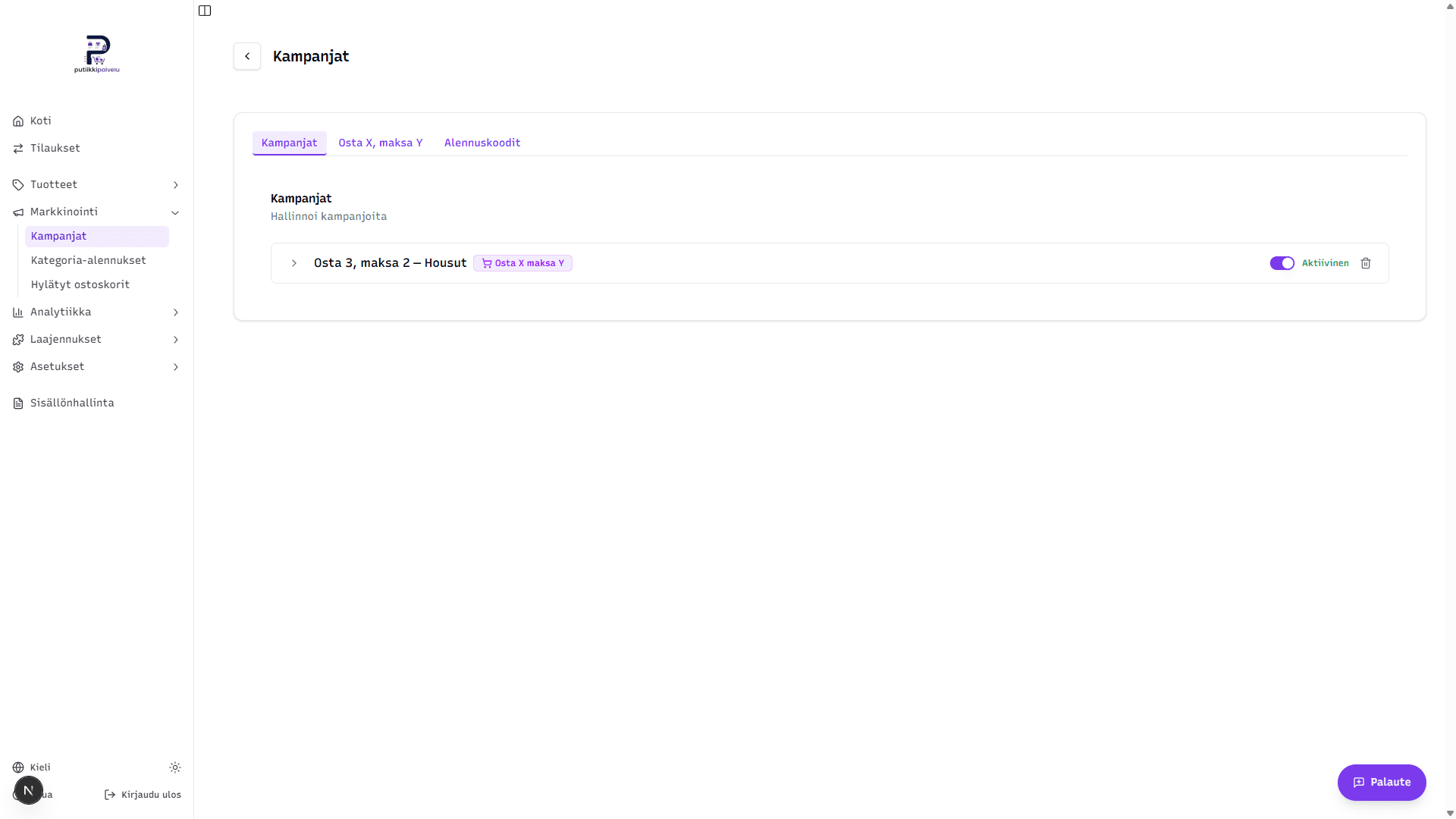
For every row you'll see:
- Name and type badge (e.g. "Buy X Pay Y"). Today the system only supports Buy X, Pay Y campaigns, so the badge is always the same.
- Active toggle — when on, the campaign affects checkout. When off, the campaign stays saved but isn't applied to orders.
- Trash button — deletes the campaign permanently after a confirm dialog.
Click the chevron at the start of the row to expand the details:
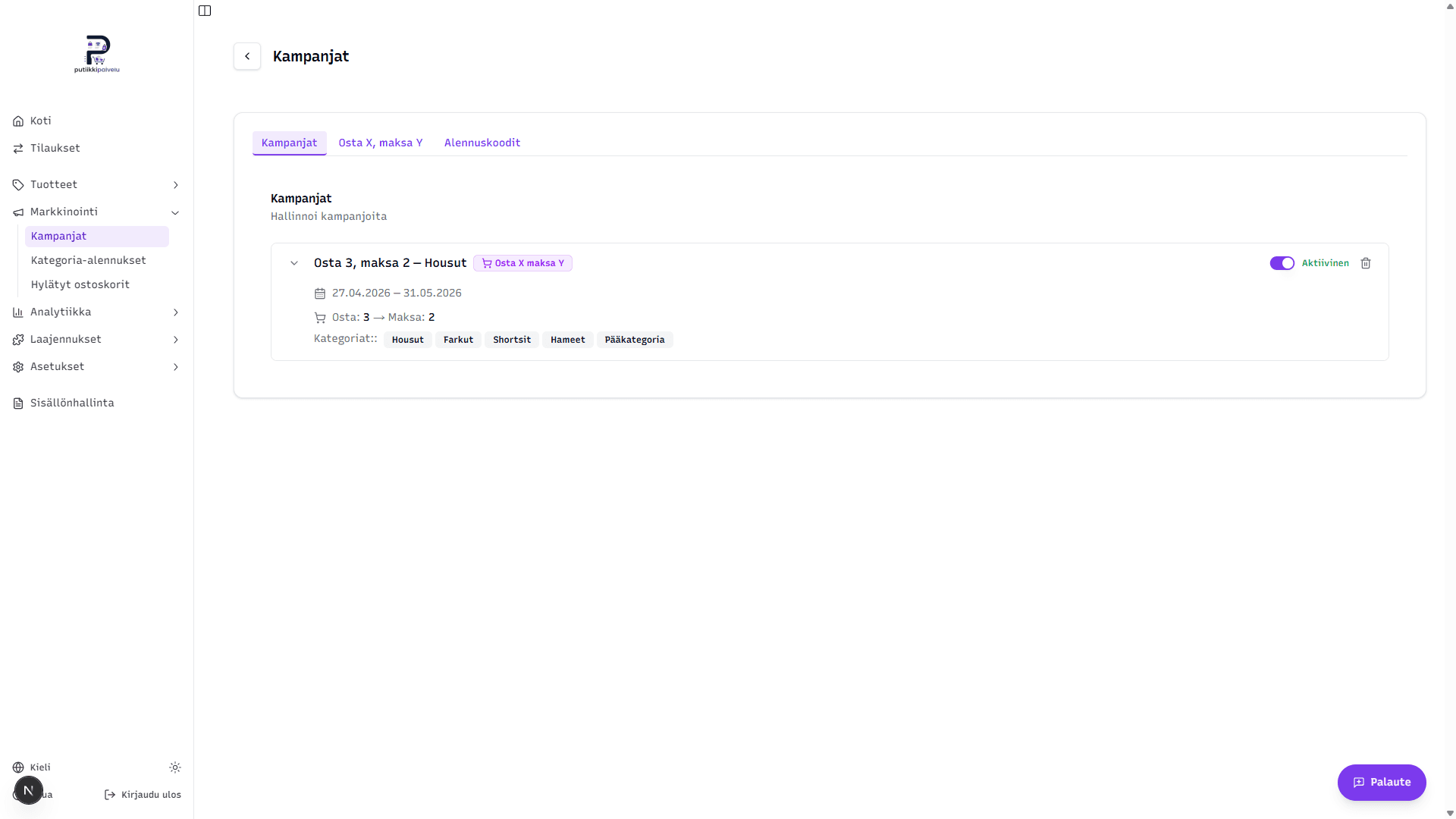
When expanded you'll see the active date range, the buy / pay quantities, and the categories the campaign applies to. The category list contains every category whose products are eligible for the campaign.
Only one Buy X, Pay Y campaign at a time
Each store can have only one Buy X, Pay Y campaign at a time. Saving the form a second time updates the existing campaign with the new data — it doesn't create a separate one.
Tab 2 — Buy X, Pay Y campaign
Buy X, Pay Y is an automatic checkout discount where the cheapest matching item is given for free once the customer reaches a certain quantity. For example, "Buy 3, Pay 2" means the cheapest of three eligible items in the cart is free.
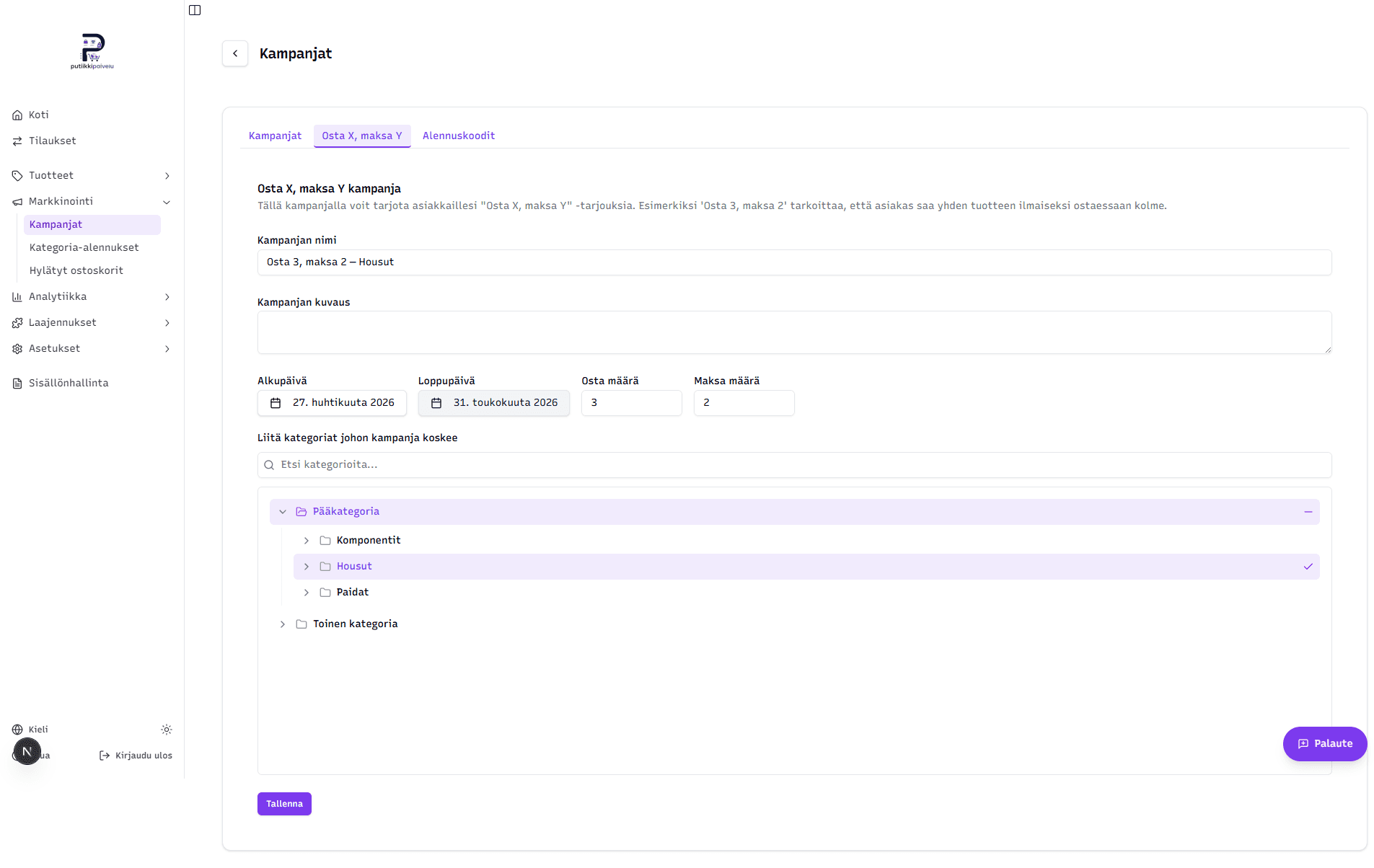
Fields
- Campaign name (required) — the internal name shown in the dashboard list. The form pre-fills "Buy X, Pay Y Campaign" — change it to something descriptive (e.g. "Buy 3, Pay 2 — Trousers").
- Campaign description (optional) — free-text note for your own use.
- Start date (required) — when the campaign starts. It cannot be in the past — the calendar disables past dates and the server enforces the same rule.
- End date (optional) — when the campaign ends. Leave empty if the campaign runs indefinitely. The end date cannot be earlier than the start date.
- Buy quantity (required, at least 1) — how many eligible items in the cart trigger the deal.
- Pay quantity (required, at least 1) — how many of those items the customer actually pays for. The difference Buy − Pay determines how many free items they get (e.g. 3 − 2 = 1 free).
- Applicable categories (at least one required) — the campaign only applies to products that belong to the selected categories.
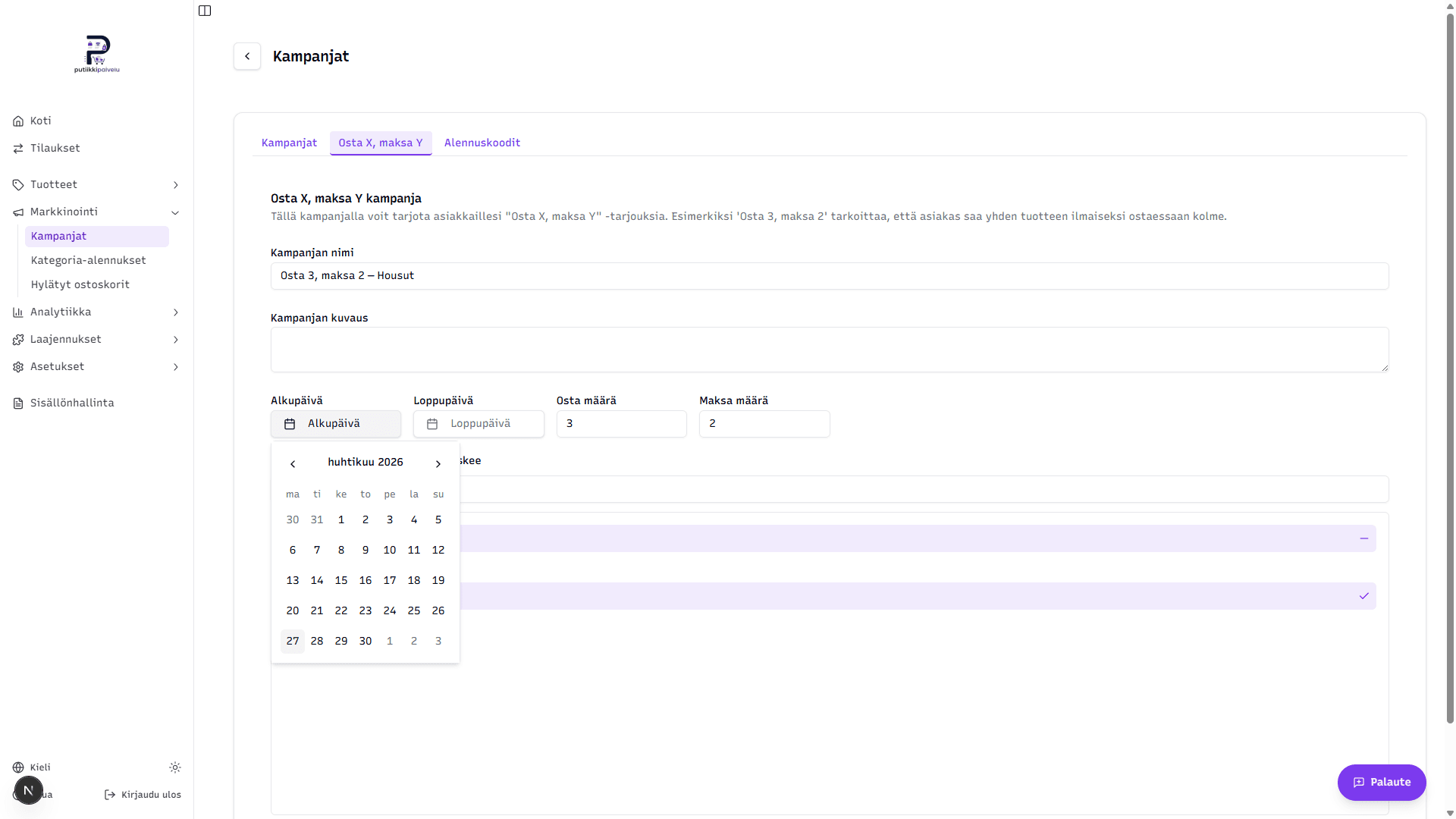
Date picker
Clicking the Start date or End date field opens a Finnish-localised calendar. Past dates are disabled and rendered greyed out.
Picking categories — important
The category picker is a tree. When you click a category, the system automatically also selects:
- All child categories below it
- All parent categories above it
For example, clicking Trousers selects Trousers itself, its children (e.g. Jeans, Shorts, Skirts), and the parent Main category. The parent then appears with a mixed-state indicator (a dash icon) because not all of its descendants are selected.
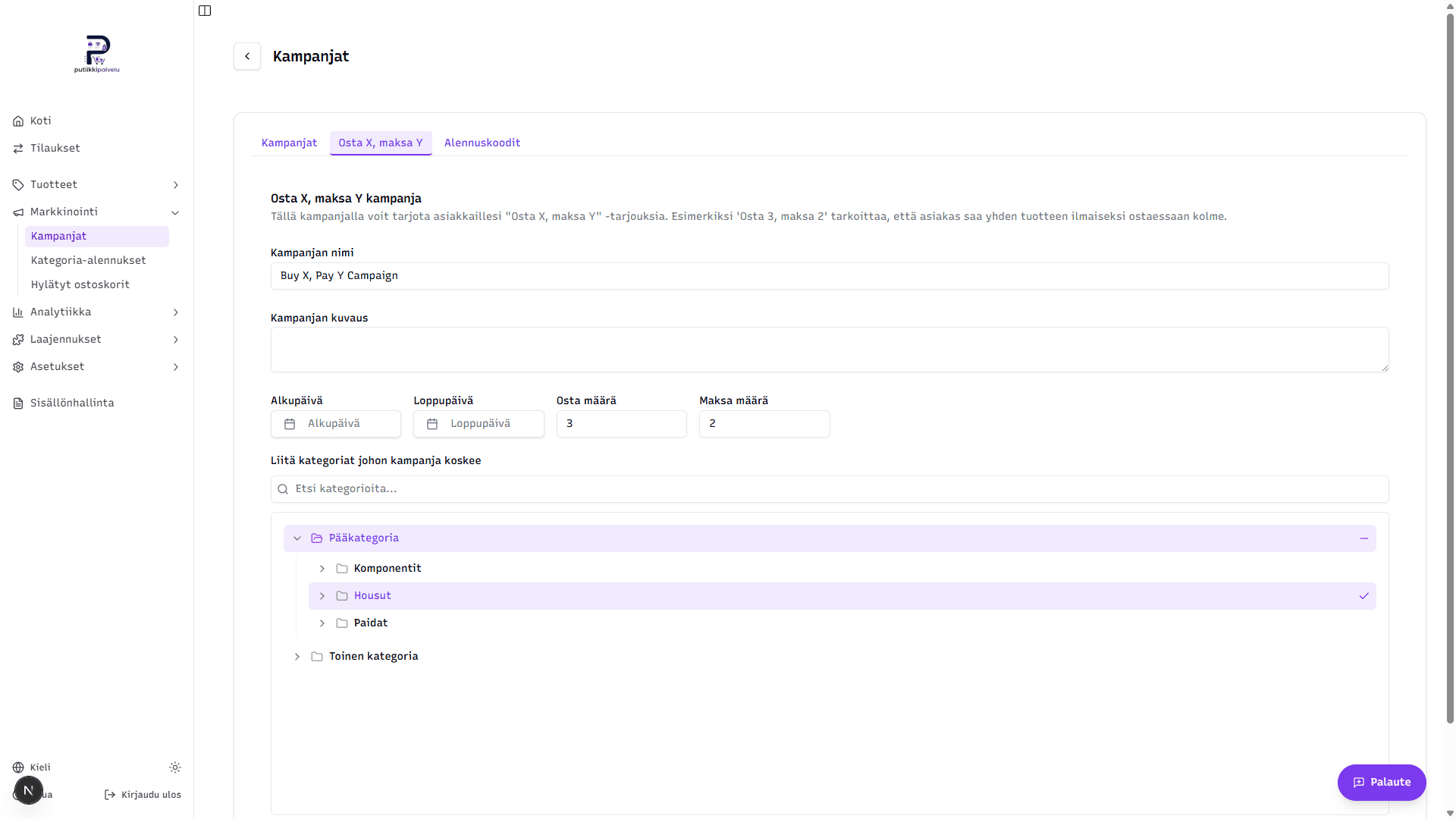
The chevron on the left of each row expands or collapses that branch. The Search categories input expands the tree automatically so search hits stay visible.
Selecting a top-level category includes its entire subtree
Clicking the top-level Main category attaches every product in every descendant category to the campaign — including ones you may not have intended. Prefer picking only the specific categories whose products the campaign should apply to.
Saving
The Save button creates the campaign or updates the existing one. On success a "Campaign saved" toast appears in the bottom-right. The new campaign appears in the Campaigns tab.
How Buy X, Pay Y is applied at checkout
You can skip this section — the campaign just works as long as it's active. But understanding the mechanism helps you explain it to customers:
- The cart's eligible single units are counted — these are individual items in cart whose product belongs to at least one of the campaign's categories.
- If the count is fewer than the buy quantity, the campaign doesn't trigger and checkout proceeds normally.
- If there are enough eligible items, the system sorts them by price and makes the cheapest (Buy − Pay) units free. So a 3-buy / 2-pay campaign makes one cheapest item free.
- At checkout the customer sees two lines for that product: a paid portion at the normal price and a free portion at zero. The free line gets a (Campaign) suffix so the deal is visible on the order confirmation.
The campaign always frees the cheapest eligible items — so the customer naturally benefits most on the lower-priced products. If the same product is in the cart in multiple units, the same logic applies at the unit level.
Tab 3 — Discount codes
A discount code is a code (e.g. KESALE20) the customer enters at checkout to get a discount. Unlike Buy X, Pay Y, a discount code requires the customer to take action — it doesn't activate automatically.
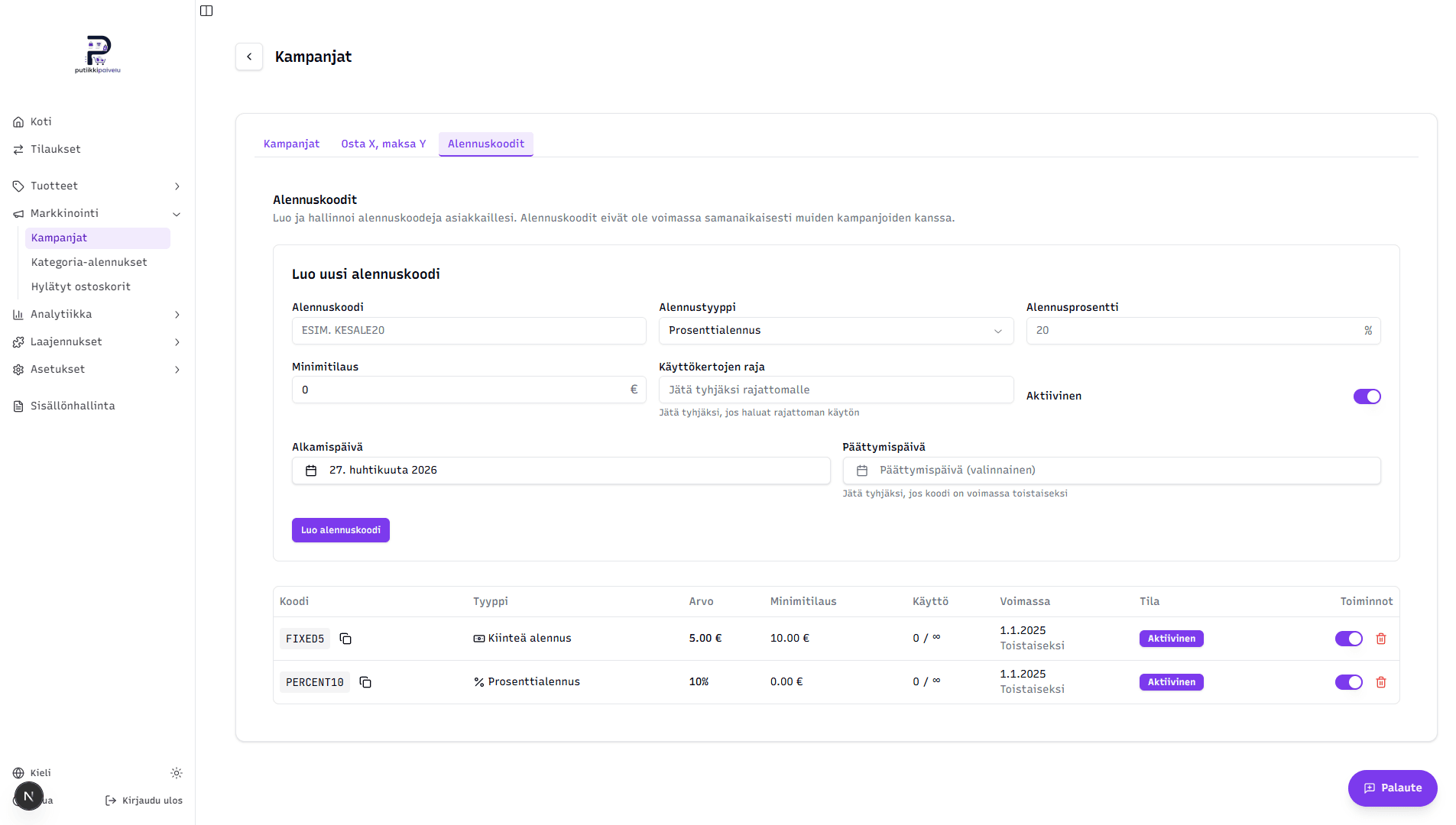
Creating a new code
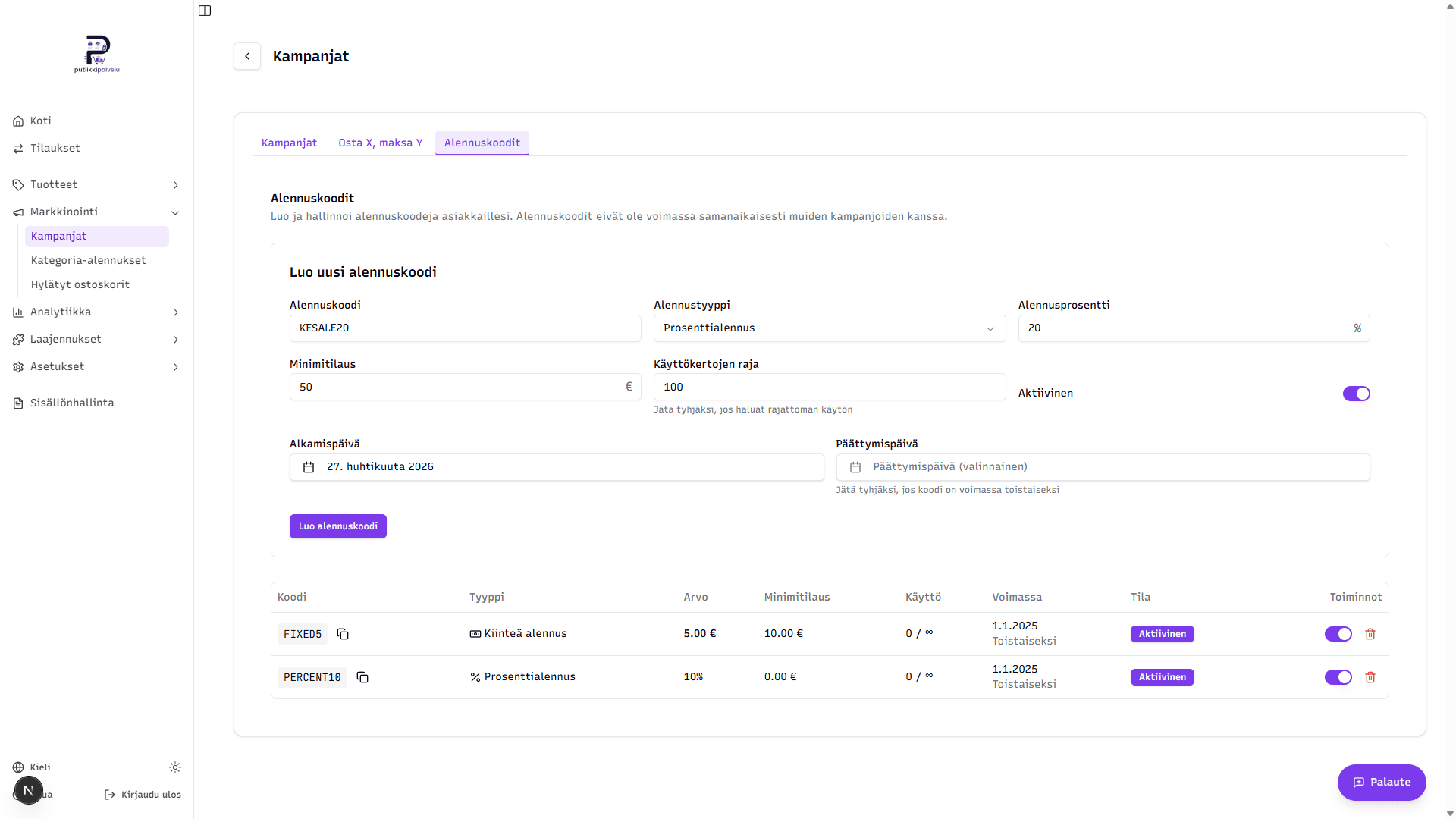
- Code (required) — the code itself. 3–20 characters, only uppercase letters (A–Z) and digits. The form auto-uppercases lowercase letters and strips other characters. Codes are unique per store — the same code can't exist twice.
- Discount type (required) — either Percentage (e.g. 20 %) or Fixed amount (e.g. 5.00 €).
- Value (required) — for percentage, 1–100. For fixed amount, the euro sum. The field shows % or € next to it depending on the type.
- Minimum order (required) — the order subtotal that must be exceeded for the code to apply. Set to 0 if you want the code available on every order.
- Max uses (optional) — the total number of times the code can be redeemed. Leave empty for unlimited uses. Each successful order increments the counter by one.
- Active (toggle) — when off, the code can't be applied even if the date window is current. Useful for temporarily pausing a code without deleting it.
- Start date (required) — when the code becomes valid. Defaults to today.
- End date (optional) — when the code expires. Leave empty for a code that runs indefinitely.
Click Create discount code and the code appears in the table below.
The discount codes table
Columns:
| Column | Contents |
|---|---|
| Code | The code itself plus a copy icon — clicking it copies the code to the clipboard. |
| Type | Percentage or Fixed amount. |
| Value | E.g. 20 % or 5.00 €. |
| Min order | The minimum order amount. 0.00 € means no minimum. |
| Usage | Used / max, e.g. 3 / 100. ∞ means unlimited. |
| Dates | Start and end date; Indefinite if no end date is set. |
| Status | A coloured badge — see below. |
| Actions | Active toggle and delete button. |
Status badge meanings
| Badge | Meaning |
|---|---|
| Active | The code is on and currently within its date window. |
| Inactive | The code's Active toggle is off. |
| Scheduled | The code is on but its start date is still in the future. |
| Expired | The end date has passed. |
| Used up | The max-uses cap has been reached. |
The status is computed from the current time and the code's settings each time the page loads — you can't change it manually. To bring a Expired code back, you'd update its end date (an edit dialog is on the way — for now you'd delete and re-create the code).
How the customer uses a discount code
The customer gets the code through whatever channel you shared it in — email, social media, or even a printed flyer. In the storefront, the code is entered in the cart summary at checkout in a field usually labelled "Discount code" or "Have a discount code?". After clicking Apply, the checkout (Stripe or Paytrail, whichever the store uses) validates the code and deducts the discount from the total automatically.
If the code isn't accepted — e.g. the minimum order isn't met, the code has expired, or the usage cap is reached — the customer sees a clear error message under the field telling them why (e.g. "The minimum order for this discount code is 50.00 €").
Combining a campaign and a discount code
A discount code and a Buy X, Pay Y campaign do not stack. If the customer's cart qualifies for an active Buy X, Pay Y campaign, the entered discount code is automatically removed before they reach checkout.
In practice this means the customer always gets the larger benefit (usually Buy X, Pay Y), but never both at the same time. This rule is also stated in the description text on the Discount codes tab.
Related topics
- Categories — the campaign needs correctly set up categories to target
- Category sales — discount every product in a category at once