

Order details
The individual order page — customer, items, shipment, tickets, downloads, and processing refunds
The individual order page is where you handle the practical work tied to an order: change its status, ship the parcel, refund money, cancel tickets, and view the customer's purchase in detail. You reach it by clicking a customer name or email in the order listing.
Page layout
The page is built from cards. Some are always shown, some only appear when relevant to the order:
- Top bar — back button, order number, status dropdown, Refund button, and Resend order confirmation button
- Customer information — always shown, or a fallback message if the order has no customer data
- Order summary — date, totals with and without VAT, optional discount line
- Shipment summary — shipping address, method, cost, and Shipit actions
- Order items — per-row pricing and any campaign label
- Tickets — only if the order produced purchased tickets
- Digital downloads — only if the order has downloadable files
- Refund history — only if at least one refund has been issued for this order
Top bar — status change and Refund
The Status dropdown changes the order's status the same way as in the order listing — only Paid, Shipped and Completed are clickable. The rest are grayed out and set automatically by payment or refund events.
The red Refund button opens the refund dialog. The button is shown only when:
- The order is backed by a real Stripe, Paytrail or PayPal payment (so the system knows where to issue the refund)
- The order's status is Paid, Shipped, Completed, or Partially refunded
- The status is not Refunded (a fully refunded order can't receive another refund)
If the order is a test order without a payment, or its status doesn't allow refunds, the button isn't shown at all.
Resend order confirmation
The Resend order confirmation button in the top bar re-sends the order confirmation email to whatever address is currently on the order. It's the same confirmation the customer received after payment — items, totals, and the withdrawal link if applicable. Use it when a customer can't find their confirmation, or right after you've corrected the customer's email address (see the Customer information card below).
The button is shown only for paid orders — statuses Paid, Shipped, Completed, Partially refunded, and Refunded. For unpaid orders (Pending, Failed, Cancelled) it isn't shown, because an order confirmation is always a post-payment message — there's no point sending one for an order that was never paid.
The confirmation doesn't include ticket QR codes
For ticket orders, the order confirmation and the ticket email are two different messages. The confirmation acts as a receipt but contains no QR codes. If the customer needs their tickets, use the Resend ticket email button on the Tickets card.
The back arrow returns to the previous page
The arrow in the top-left corner uses your browser's history — usually the order listing, but if you arrived via a direct link (e.g. from a customer email), it goes to whatever you saw before that.
Customer information
The card on the upper-left shows the customer's first and last name, email, and phone number as they were entered at checkout. The email address is edited right here on this card (see below); the name, phone number and shipping address are corrected from the pencil button on the Shipment summary card (see Correcting the recipient details). If the order doesn't have customer data (rare; happens with failed checkouts), the card reads "Customer data not available".
Editing the email address
Next to the email there's a small pencil button. Clicking it turns the address into an editable field with save and cancel buttons:
- Enter or the green check saves the change
- Esc or the gray cross cancels
Use this when a customer mistyped their email at checkout and hasn't received their order confirmation or tickets. Once you've corrected the address, resend the messages to the right place with the Resend order confirmation button in the top bar — and, for ticket orders, the Resend ticket email button on the Tickets card. Both buttons always use whatever email is on the order at that moment, so the corrected address takes effect immediately.
Name, phone and address are corrected from the other card
The email is the only field edited on this card, because it is the one tied to sending messages. The first/last name, phone number and shipping address are corrected together from the pencil button on the Shipment summary card — they are the same details that go on the shipping label (see Correcting the recipient details).
Order summary
The order summary tells you the financial side of the order at a glance:
| Row | Contents |
|---|---|
| Order date | The date the order was created |
| Total (excl. VAT) | Sum before VAT, including shipping, before any discount |
| VAT amount | The VAT portion, including shipping, before any discount |
| Discount (CODE) | Shown only if the customer used a discount code — amount and code name |
| Total (incl. VAT) | Final amount actually charged, with discount and shipping included |
A discount code does not change the unit prices on the line items — the discount appears as its own separate row. The grand total reflects it accordingly.
Shipment summary
The second card on the lower-left collects everything related to delivery:
- Shipping address — the postal address the customer provided at checkout; the pencil button next to the heading lets you correct the recipient details (see below)
- Shipment method — the method picked for this order (e.g. Standard Mail, Express, Digital delivery)
- Shipping cost — VAT-inclusive total, with a sub-line showing price excl. VAT and the VAT %
- Tracking number — only if a shipment was created and the carrier's API returned a tracking code
- Freight documents — only if a freight document has been generated; each is a clickable link that opens the PDF in a new tab
Correcting the recipient details
If the customer mistyped the street, postal code, phone number or their name at checkout, click the pencil button next to the Shipping address heading. The Edit recipient details dialog has six fields: first name, last name, phone, street address, postal code and city. Every field is required and the postal code must be five digits — the same rules as at checkout.
The change applies to this order only: it does not touch the customer's account or their other orders. The corrected details show on both cards immediately, and everything read from the order after that — a new shipping label, a resent order confirmation, the CSV export — uses the corrected details.
If a shipping label already exists
The dialog shows a yellow notice when a label has already been created for the order. The old label was printed with the old details and saving does not change it — re-create the label after saving (see Re-creating the shipping label) so the carrier gets the corrected details.
Creating a shipment with Shipit and Matkahuolto
If the order's shipment method uses the Shipit or Matkahuolto integration, the bottom of the card shows an Actions section whose contents depend on the method's shipment automation setting:
- Auto-create on payment — the shipment was created automatically once the payment confirmed, and the label link and tracking number show on the card right away. If automatic creation failed (there is no label), the card shows a Create shipment button so you can create the label yourself — if it fails again, the notice shows the reason the carrier returned.
- Create on label download — the card has a Create shipment button. Clicking it asks Shipit to create the shipment and opens the freight-document PDF in a new tab.
- Manual — for Shipit shipments the Create shipment button opens a separate dialog where you fill in the parcel dimensions and details by hand and create the shipment from there. Matkahuolto does not ask for parcel dimensions, so its Manual mode works like Create on label download.
Once the shipment exists, the Create shipment button turns into a freight-document link, and the Actions section gains a Re-create shipping label button (see below). Your own manual shipping methods don't have an Actions section.
Creating a shipment does not change the order status — the order stays Paid until you mark it Shipped yourself from the status menu or the bulk action on the order list, once the parcel has actually left. The same applies to shipments created automatically on payment.
Re-creating the shipping label
When a label already exists but the recipient details have changed, click Re-create shipping label in the Actions section. The button opens a confirmation dialog showing the old label's tracking number, and after you confirm, a new label is bought from the carrier with the order's current recipient details. The new PDF and tracking number replace the old ones on the card.
What happens to the old label depends on the carrier:
- Matkahuolto — the old shipment is cancelled at Matkahuolto automatically before the new one is created.
- Shipit — Shipit's API has no cancellation, so the old label is simply left unused. Shipit refunds an unused pickup-point parcel to your Shipit wallet automatically; for other services (for example pickup-based deliveries) request the refund from Shipit support.
Do not use the old label
Once the new label exists, do not print or use the old one — it would route the parcel to the old address. If the parcel has already been handed to the carrier, do not re-create the label at all; ask the carrier to correct the address instead. A new label does not redirect a parcel that is already on its way — it creates a second, chargeable shipment.
Order items
The card on the lower-right lists the order's line items. Each product row shows:
- Small product image on the left (if the product has images)
- Product name — a link that opens the product's edit page
- Variation name and value — e.g. Size: M if it's a variation
- Unit price × quantity total — VAT-inclusive on the right
- Unit price excl. VAT + VAT % — as a small helper line below
Campaign label
If the order activated a Buy X Pay Y campaign (e.g. Buy 3, pay 2), a small green line appears at the top of the card reading "Buy X Pay Y campaign: [name of campaign]". The campaign's effect is already baked into the customer's final total — individual row prices aren't altered.
Item names are a snapshot from purchase time
Each row shows the name and price as they were when the order was placed — later changes to the product (e.g. renaming or a price hike) don't affect this order. This is intentional, so historical orders stay exactly as they were sold.
Tickets
The tickets card appears below the order items only if the order has purchased tickets — i.e. the system has generated the unique PurchasedTicket rows after payment. One quantity unit of a ticket product = one ticket row in the card.
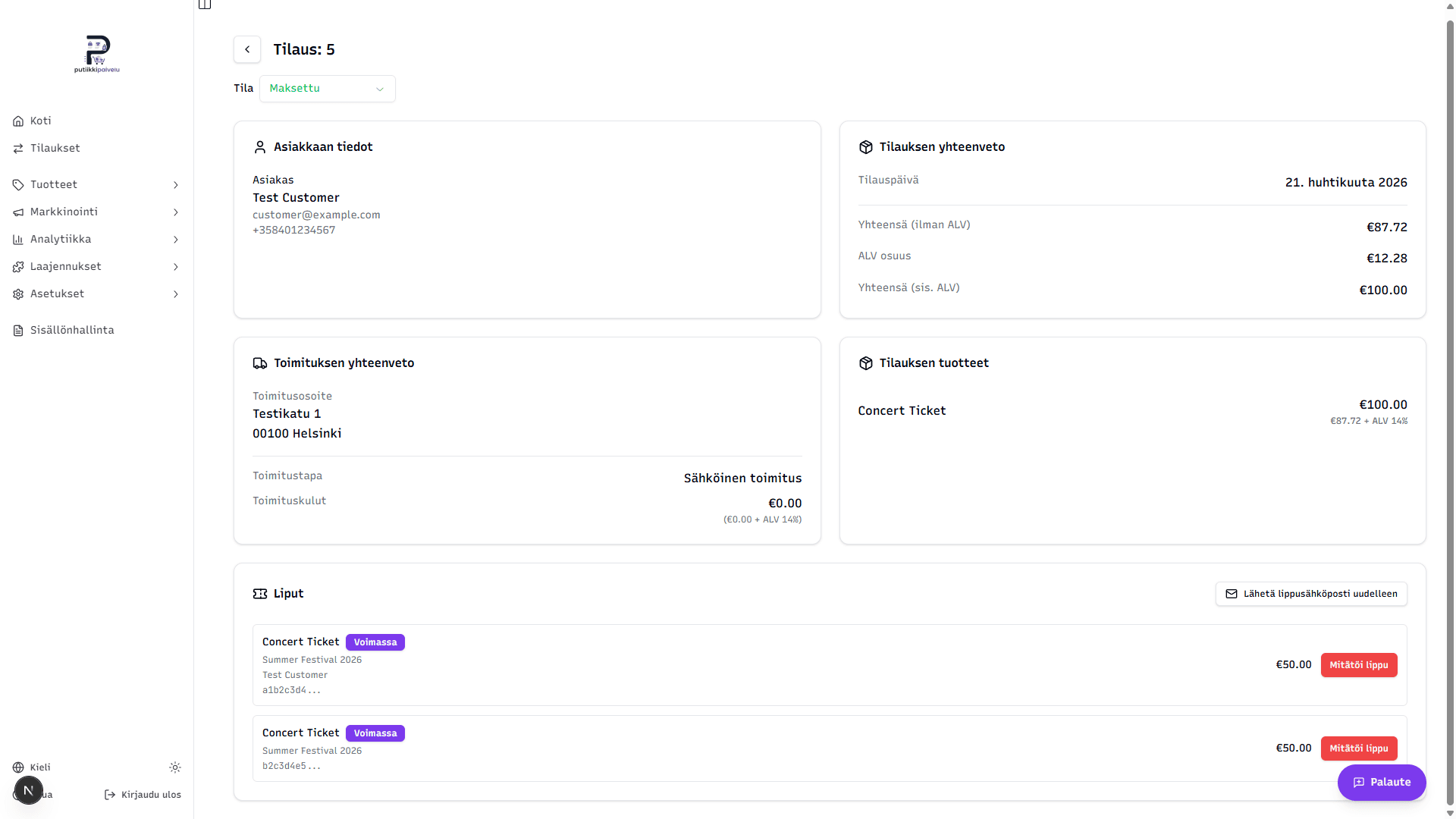
Each row shows:
- Product name — e.g. Concert Ticket
- Status badge — Valid, Used, Cancelled or Expired — the color changes with the status
- Event name — in smaller text, if the ticket is linked to an event
- Ticket holder name — only if the ticket required a name to be collected (the "Require holder name" setting on the ticket product)
- Code prefix — the first eight characters of the ticket's unique code, e.g. a1b2c3d4...
- Ticket price and an action button
Cancel ticket / Reactivate ticket
A button appears next to a ticket only if its status is Valid or Cancelled. Used or expired tickets can't be flipped.
- Valid → red Cancel ticket button → confirmation dialog → status becomes Cancelled. A cancelled ticket no longer works in the scanner.
- Cancelled → outline Reactivate ticket button → confirmation dialog → status returns to Valid.
The confirmation dialog prevents you from cancelling a ticket by accident.
Resend ticket email
The Resend ticket email button in the top-right of the card sends the same QR-coded email again to the customer's address. Ticket codes are not regenerated — they're identical to the original email, so any prints the customer already has still work. Use this when a customer can't find the email or asks for the tickets again.
Refunds don't auto-cancel tickets
If you refund the price of a ticket, the ticket's status stays Valid — meaning the QR code would still work at the gate. If you want the refunded ticket to stop working, cancel it manually from this card after the refund.
Digital downloads
The digital downloads card appears only if the order's items include downloadable files (e.g. e-books, images, software).
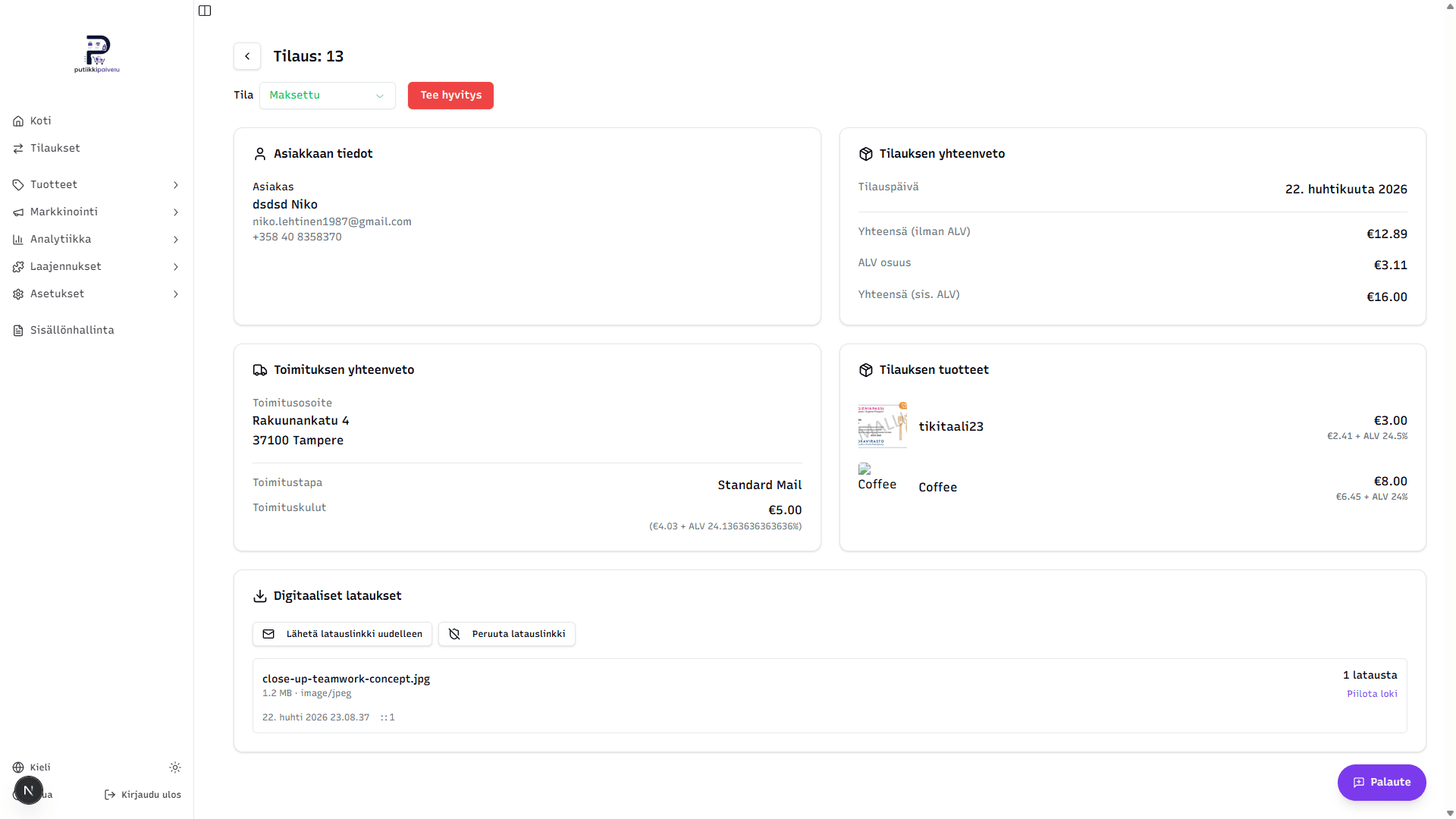
File rows
Each downloadable file gets its own row showing:
- File name
- Size and MIME type — e.g. 1.2 MB · image/jpeg
- Downloads — how many times the customer has downloaded the file, plus the order's cap if one was set ("3 / 5 downloads"). With no cap, just the count.
- Show log — clicking it reveals the date and IP of every download, up to the last 50. The same link toggles to Hide log when expanded.
Resend download email
This button revokes the current download link, generates a fresh one, and sends it inside a new order confirmation email to the customer. Old links in earlier emails stop working immediately — use this when the customer can't find the email or the link has expired.
Revoke download link
A red button shown only if the order has an active download link. It revokes every download link tied to the order, making them stop working.
A logged-in customer keeps access to their order
Revoke download link only closes the email-based links. If the customer is signed in to your store, they can still download the files from their own order page. This is intentional — a logged-in customer's access belongs to their account, not to a specific email link.
Refunds don't revoke download links
Issuing a refund does not automatically revoke download links — that's always a manual decision. Click Revoke download link after the refund if you want to block further downloads.
Issuing refunds
The refund dialog opens from the Refund button. Inside it, you can return one or more items, the shipping cost, or any free-form amount you choose to the customer.
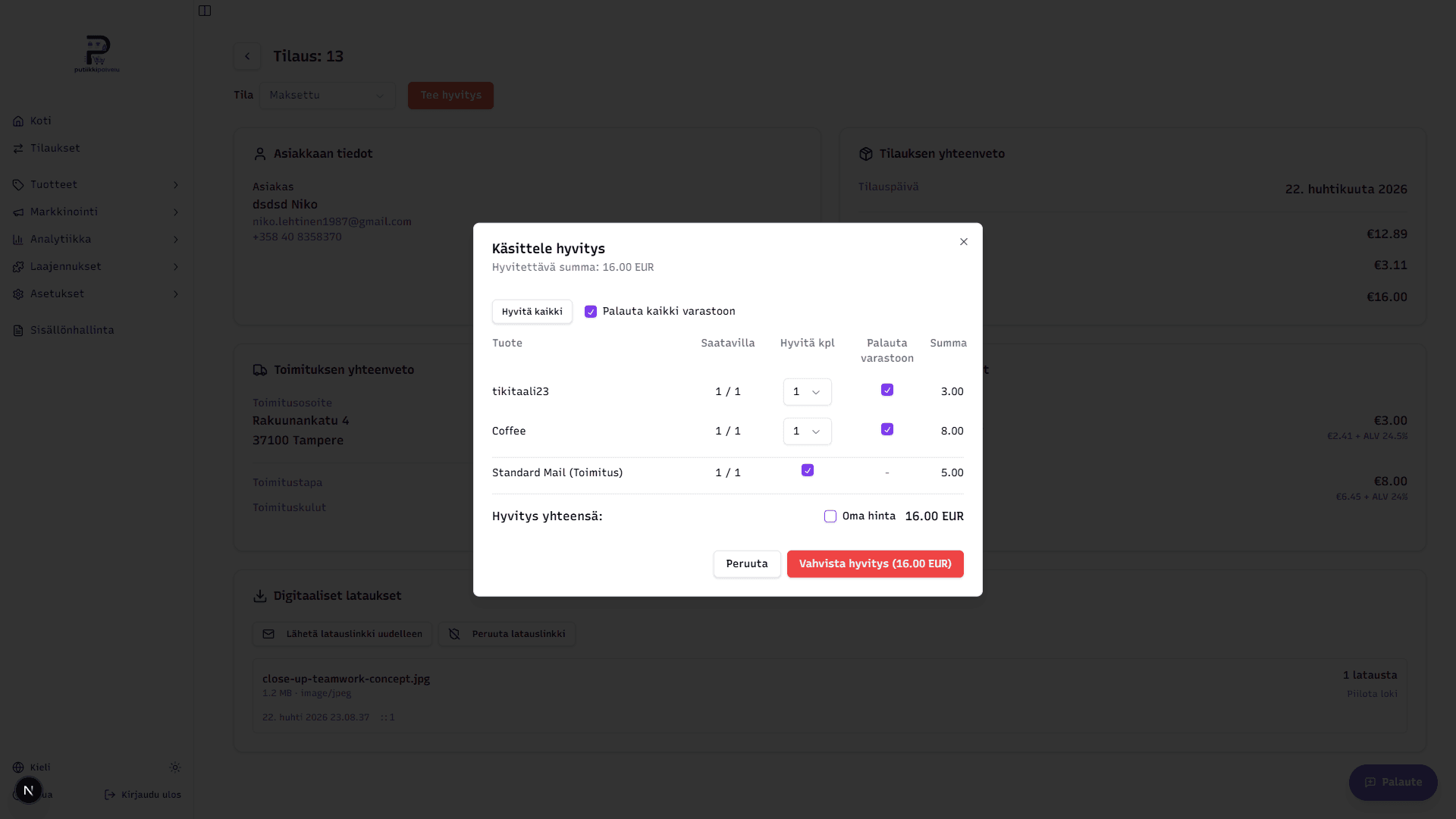
Dialog layout
The header shows the Remaining refundable amount — this is the order's total minus any already-succeeded refunds minus any pending refunds. You can't exceed this amount.
Below the header are quick actions and a table:
| Column | Contents |
|---|---|
| Item | Row name (shipping cost shows up as its own row labeled "... (Shipping)") |
| Available | Remaining / original — e.g. 2 / 3 means 2 of this item are still refundable |
| Refund qty | How many of this item to refund (the shipping row is a single checkbox — either you refund it or you don't) |
| Restock | If ticked, the item returns to inventory once the refund succeeds. The shipping row has no option here, as shipping isn't stockable. |
| Amount | This row's contribution to the refund |
Refund all
The Refund all button at the top fills in the table quickly — it picks every available quantity from each row and includes the shipping cost (if it hasn't been refunded yet). It also ticks the Restock all checkbox. Use this when a customer cancels the entire order.
Restock all
A single shared checkbox that toggles the Restock mark on every selected row at once. With this ticked, every selected unit returns to inventory after the refund succeeds. You can also override this row by row — if a unit was damaged or destroyed, leave its row unchecked even if the others are restocked.
Custom price
The Custom price checkbox to the right of Refund total lets you enter a free-form euro amount, overriding the item-level totals (the rows then appear struck through). Use this for cases like:
- Goodwill refunds for complaints, where nothing physical is returned
- Refunding part of an item's price instead of the full unit
The maximum is shown in the Remaining refundable amount in the dialog header — typing more than that blocks submission.
What happens when you click "Confirm refund"
- Putiikkipalvelu asks the payment provider (Stripe, Paytrail or PayPal) to issue the refund — this is a money transfer that usually appears on the customer's card, bank statement or PayPal account within a few business days.
- The system records the refund on the Refund history card with status Pending.
- The payment provider confirms the refund in the background — Stripe and Paytrail via a webhook usually within seconds to minutes, PayPal typically instantly.
- Once confirmed, the system:
- Updates the refund status to Succeeded
- Updates the order status to Partially refunded or Refunded depending on whether the refund covered the full amount
- Restocks any units you ticked for restocking
- Sends the customer an automatic refund confirmation email
So you don't need to send any email yourself — the webhook handles it.
No new refunds while one is pending
While any refund is in Pending status, the dialog blocks new refunds. Wait for the previous one to confirm to Succeeded before issuing another.
Shipping refunds once
You can refund the shipping cost only once. If you've already refunded shipping earlier, that row appears locked and Available reads 0 / 1.
PayPal refunds have a time limit
A PayPal payment can be refunded from the dashboard for 180 days from the payment date. After that, the dialog shows instructions for returning the money manually through your PayPal account — see Setting up PayPal payments.
Refund history
The refund history card appears only when the order has had at least one refund. It lists every refund newest first.
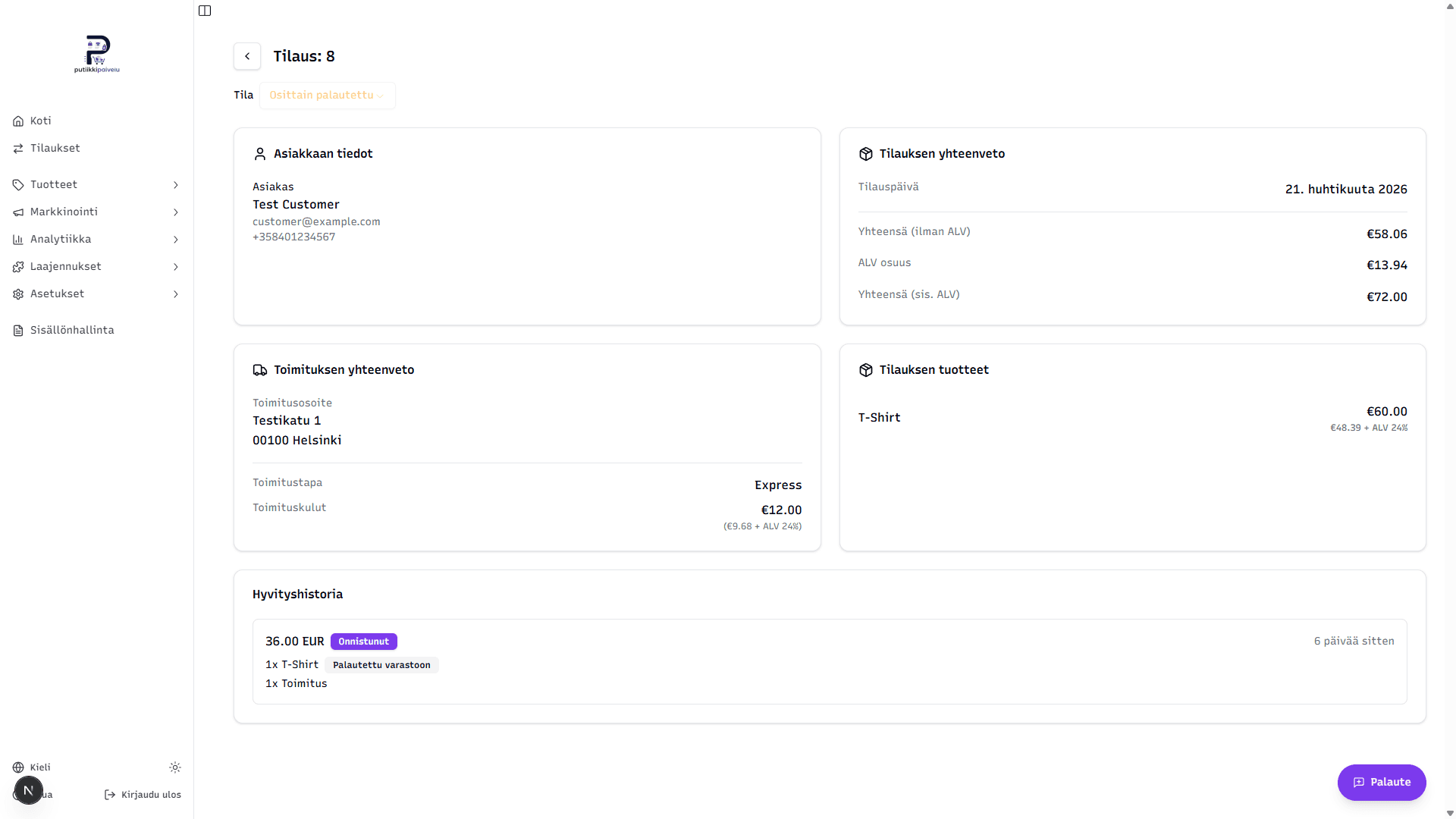
Each refund appears in its own bordered box showing:
- Total refund amount in euros
- Status badge — Succeeded, Pending or Failed
- Time stamp — e.g. 6 days ago
- Refunded rows — qty × item name, plus a separate Shipping row if it was included
- Restocked badge — appears next to a single row's quantities if those units were returned to inventory (only on Succeeded refunds)
- Payment provider identifier — a small technical-id row, shown on Stripe and PayPal payments
The refund history is read-only — an individual refund can't be cancelled or edited after the fact. If you need to correct a mistake, issue another refund (to "undo" a refund you'd need to manually charge the customer again from the payment provider's own dashboard).
What a refund does NOT do
A refund handles the money transfer, optional restock, and confirmation email — but on purpose it doesn't touch every related object:
- Tickets stay valid — refunding a ticket product doesn't invalidate the QR code; cancel the ticket separately from the Tickets section
- Download links stay live — refunding a digital product doesn't invalidate the customer's download link; click Revoke download link in the Digital downloads section if you need to block them
- Shipments aren't recalled — if you've already created a Shipit shipment and it's on its way, the refund doesn't stop it; you'll need to coordinate the recall with the carrier separately
These are intentional gaps, because refunds are often issued for things like late delivery — the customer still gets to use the product or ticket. Lock things down manually only when you really want to block use.
Related topics
- Order listing — every order in your store on a single page
- Ticket sales — creating ticket products and managing events
- Digital products — adding downloadable files to products