

Product feed
Export your products to Google Shopping and Facebook/Instagram automatically with a product feed — one link that keeps itself up to date.
A product feed is an automatically updating list of your store's products that you give to an advertising or sales platform as a single web address. The platform fetches it regularly, so when you add a product or change a price, the feed updates itself.
Before you start
- Storefront URL set under Settings → Store settings (required — product links are built from it)
- Google Merchant Center account at merchants.google.com (free)
Google Shopping
1. Enable the Google feed
- In the dashboard, go to Plugins → Product feeds
- Turn on the Google Shopping feed
- Copy the feed URL that appears
2. Add the feed to Google Merchant Center
- Sign in at merchants.google.com
- Go to Products → Data sources (or click Add products)
- Choose Add products from a file, then Add a link to the file
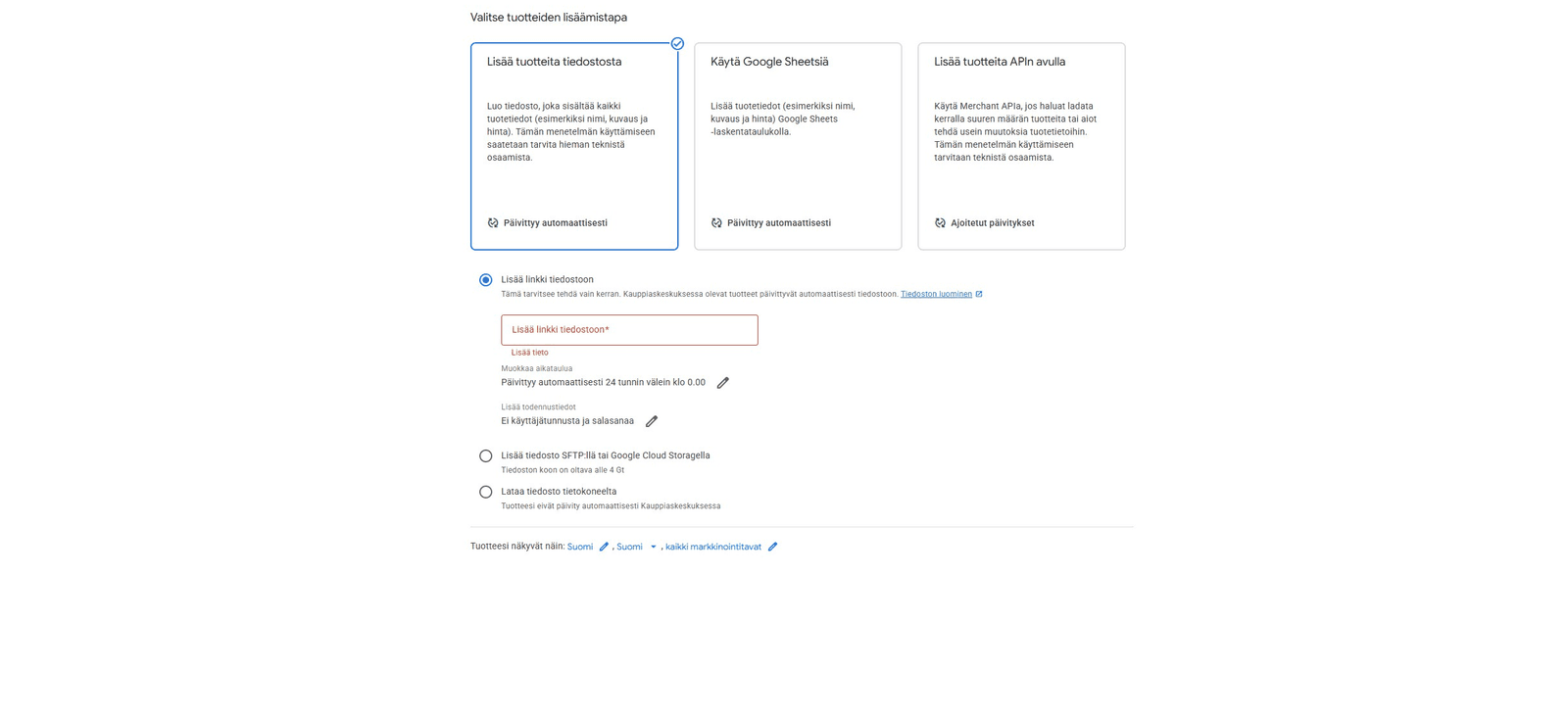
- Paste the feed URL into the field
- Check the settings:
- Country: Finland · Language: Finnish · Currency: EUR
- Authentication: No username and password (the feed is public)
- Save and click Fetch now
After a few minutes you'll see how many products were processed. That's it — the feed updates automatically from here on.
Always choose "Add a link to the file"
Don't choose Via API (meant for programming) or Upload a file from your computer (doesn't update automatically).
Facebook and Instagram (Meta)
1. Enable the Meta feed
- In the dashboard, go to Plugins → Product feeds
- Turn on the Meta feed (Facebook & Instagram)
- Copy the feed URL that appears
2. Add the feed to Meta Commerce Manager
- Open Commerce Manager and select your catalog
- In the left menu go to Data sources → + Add → Data feed
- Choose "Use a URL or Google Sheets"
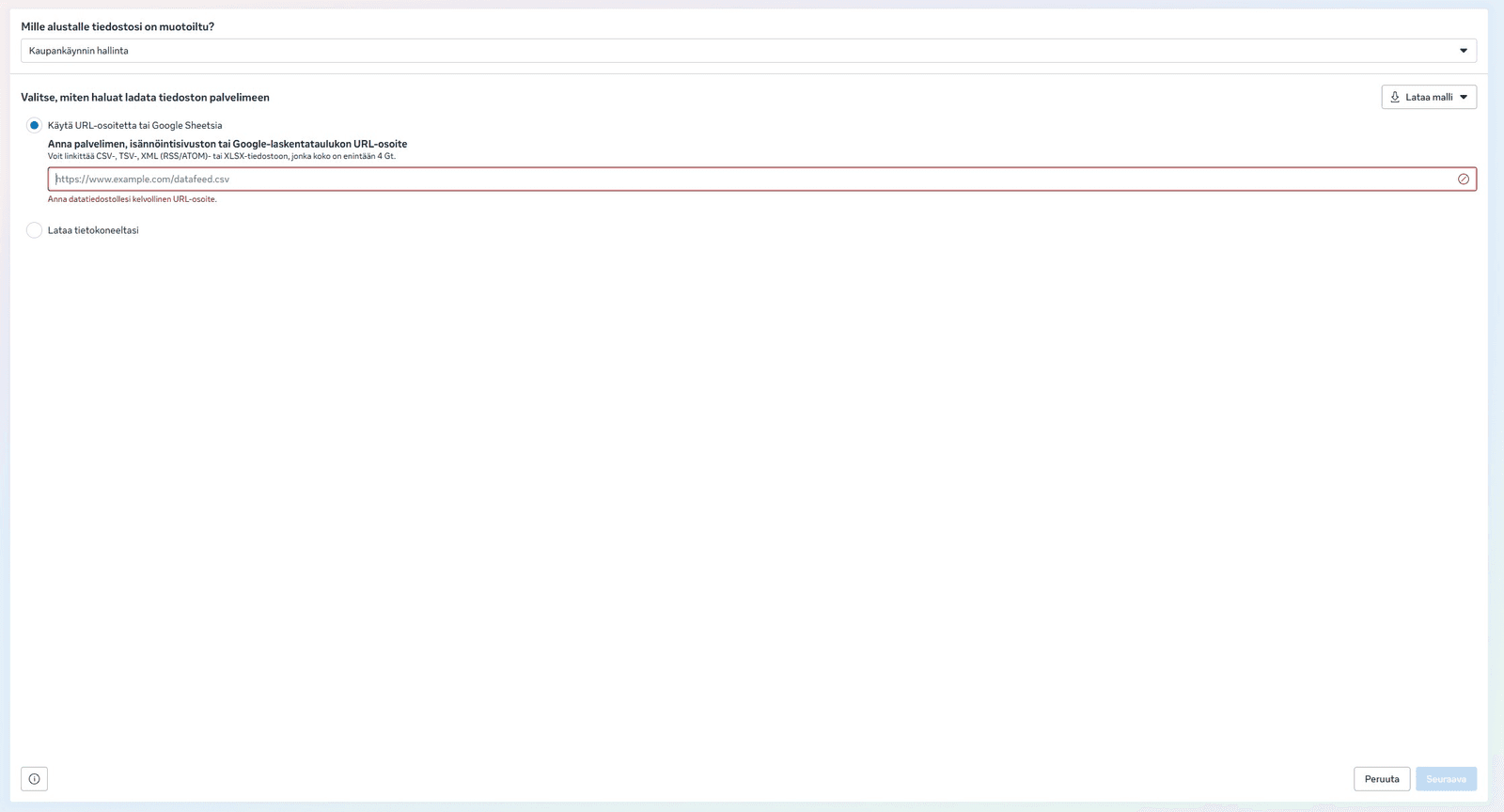
- Paste the feed URL into the field and click Next
- Choose a fetch frequency (e.g. daily) and name the feed → Save
After a few minutes you'll see how many products were imported under your catalog's Products.
XML works
Even though the field's example shows a .csv extension, Meta also reads our XML (RSS) feed — it's listed in the field's help text ("XML (RSS/ATOM)").